


Laptop Reivew:Lenovo P16v AI 2026 Intel Core Ultra7 251HX 32G 1T RTX Pro 2000 2.5K 240Hz,¥22,999.
Buying Advice
Hi, I'm Vitamin P — over a hundred laptops reviewed. Welcome to my channel!
Lenovo's brand-new flagship workstation laptop, the P16v 2026, has hit the market. It's an isekai hero reborn into the workstation world, swinging a raging greatsword of performance, charging into the castle in a suit of sleek black armor, then flipping up its visor to shout: "Who's next?"
This is a new mobile workstation but not in ThinkPad series, using the a similar name: Lenovo P16v 2026 —— A high-quality product made to meet the high-performance demands of the mainland China market.
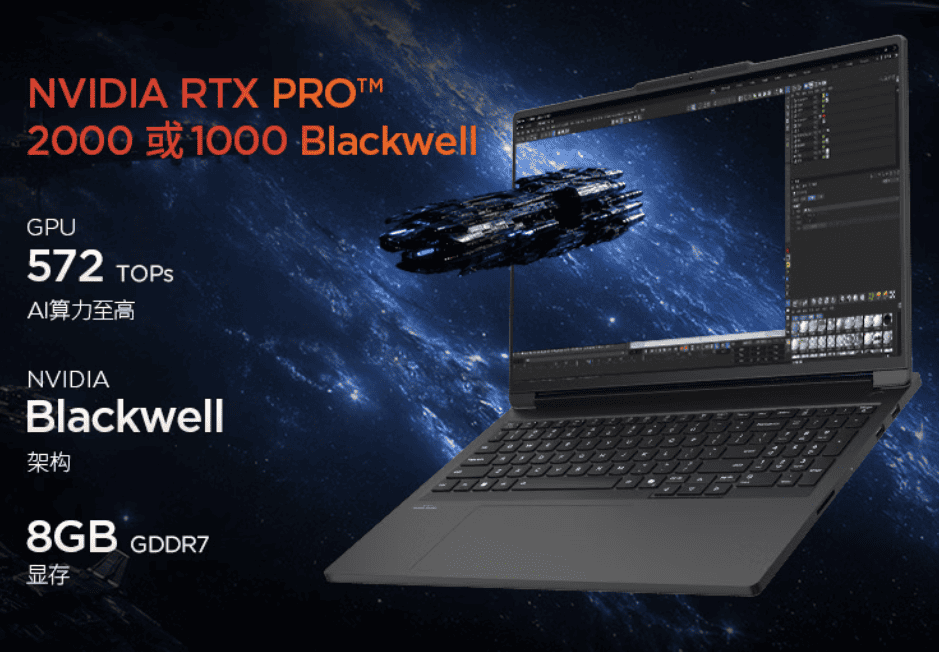
It's basically a sworn brother to the Lenovo ThinkBook 16P, but aimed squarely at designers and engineers — a professional workstation packing an RTX Pro discrete GPU.
The Lenovo P16v is a machine surgically aimed at high-performance engineers: a "high-power mobile graphics AI workstation" built to deliver real output for heavy engineering projects and research workloads.
Most workstations on the market today play it safe. The P16v breaks the mold with an aggressive thermal design, and its most distinctive choice is an aggressive HX-series processor.
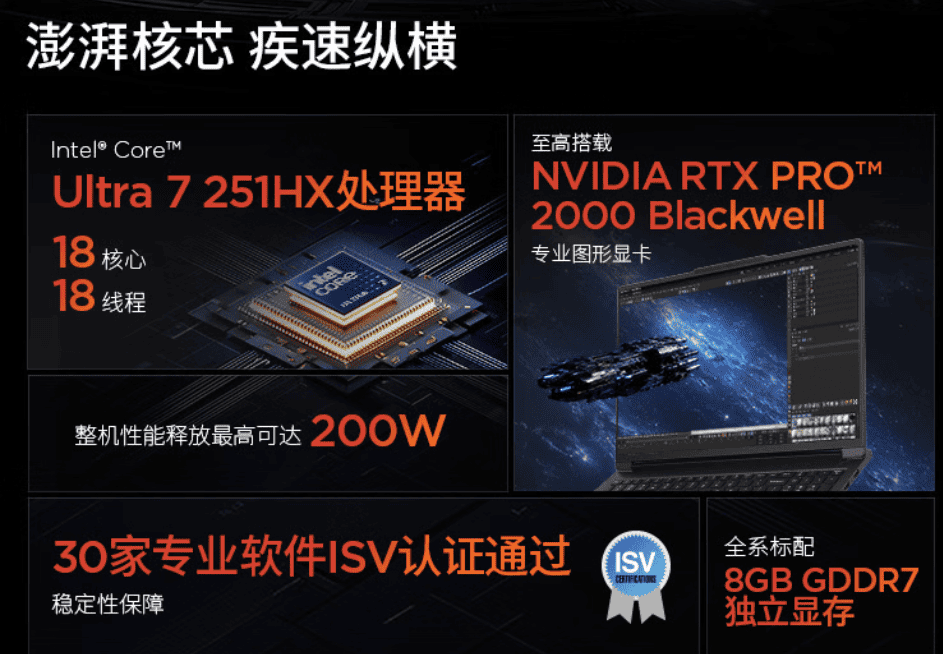
Powered by the Ultra 7 251HX, given enough power headroom, this chip will comfortably outclass rivals that only ship the Core Ultra 200H in multi-threaded workloads — no contest.
If CPU performance and ISV-certified professional graphics matter to you, the Lenovo P16v 2026 is among the best workstations on the market.
China-market configs currently come in two GPU tiers: the RTX Pro 1000 and the RTX Pro 2000, both with 8GB of VRAM.
If your work is mechanical design or CAD/CAE simulation — mostly CPU-bound with the GPU as a supporting player — the RTX Pro 1000 will do.
If your workflow leans on the GPU — local inference, parallel compute, or GPU-dependent rendering — the RTX Pro 2000's premium is worth it. CUDA cores jump from 2560 to 3328 (+30%), meaning genuinely better GPU compute.
The launch price looks reasonable. Comparable workstations from certain rivals run ¥20,000 or more, so Lenovo's pricing for the P16v sits in the normal band — and the launch deal is genuinely generous. Buy during the launch window and you get a free ThinkPlus 1TB portable SSD plus five years of worry-free service. In a year when storage prices keep climbing, that's a full-stack bundle.
As a business workstation, the P16v 2026 has passed 12 categories and 26 sub-items of MIL-STD-810H military testing, and ships with two years of unlimited on-site service in mainland China plus one year of accidental-damage protection.
So what does this P16v 2026 actually deliver?
Let's find out.
Configuration Overview
The unit we got for this hands-on is the 251HX paired with the RTX Pro 2000.
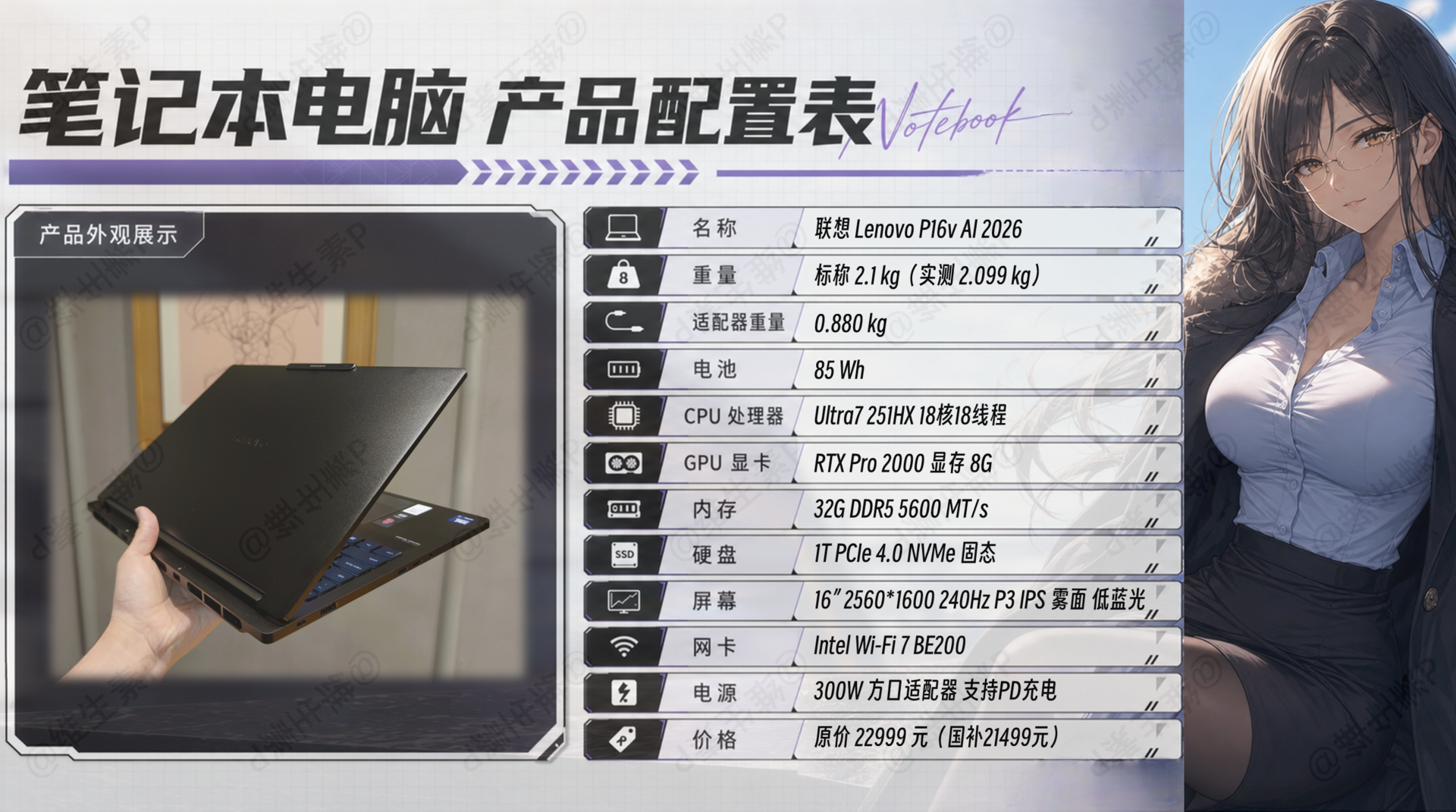
The China-market version's core spec is a U7 251HX standard-voltage processor paired with an RTX Pro 2000 Blackwell 8GB GDDR7 professional card.
Taken together, this spec is clearly not aimed at consumers but at engineering and research scenarios that demand ISV certification and professional driver tuning. And because it's a mobile workstation, weight is kept in check for people who need to carry it around.
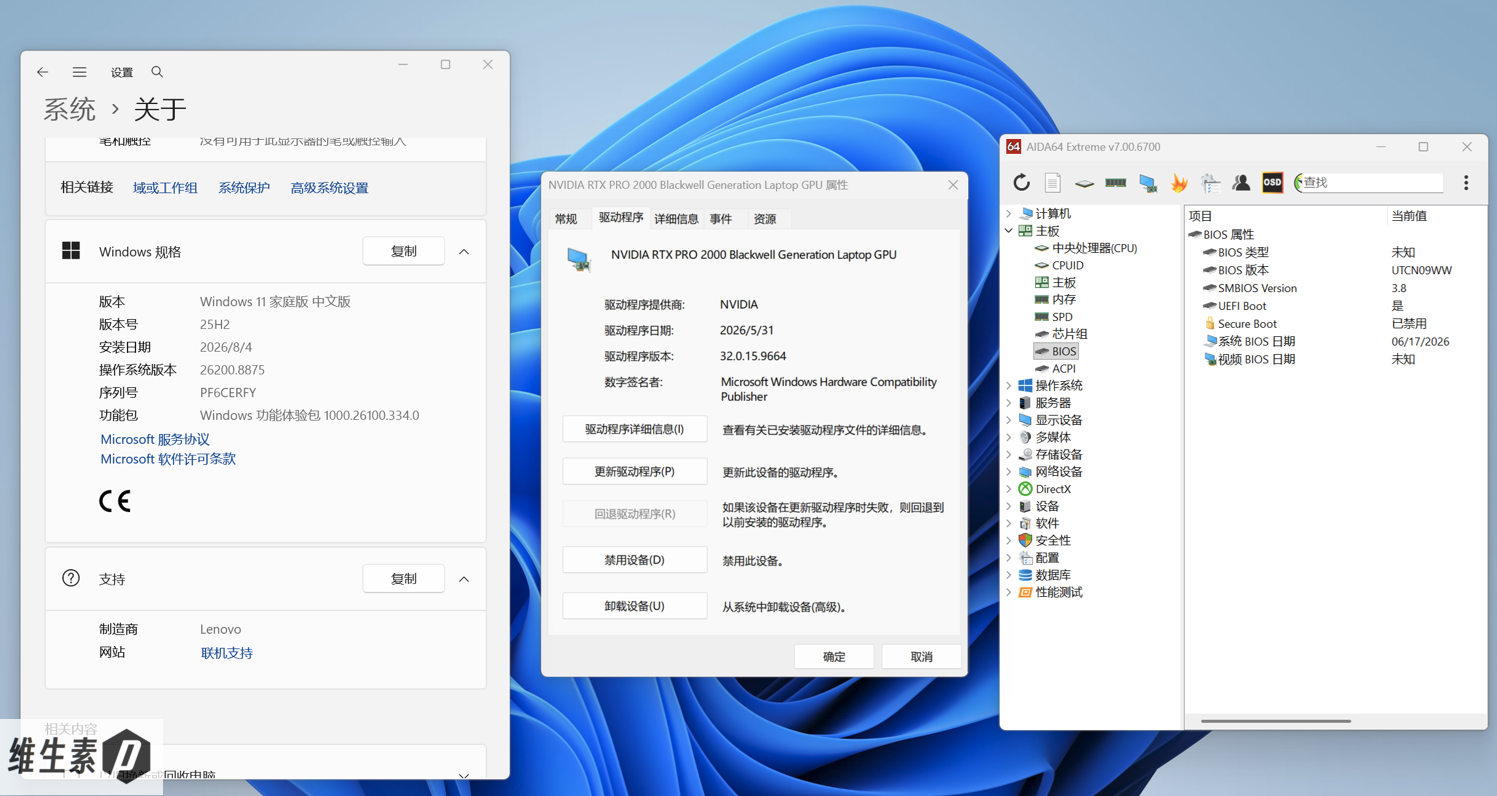
This review was conducted in August 2026 on Windows 11 25H2, BIOS UTCN09WW 3.8, and discrete-GPU driver 32.0.15.9664.
Design & Ports
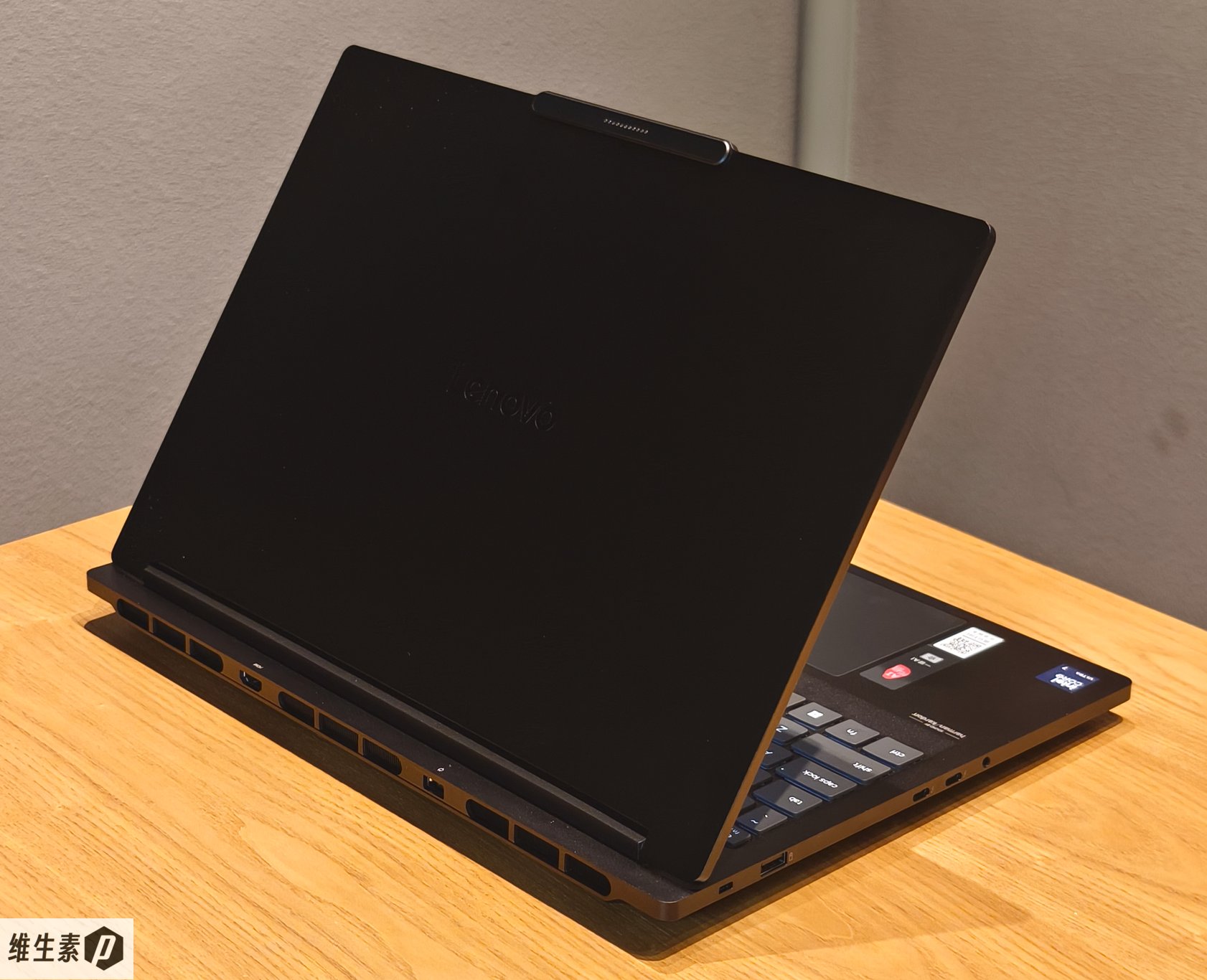
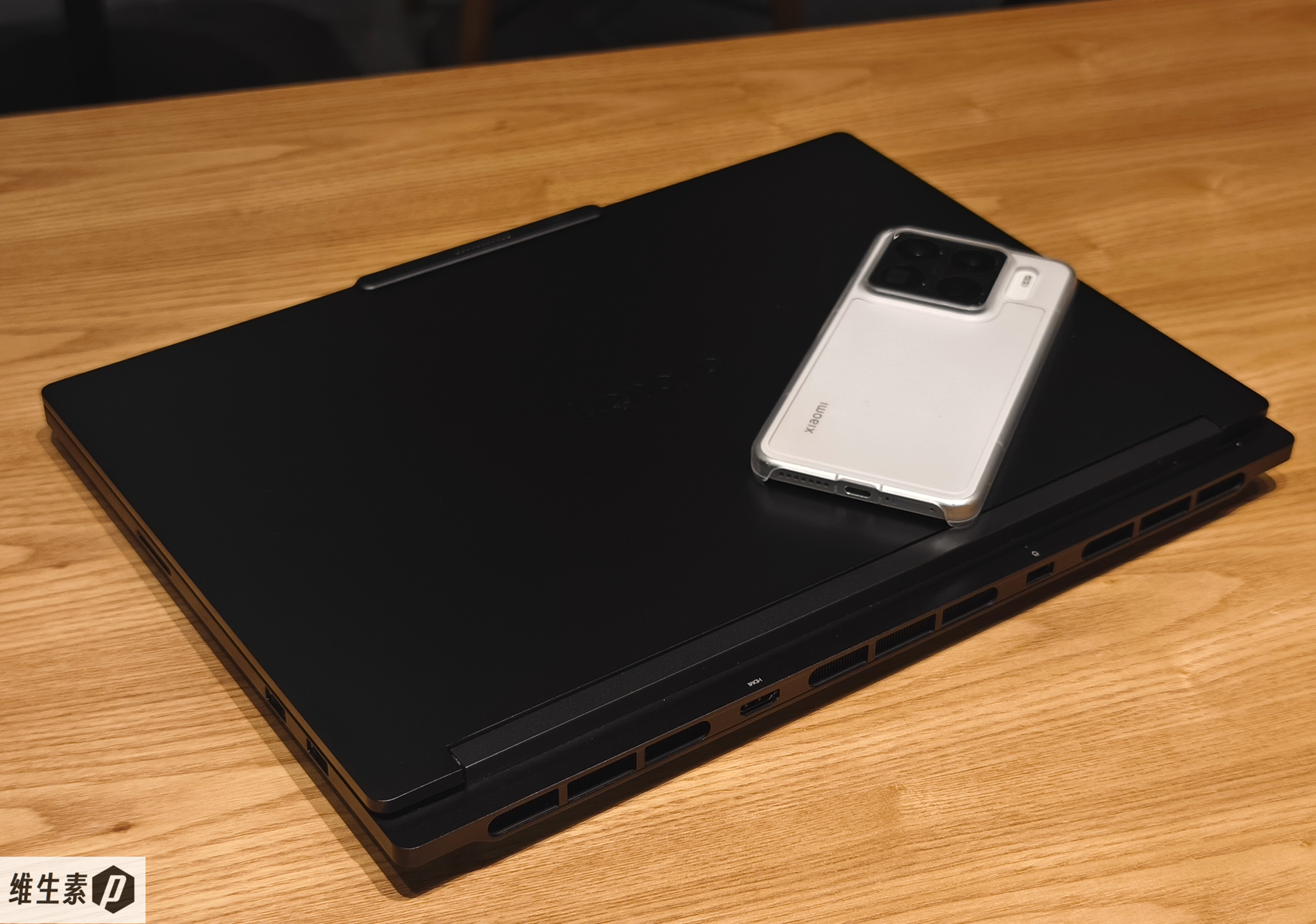
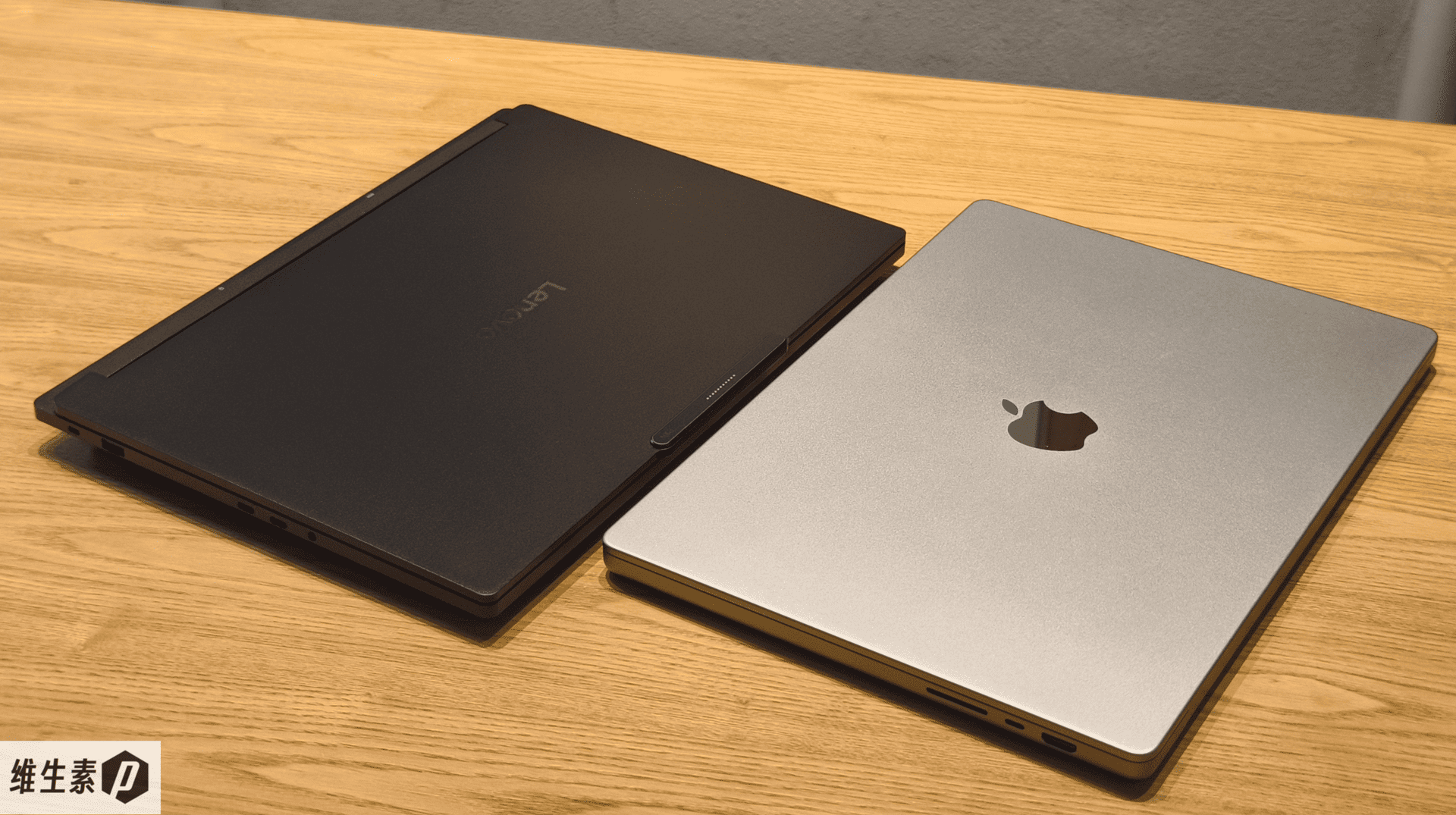
The P16v 2026 uses an all-aluminum CNC-milled chassis with a fine finish and a single centered Lenovo logo on the lid — minimalist, no fuss, with a mirror-like metallic black that reads like a hero's armor.
A small bump on top of the lid houses MagicBay — a proprietary magnetic expansion port that takes modules like LTE, a fill light, a camera, speakers, or a HUD secondary display. More accessories will likely follow.
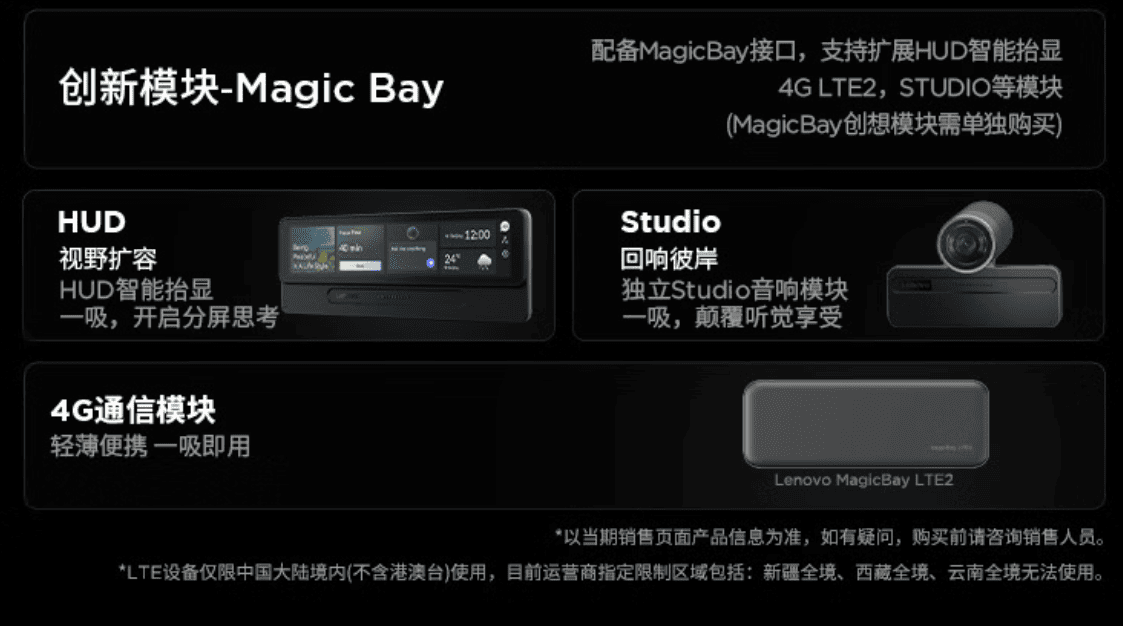
Originally there was a roughly thumb-sized semi-transparent sticker below the MagicBay port with a QR code explaining the feature; it was peeled off before the photos were taken, so it doesn't show in the photos.
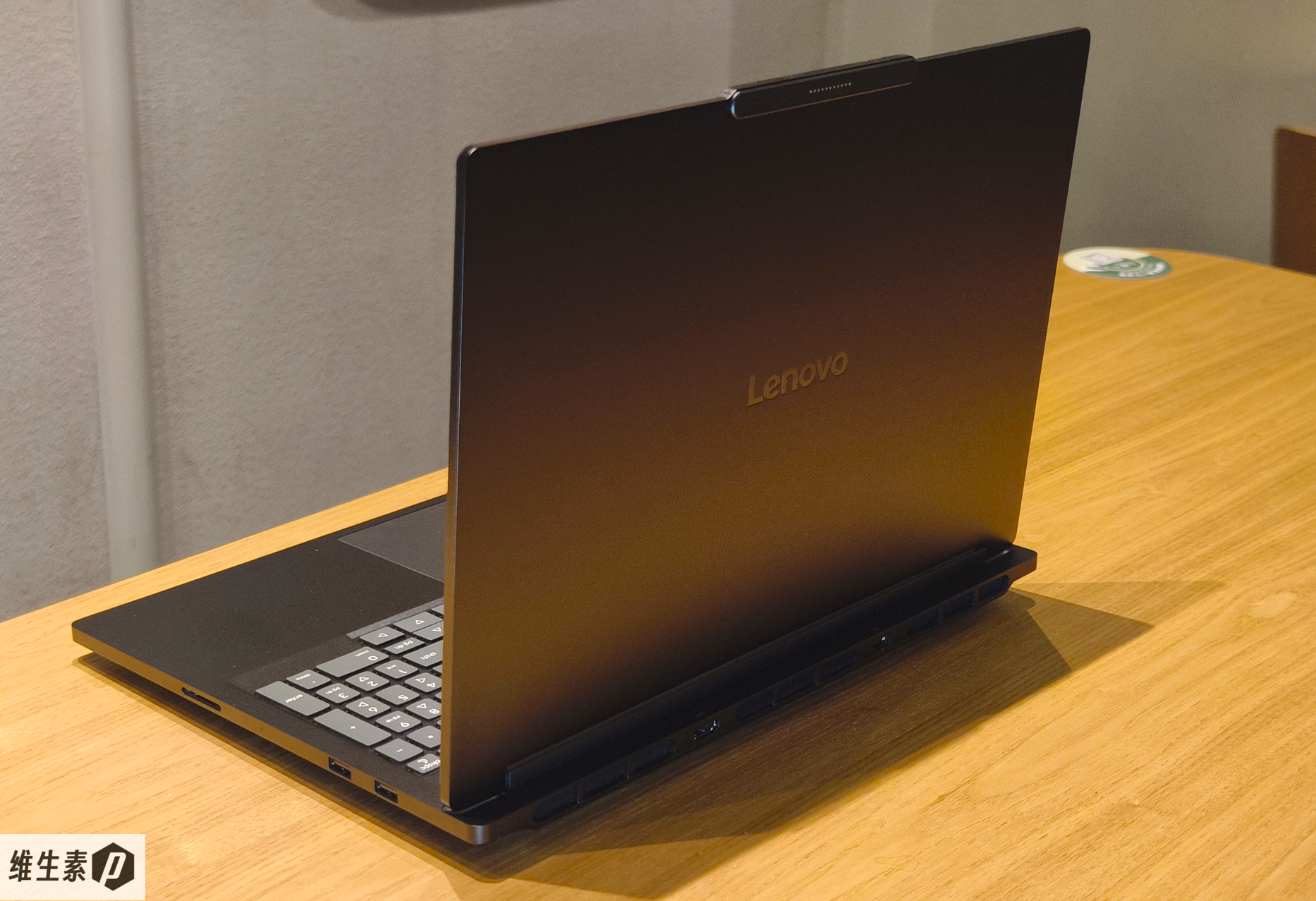
The chamfered edges make the whole machine read much slimmer than it actually is, like a thin-and-light laptop floating on air. Chinese workstations can fly now, apparently.
The metal body with small rounded corners gives it a "looks slim dressed, but there's muscle underneath" kind of solidity.
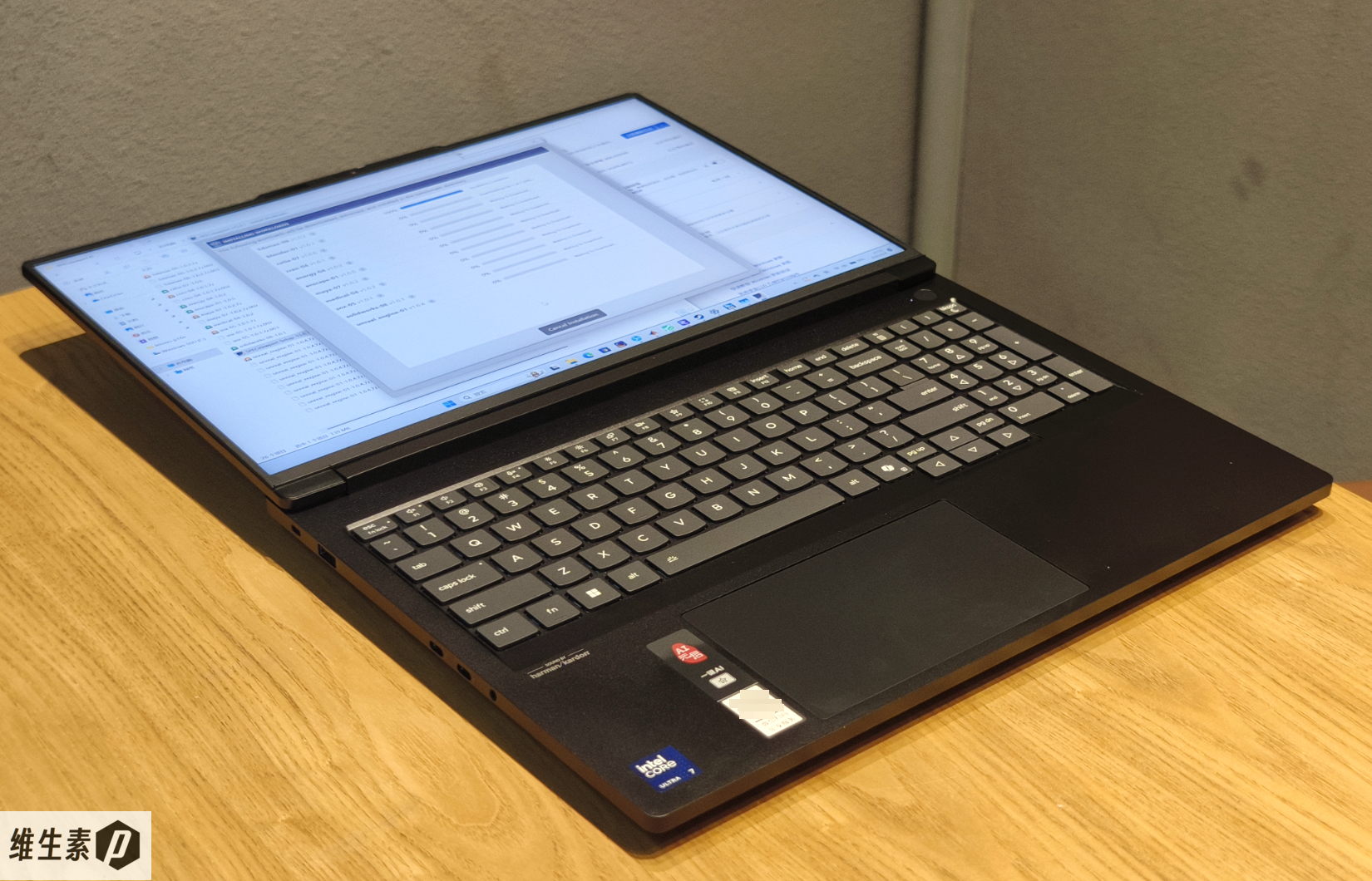
The hinge opens a full 180 degrees — handy for engineering and collaboration: lay it flat to show drawings in a meeting, or stand it up in a tight space.
Thanks to that top bump, one-handed opening is easy, and the lid closes with magnetic assistance, giving it a satisfying, premium feel.
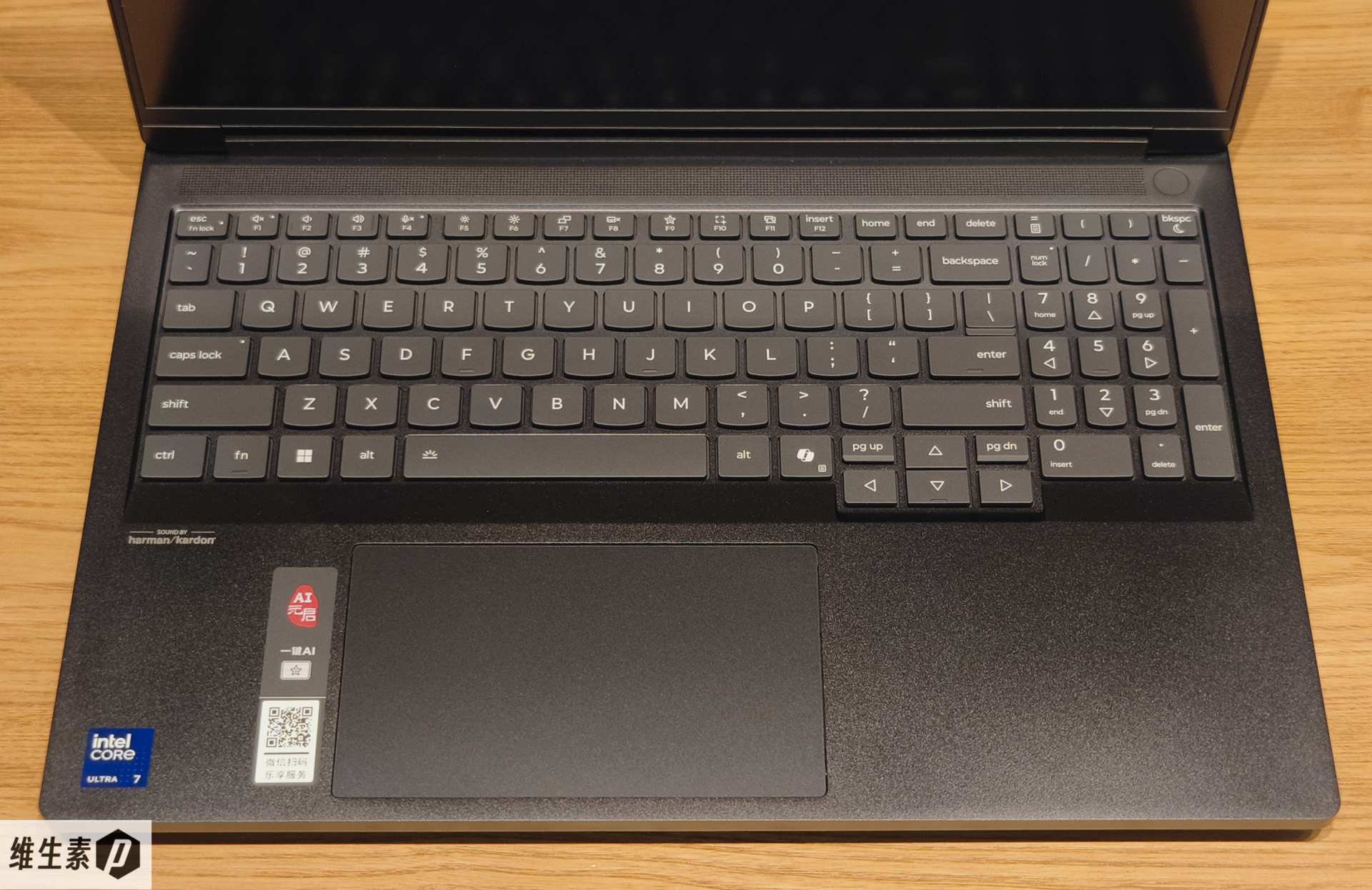
The keyboard uses micro-curved keycaps similar to ThinkPads, hugging the fingers better, with a 0.3mm concavity for effortless homing and 1.5mm of travel with a firm, springy rebound. The power button doubles as a fingerprint reader.
The arrow keys are generously sized — nice to use.
A numeric keypad on the right is a boon for spreadsheets and number crunching.
The whole deck is spill-resistant, and combined with MIL-STD-810H testing, it's a machine that can take rough field conditions.
The speaker is loud, and the lower-left palm rest carries a Harman Kardon logo. At work it drowns out shop-floor noise; off the clock it trades work for audiovisual leisure — the tears of good music gathering into a river in your heart. (A ferry-terminal BGM belongs here; please imagine the synesthesia.)
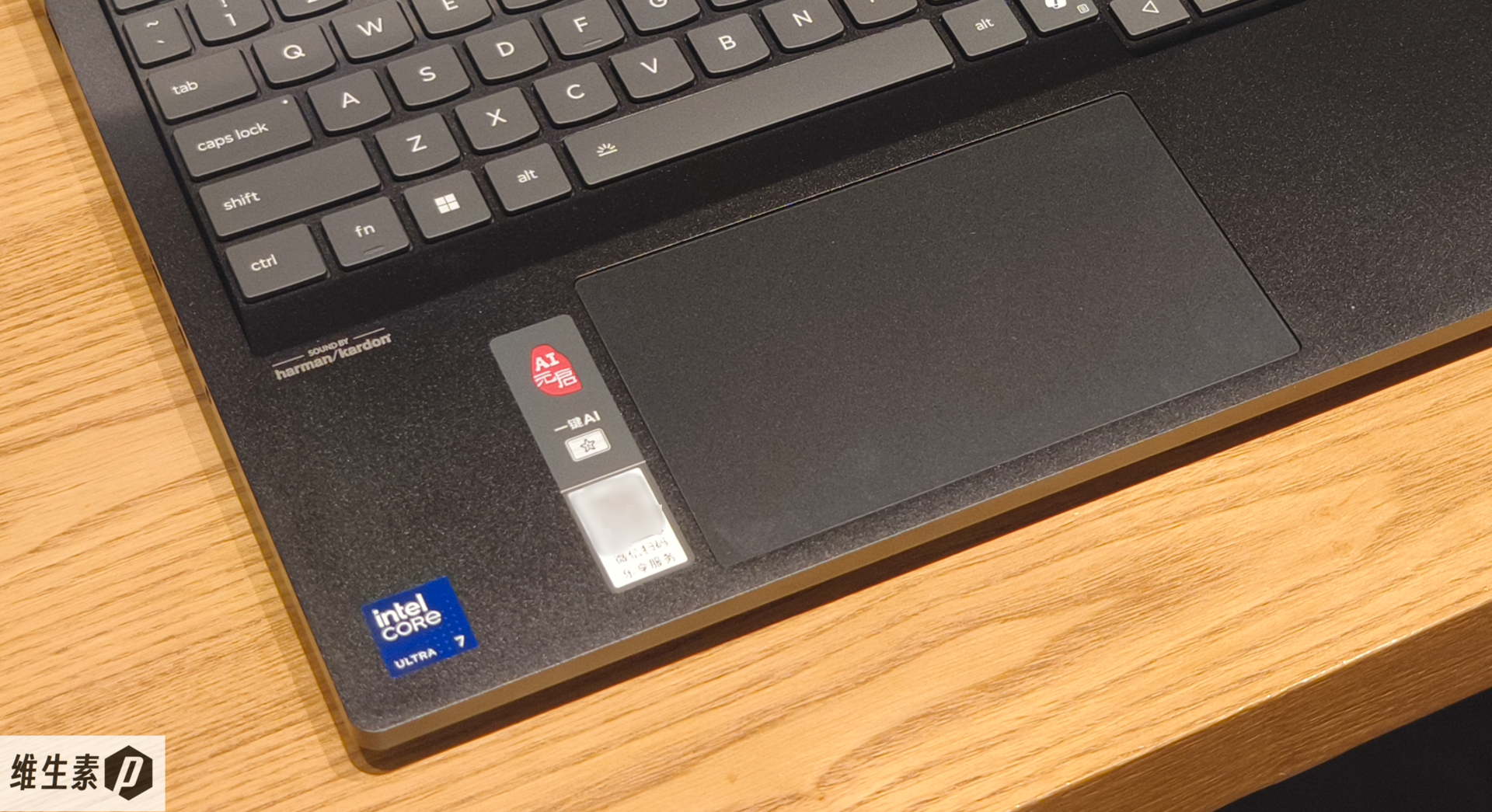
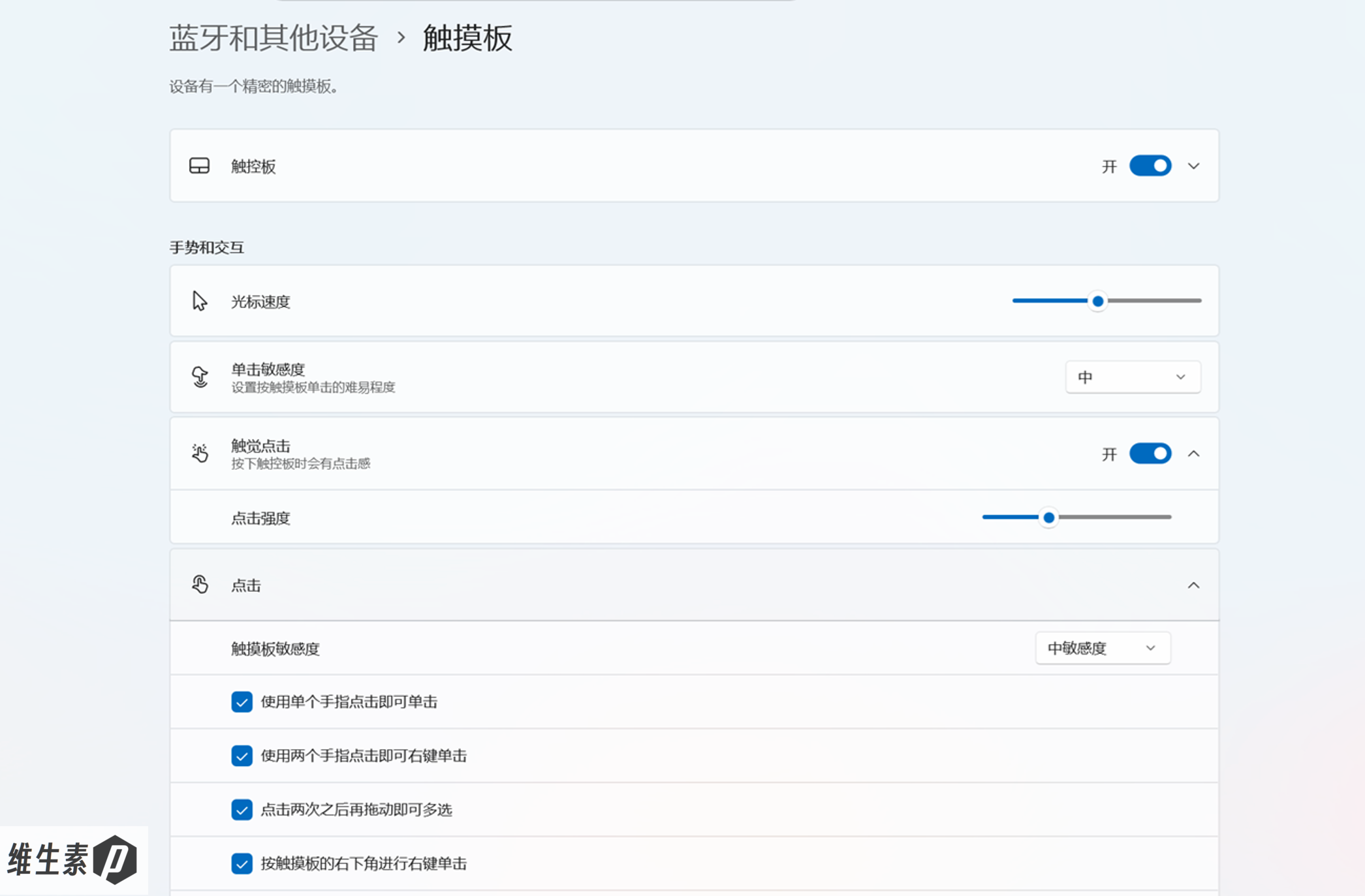
The trackpad is a Forcepad full-surface pressure-sensitive pad — the entire surface clicks, and you can tune the pressure sensitivity right in Windows settings by adjusting the haptic click intensity.
It feels solid yet thin and crisp, MacBook-like though the Mac is a touch more muted. Crank up the click intensity and the haptic feedback gets very clear, though the sound also gets loud enough to be a bit much.
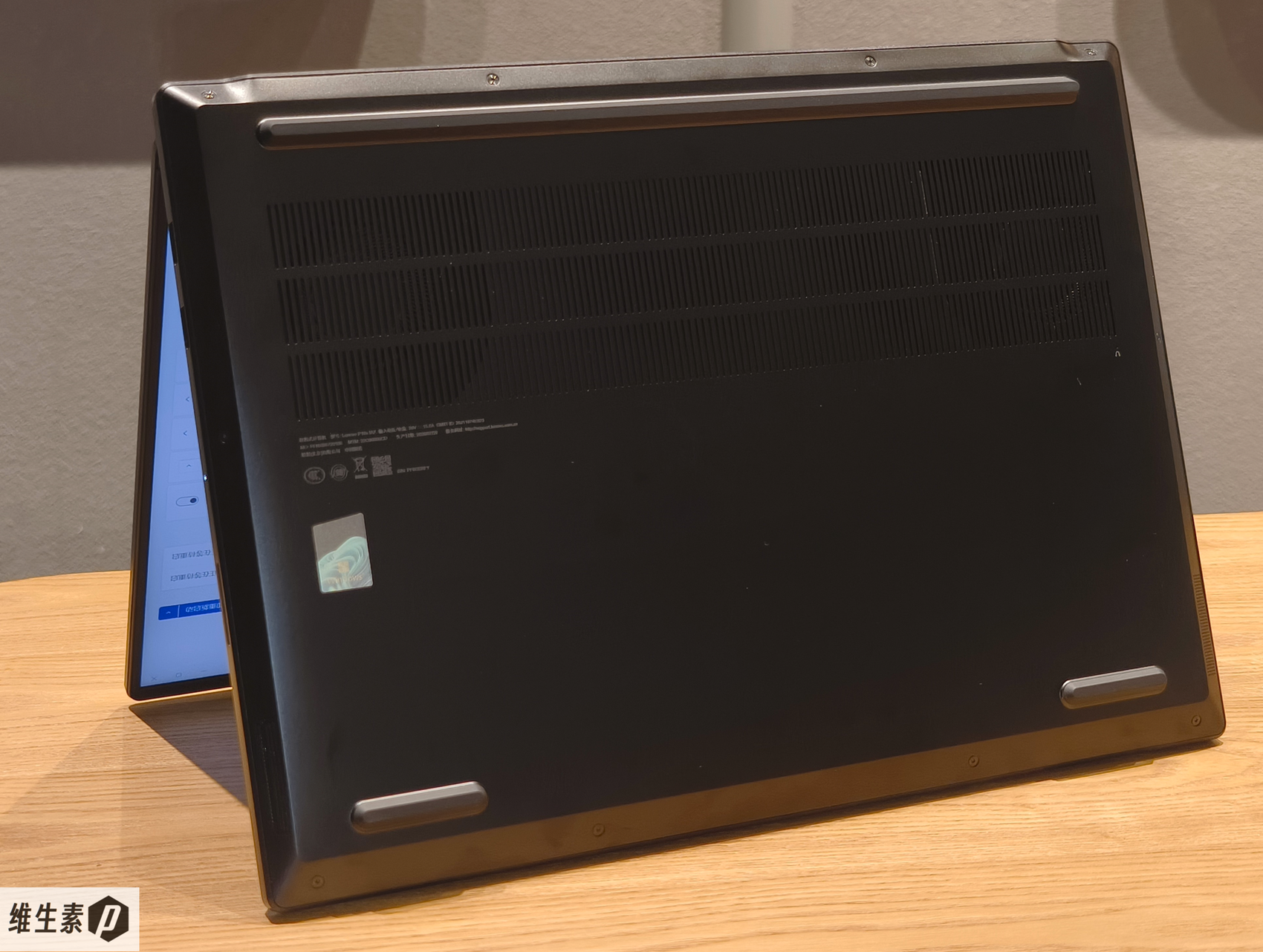
The D-cover is all metal with visible intake vents.
Ports are 2C3A — convenient.
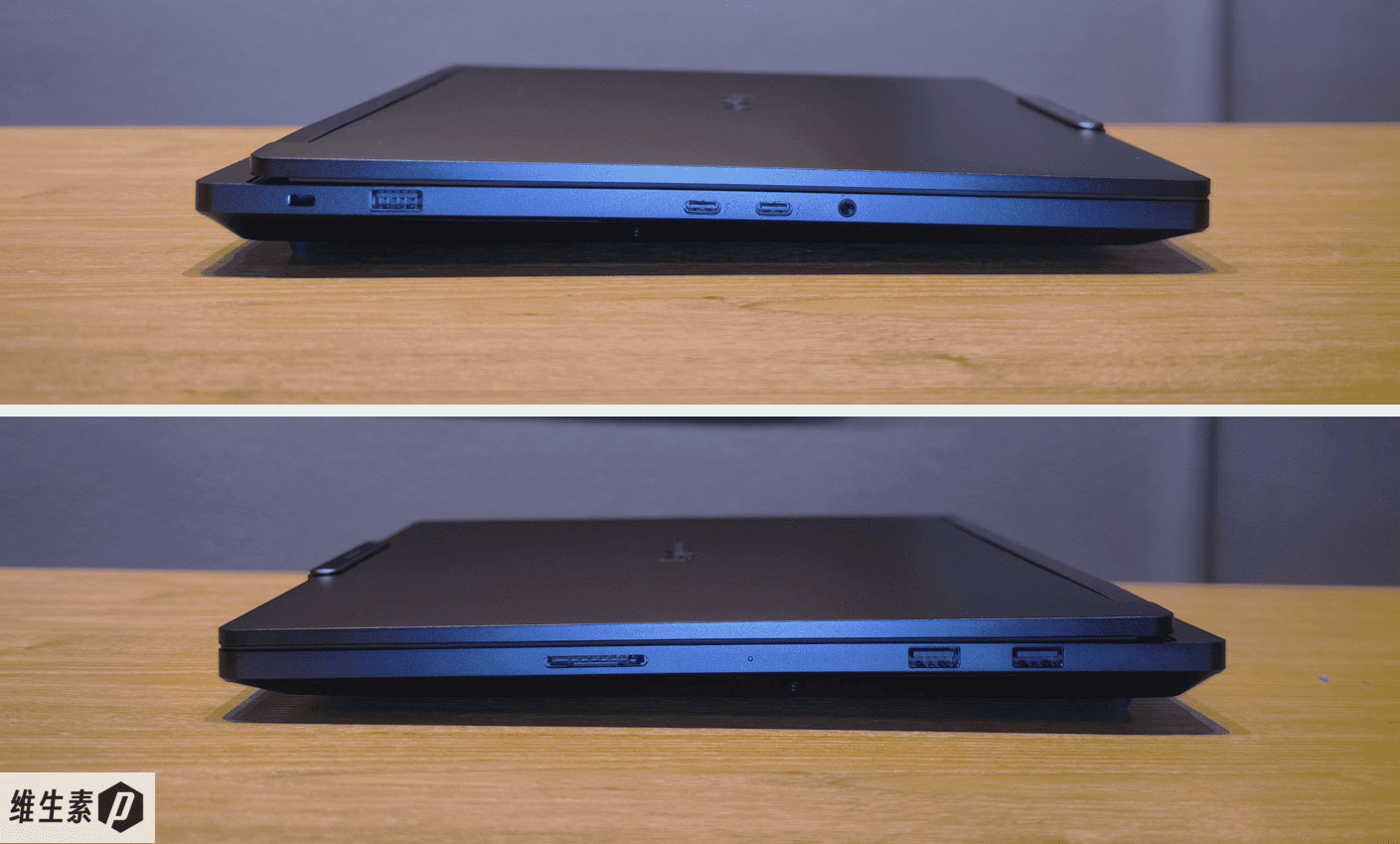
Left side: a lock slot + 1× USB-A 3.2 Gen 2 (10Gbps) + 2× Thunderbolt 4 + a 3.5mm combo jack.
Right side: an SD card slot + 2× USB-A 3.2 Gen 1 (5Gbps).
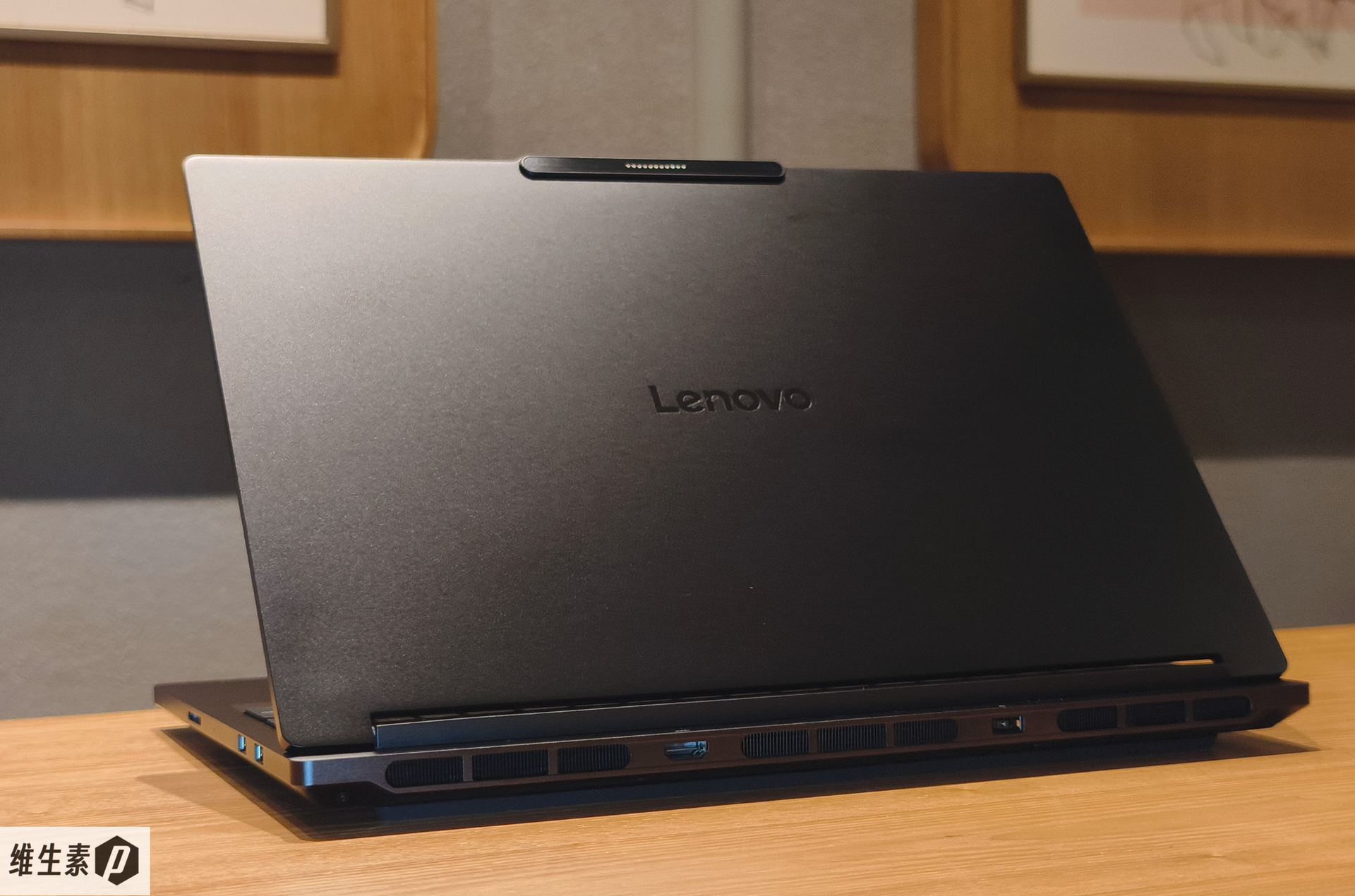
Rear: a full-bandwidth HDMI 2.1 FRL port and the power port.
On a desk, both power and video cables route out the back, keeping the front clean.
The HDMI port is driven by the discrete GPU and supports 8K60Hz and 4K120Hz. The two Thunderbolt 4 ports also carry integrated-GPU video output and PD fast charging, up to 140W over a proprietary protocol.
Productivity & AI LLM Tests
You can't judge a workstation on generic benchmarks alone — the real test is how professional software performs. Let's start with SPECviewperf, the workstation-specific benchmark, to see simulated engineering-software performance.
Honestly, these tests take a really, really long time. I only spend that time because I want to genuinely help those of you weighing a workstation purchase. If it helps, a like and a bookmark would be much appreciated.
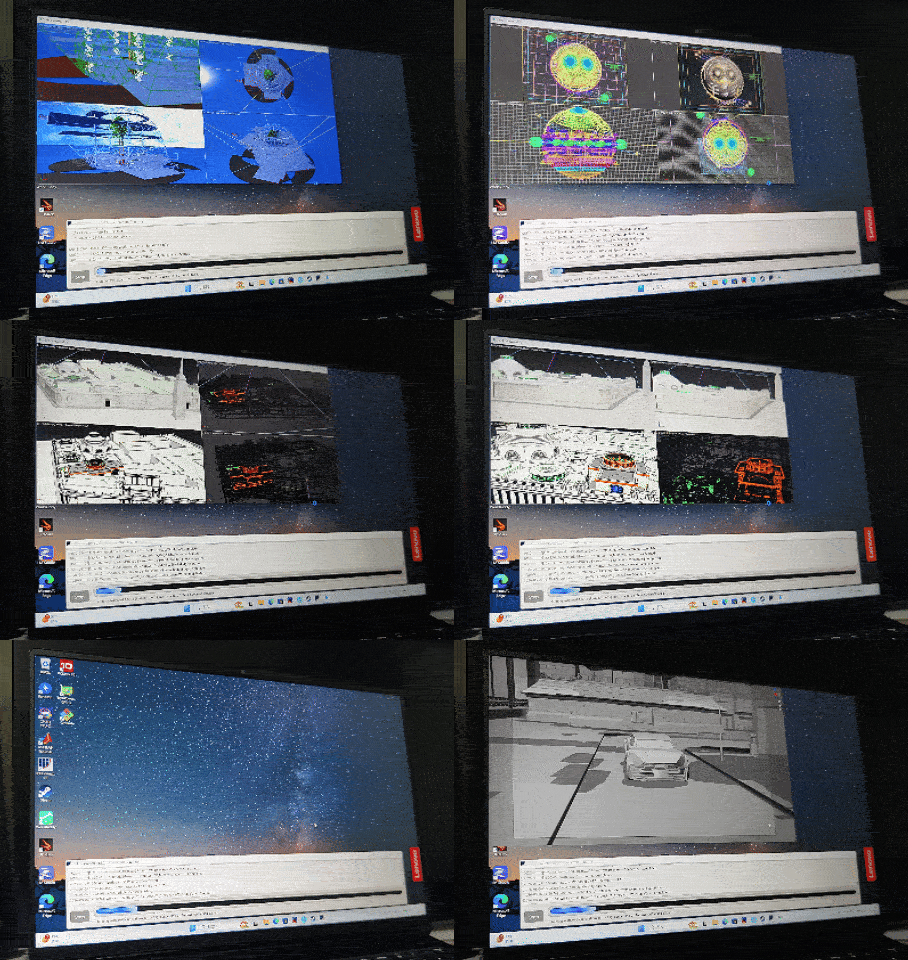
SPECviewperf measures FPS by simulating real operations in mainstream engineering software, quantifying how smoothly a machine handles complex 3D models. The items are mainly those in the table below.
| Test Code | Simulated Industry Software | Core Test Focus | Typical Application Scenario |
|---|---|---|---|
| 3dsmax-08 | Autodesk 3ds Max 2023 | Multi-view rendering of complex scenes, multiple materials and display modes (Realistic/Nitrous/Shaded/Wireframe, etc.), includes KitBash3D Mission to Minerva production assets | Architectural visualization, film & animation, game asset creation |
| catia-07 | Dassault 3DEXPERIENCE CATIA 2022x (incl. CATIA v5 trajectories) | Real-time rotation/zoom of large assemblies (aircraft engines, automobiles), complex surfaces and digital mock-up design | Aerospace, automotive manufacturing |
| creo-04 | PTC Creo 9 | Parametric modeling, large-part (tens of millions of vertices) rendering | Mechanical design, product manufacturing |
| energy-04 | OpendTect | Seismic survey data volume rendering and slice analysis | Oil & gas exploration, geological visualization |
| maya-07 | Autodesk Maya 2025 | Character animation, real-time preview and operation of film/VFX scenes (adds Apollo, Sol and Solette models) | Film VFX, advanced 3D animation |
| medical-04 | ImageVis3D | Medical imaging (CT, MRI) volume rendering and 3D reconstruction | Medical diagnosis, surgical planning |
| snx-05 | Siemens NX 2406 | Complex product engineering (wireframe/shaded/studio modes), standard OpenGL features (vertex/pixel shaders, textures, MSAA) | Precision manufacturing, digital product development |
| solidworks-08 | Dassault SolidWorks 2024 | Mechanical part and assembly design, ambient occlusion, real-time shadows | Industrial equipment, consumer product design |
| blender-01 | Blender 3.6 LTS | 3D modeling and animation rendering for content creation (OpenGL) | 3D modeling, animation, open-source pipelines |
| enscape-01 | Chaos Enscape 4.0 | GPU-accelerated ray-traced real-time architectural visualization (Vulkan) | Architecture and interior design real-time visualization |
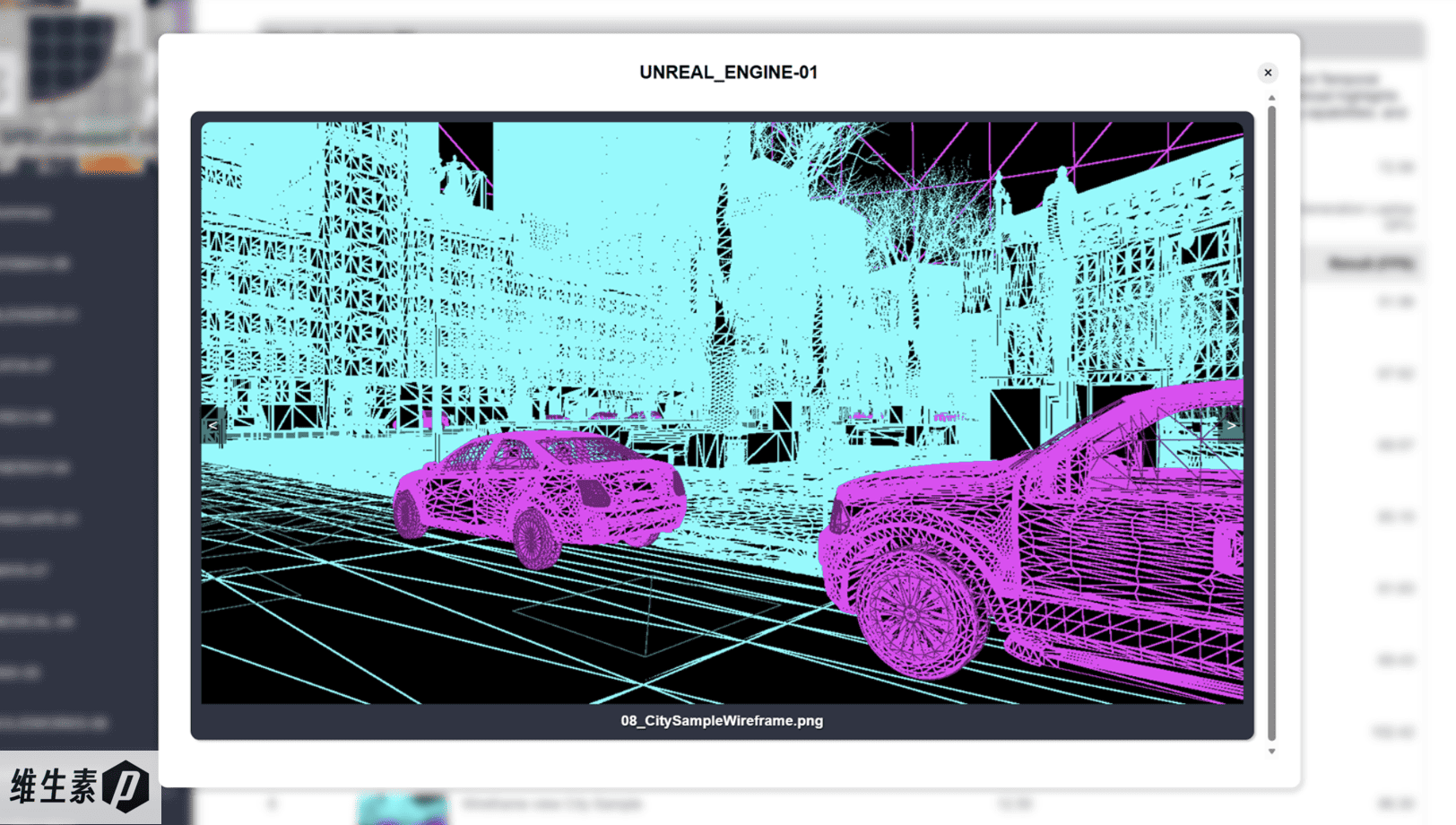
| unreal_engine-01 | Epic Unreal Engine 5.4 | Real-time content rendering: Lumen global illumination, Nanite virtualized geometry, temporal super resolution TSR (DirectX 12) | Virtual production, game and interactive content development |
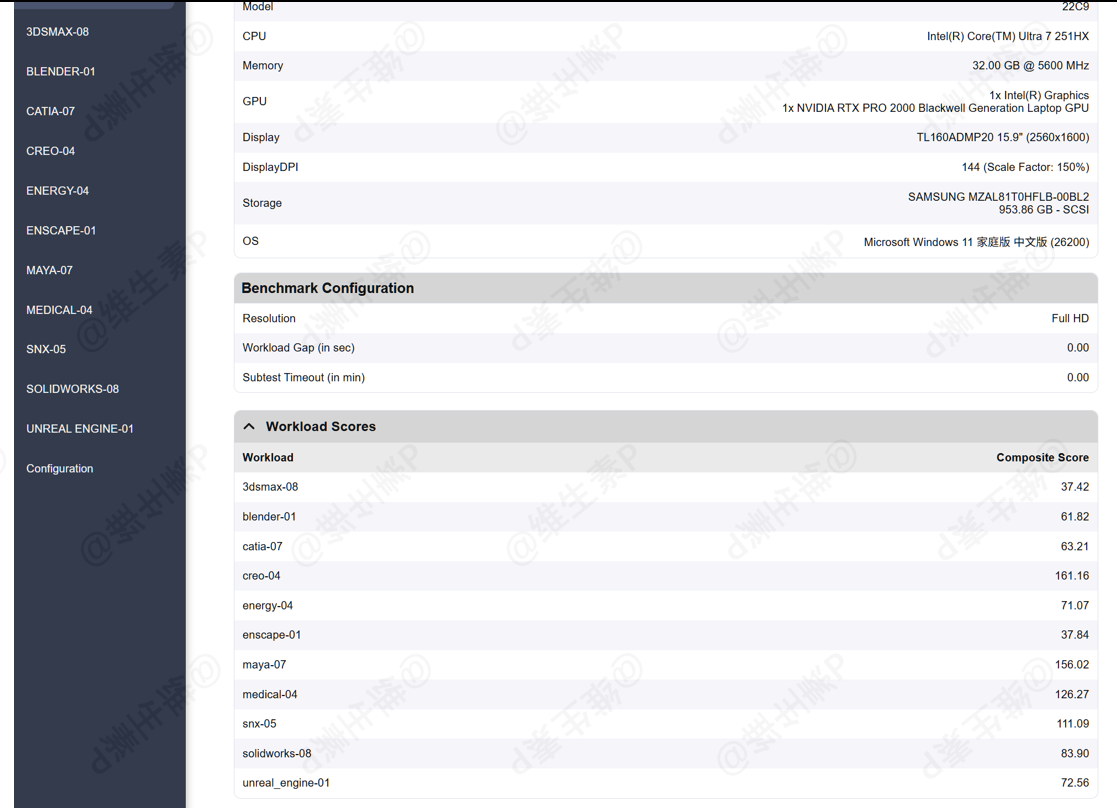
The measured results are below — the scores are solid.
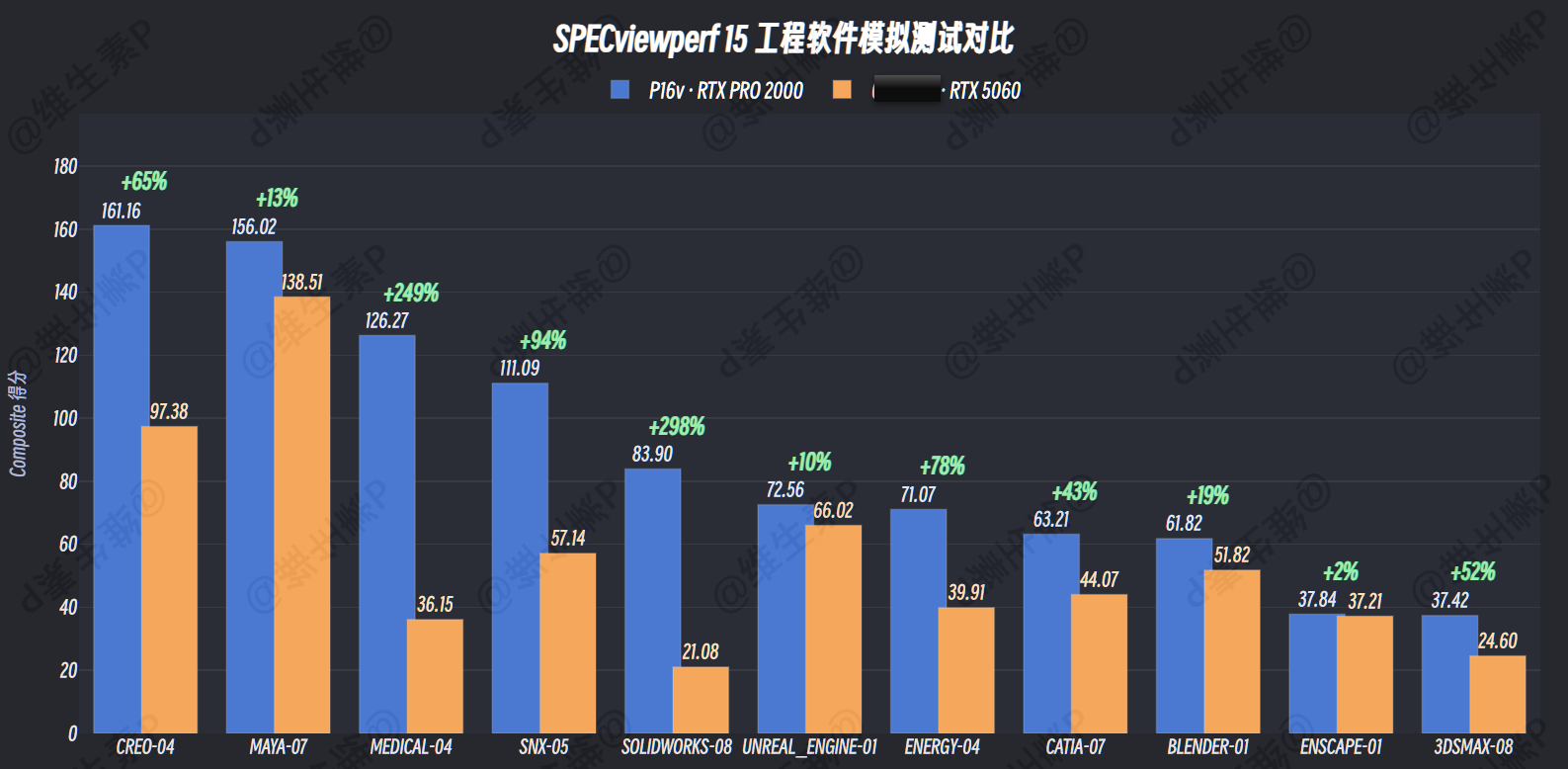
Against another gaming laptop with a full-power 115W RTX 5060, you can clearly see that many of the items score better.
So beyond hardware specs, software optimization and tuning matter a lot — they shape the final real-world experience.
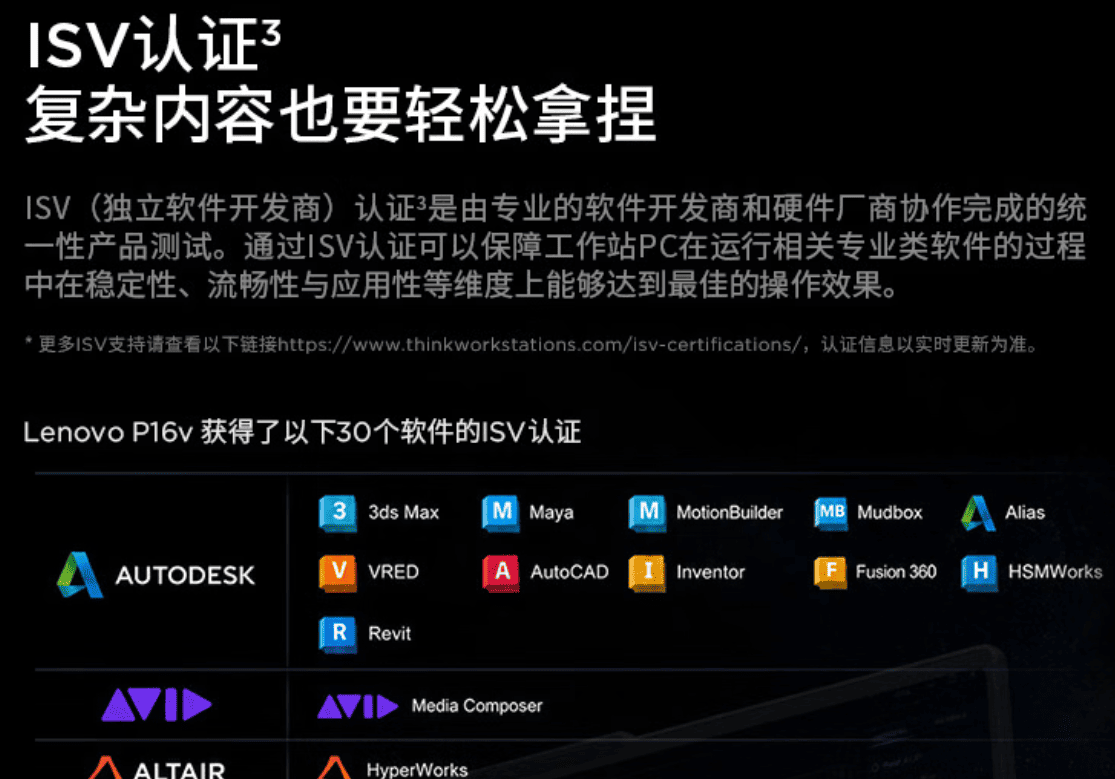
As a workstation, the P16v's professional GPU differs from a consumer gaming GPU: it has ISV certification and adaptation for multiple professional titles. For engineering teams in production, ISV certification means the software vendor provides technical support for this exact hardware combo and has done dedicated adaptation, so compatibility issues are rare. Even if a compatibility issue slips through, there's a vendor you can escalate to — something a gaming laptop can't offer.
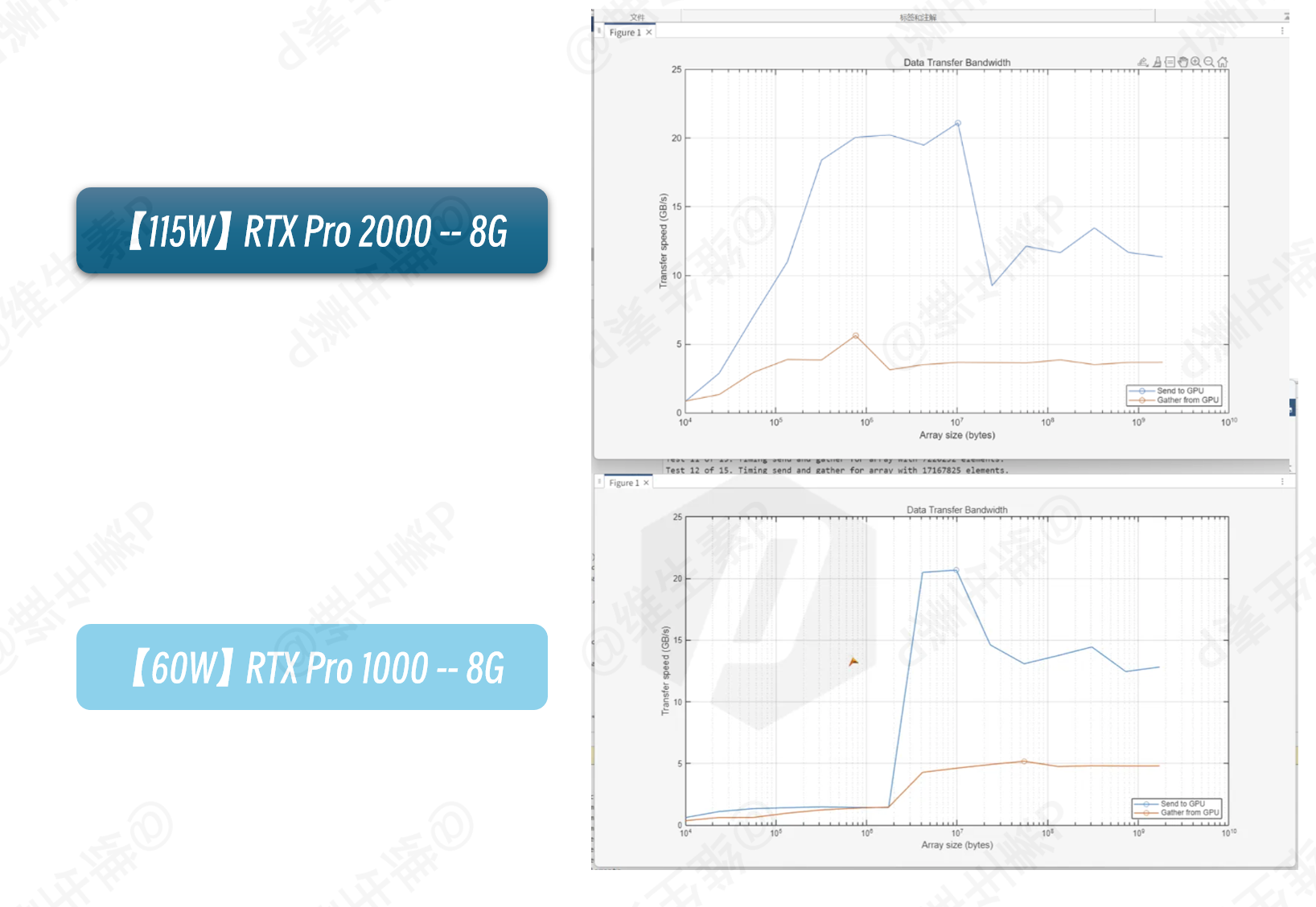
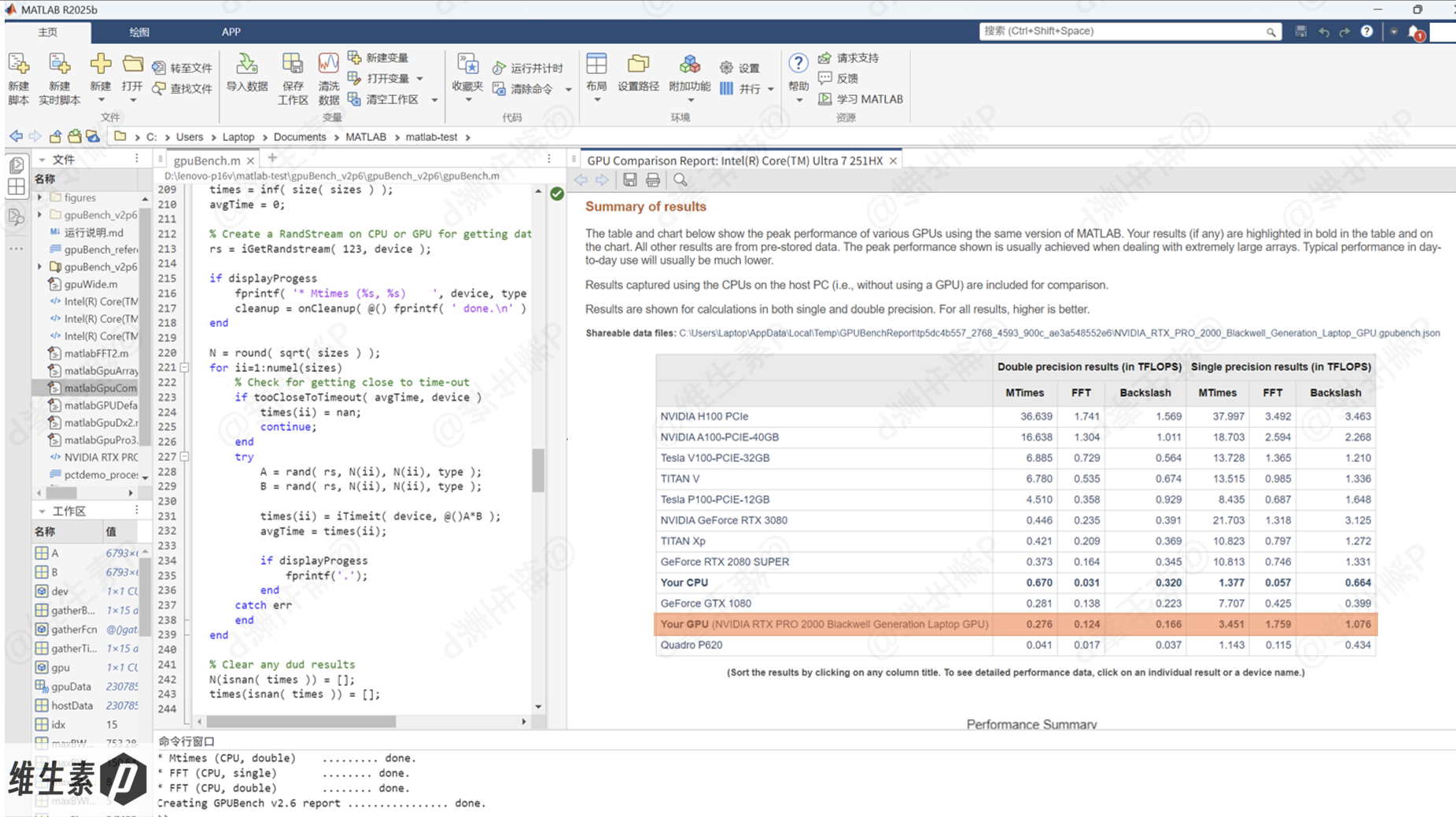
Engineering labs and research also lean on MATLAB. Here we use the latest MATLAB R2025b to run some array operations and test performance and bandwidth.
With stronger specs and better power delivery, the RTX Pro 2000's performance curve climbs faster than the RTX Pro 1000's.
Using the MATLAB community "GPUBench" v2.6.1, the measured single- and double-precision TFLOPS results are shown below.
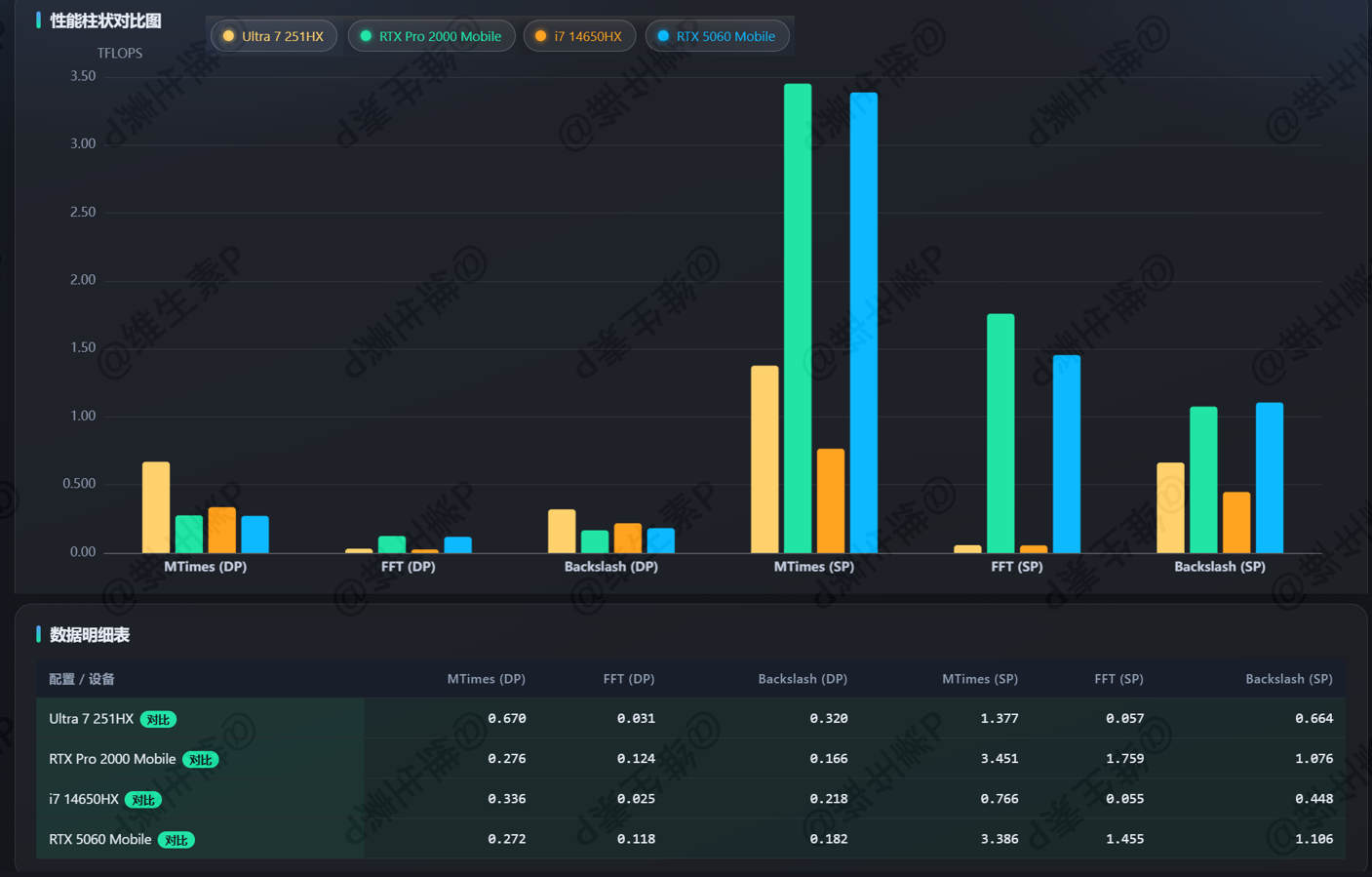
Against that same full-power 115W RTX 5060 gaming laptop, it holds an edge in some tests.
Beyond engineering software and MATLAB, local LLMs are now hardcore productivity tools in their own right.
LLMs keep getting smarter, and plenty of people pair them with agent software, using the AI's deep thinking to back up their own. Local inference keeps data on-device, which fundamentally eliminates leakage risk for classified data, drawings, core source code, and experimental data — and the RTX Pro GPU has an extra hardware advantage for NVFP4-quantized models.
So how does this P16v handle local AI?
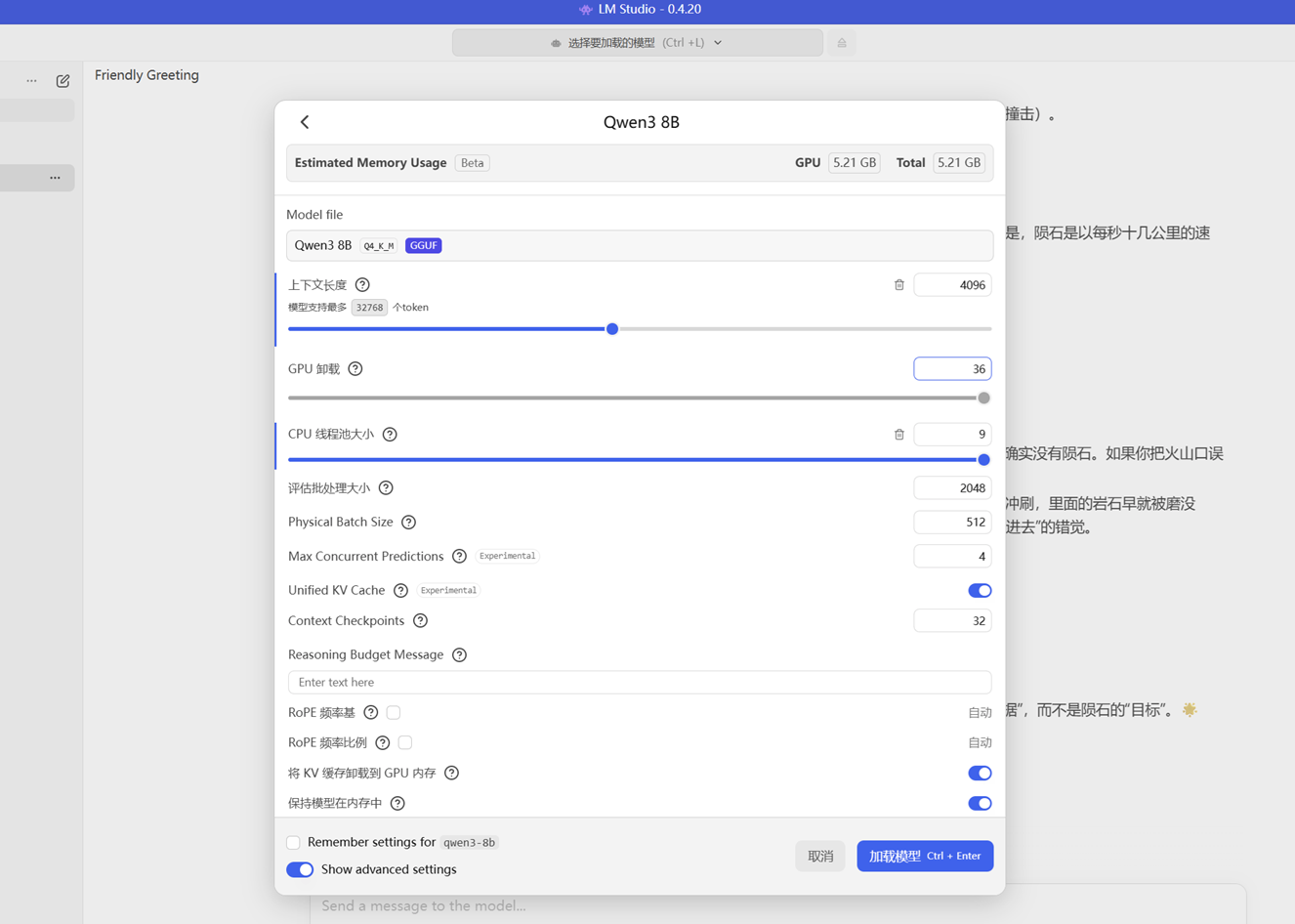
With the context set to 4096, GPU Offloading and CPU Threads maxed out, and the deliberately bogus question "Why do meteorites always land precisely inside meteorite craters?" kicking things off, the measured local LLM speed is:
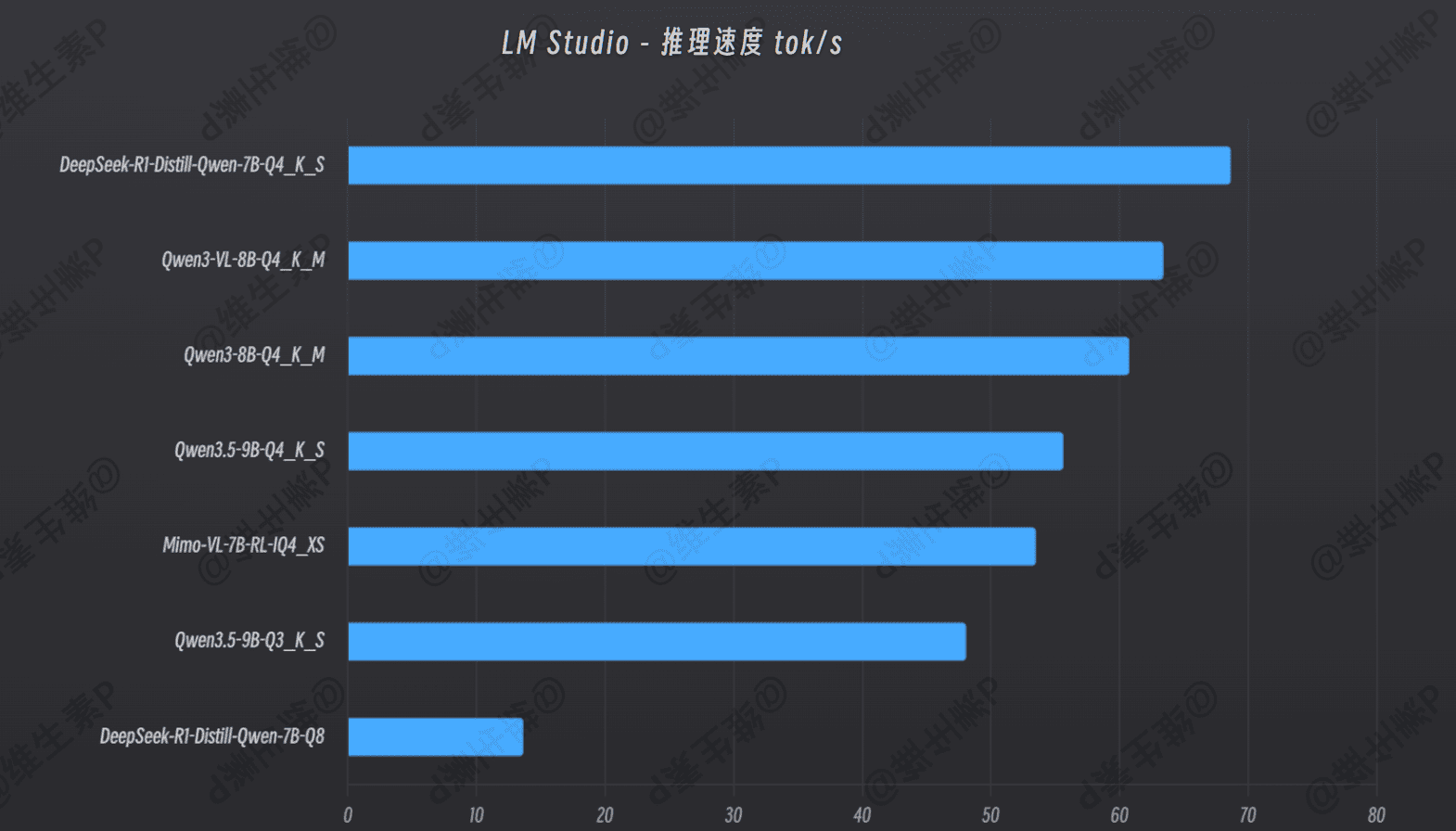
| GGUF Model | Deployment | Params/B | Quantization | Inference Speed tok/s | Max VRAM Usage/G |
|---|---|---|---|---|---|
| DeepSeek-R1-Distill-Qwen | LM Studio | 7 | Q4_K_S | 68.65 | 4.4 |
| Mimo-VL-7B-RL | LM Studio | 7 | IQ4_XS | 53.49 | 7.8 |
| DeepSeek-R1-Distill-Qwen | LM Studio | 7 | Q8 | 13.64 | 8.1 (partially memory-offloaded) |
| Qwen3-VL-8B | LM Studio | 8 | Q4_K_M | 63.41 | 6.7 |
| Qwen3-8B | LM Studio | 8 | Q4_K_M | 60.76 | 5.2 |
| Qwen3.5-9B | LM Studio | 9 | Q3_K_S | 48.07 | 6.2 |
| Qwen3.5-9B | LM Studio | 9 | Q4_K_S | 55.63 | 7.2 |
(Note: LM Studio version 0.4.20; speed and VRAM usage are dynamic, depending on content/context length/parameters, with speed fluctuating ~2–5%.)
Models now iterate absurdly fast — basically a new release every month.
Smaller models keep getting smarter and more capable.
Wire a vision-capable small model like Qwen into ComfyUI as a node flow and you get an automated drafting workstation for architects, industrial designers, and 3D animators.
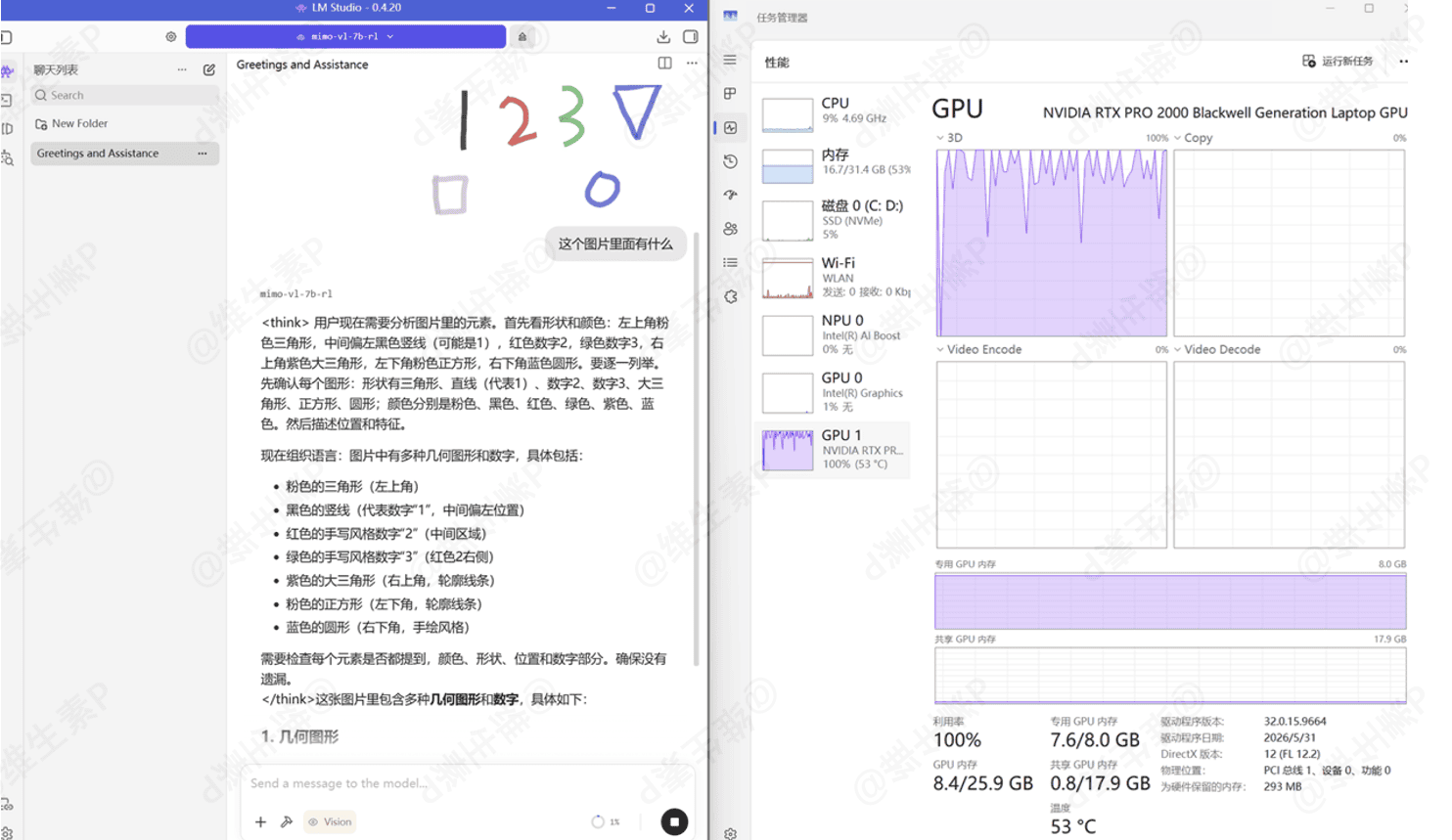
Competitor looks, material references, concept art — auto-captured, content recognized, tags extracted, and archived into a searchable asset library. Efficiency soars, the tedious manual work is cut out, and your brain stays focused on creative output.
The P16v's GPU handles Stable Diffusion (SD) and ComfyUI with ease: a 512×512 image generates in under 2 seconds, and 8GB of VRAM is generally enough to render 720p images directly.
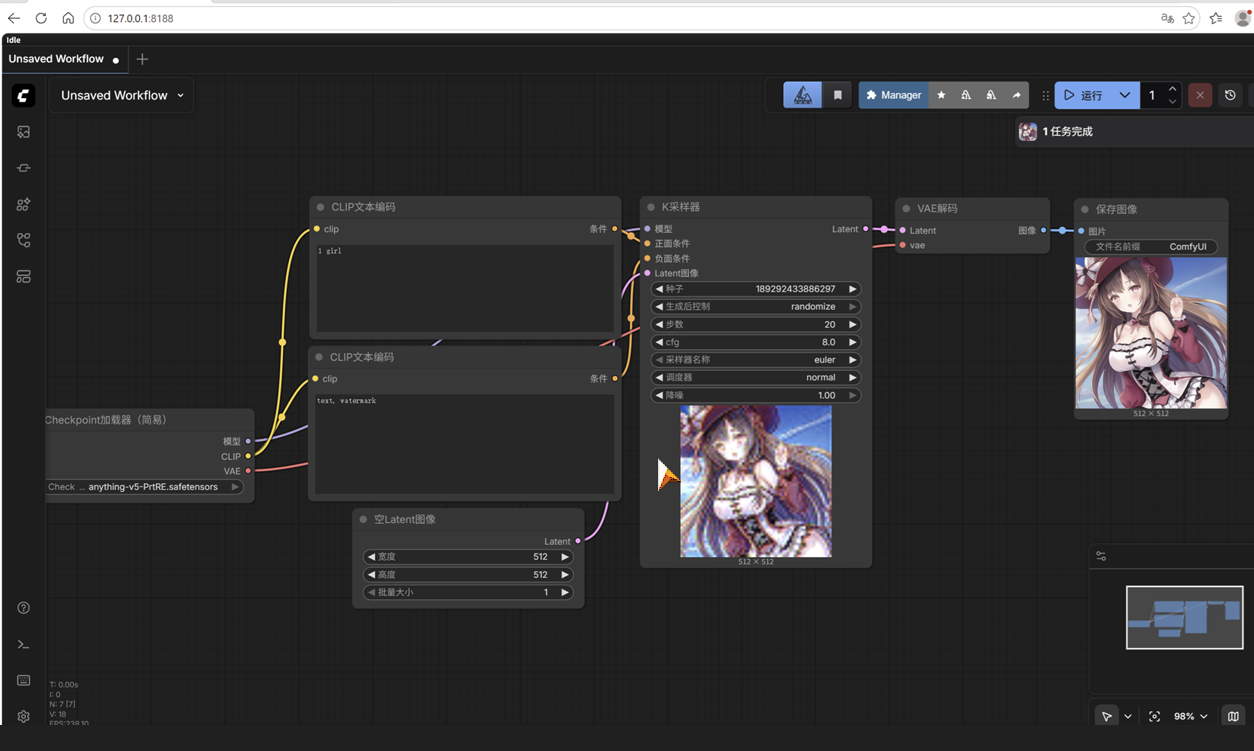
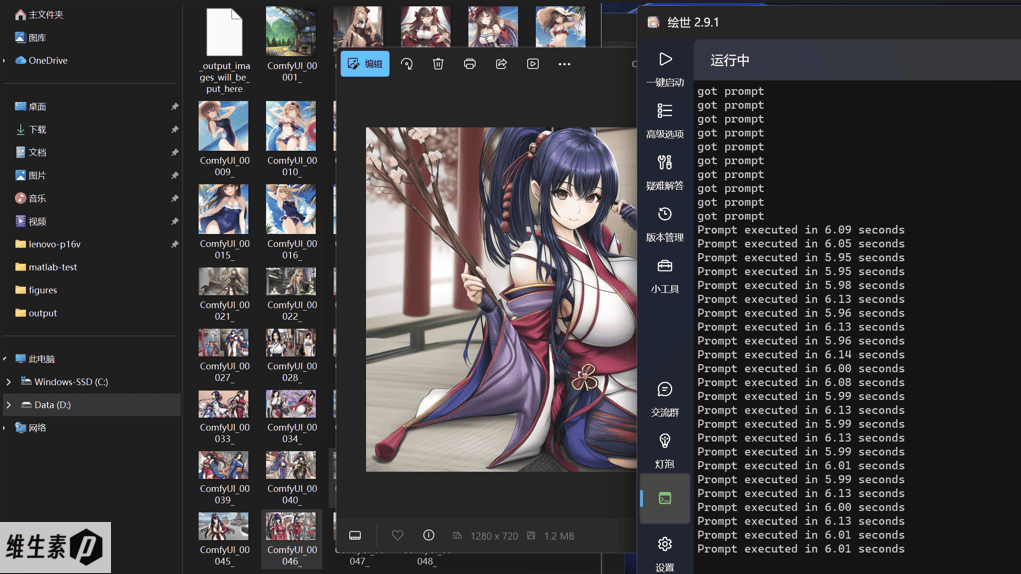
We used the anything-v5 model with no VRAM optimization, scaled-dot-product (SDP) cross-attention, DMP++2M sampling, and 20 steps.
Across 24 consecutive runs, the average time to produce one 1280×720 image was 6.04 seconds.
Peak GPU power draw during testing hit 115W.
Beyond running things yourself, Lenovo Tianxi — the personal super-agent — is built right into this workstation.
It offers five functions — AI control, search, translation, writing, and service — paired with a local knowledge base and free switching across 24 large models, acting as a localized AI office assistant tuned to you.

For everyday office productivity, this workstation is also a breeze.
With max-performance power mode and Geek Mode enabled in Baiying, PCMark 10's light-office-work simulation scored 8718 — excellent.
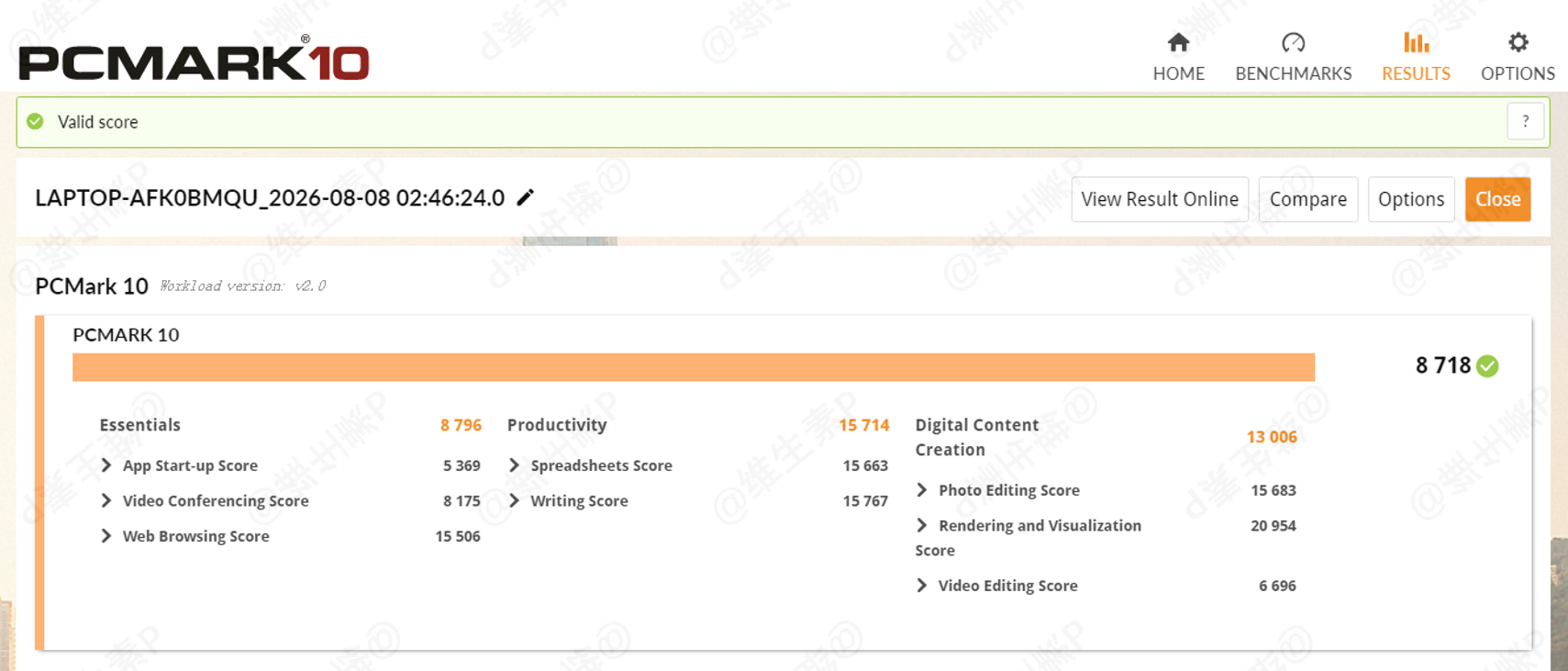
Everyday multitasking — documents, spreadsheets, video calls, photo editing, and video editing — ran silky smooth in PCMark 10. The P16v handles daily work without breaking a sweat. (Note: after PCMark 10's version update, v2 and v1 scores are not directly comparable.)
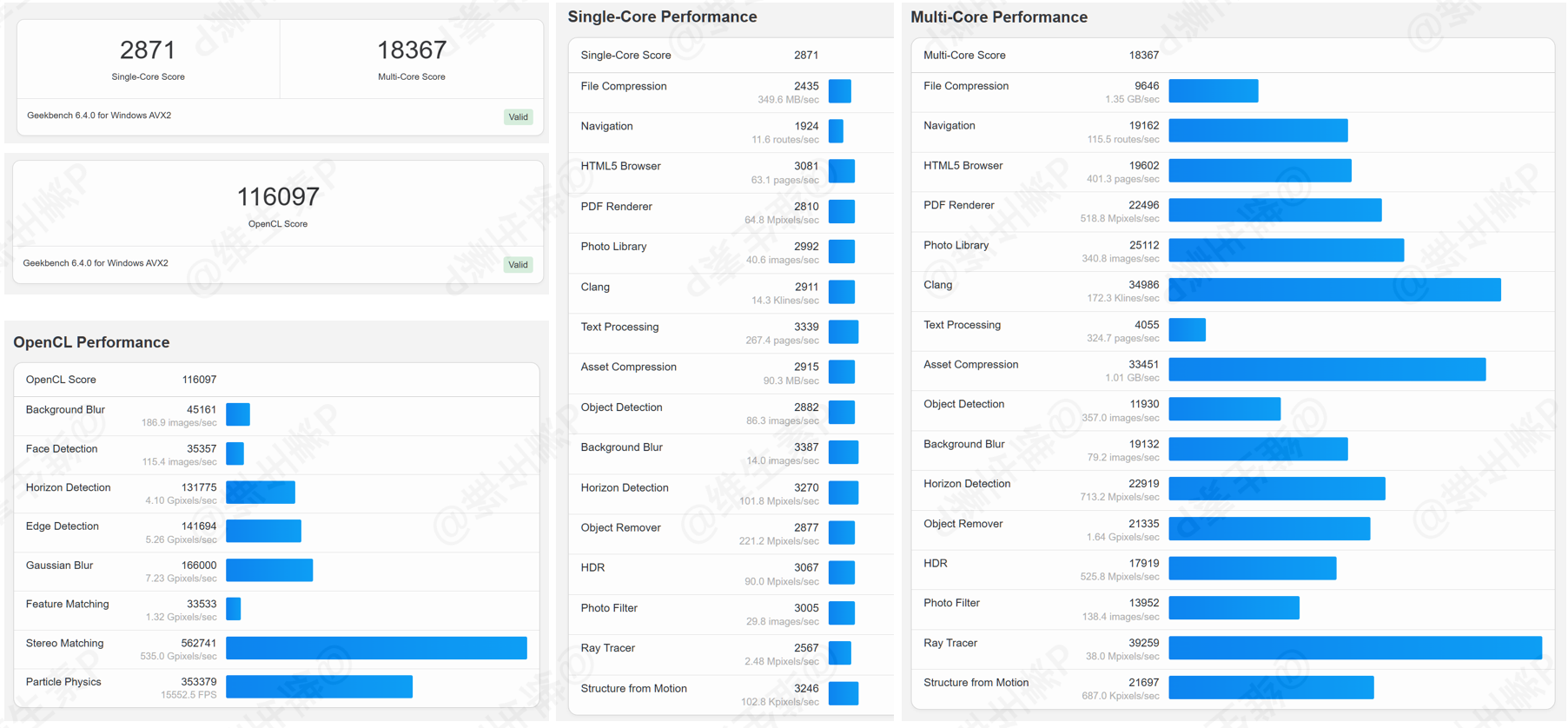
GeekBench 6 overall results:
CPU single-core 2871, multi-core 18367, GPU OpenCL 116097.
Stress Tests
Before we start, a quick word on the performance modes.
In the Lenovo Baiying app on the P16v 2026, click "Device Management & Exploration" on the left, then "Hardware Settings" to open a settings window. Under the Power/Performance tab, click "Performance Management" at the bottom and you'll see four performance modes.
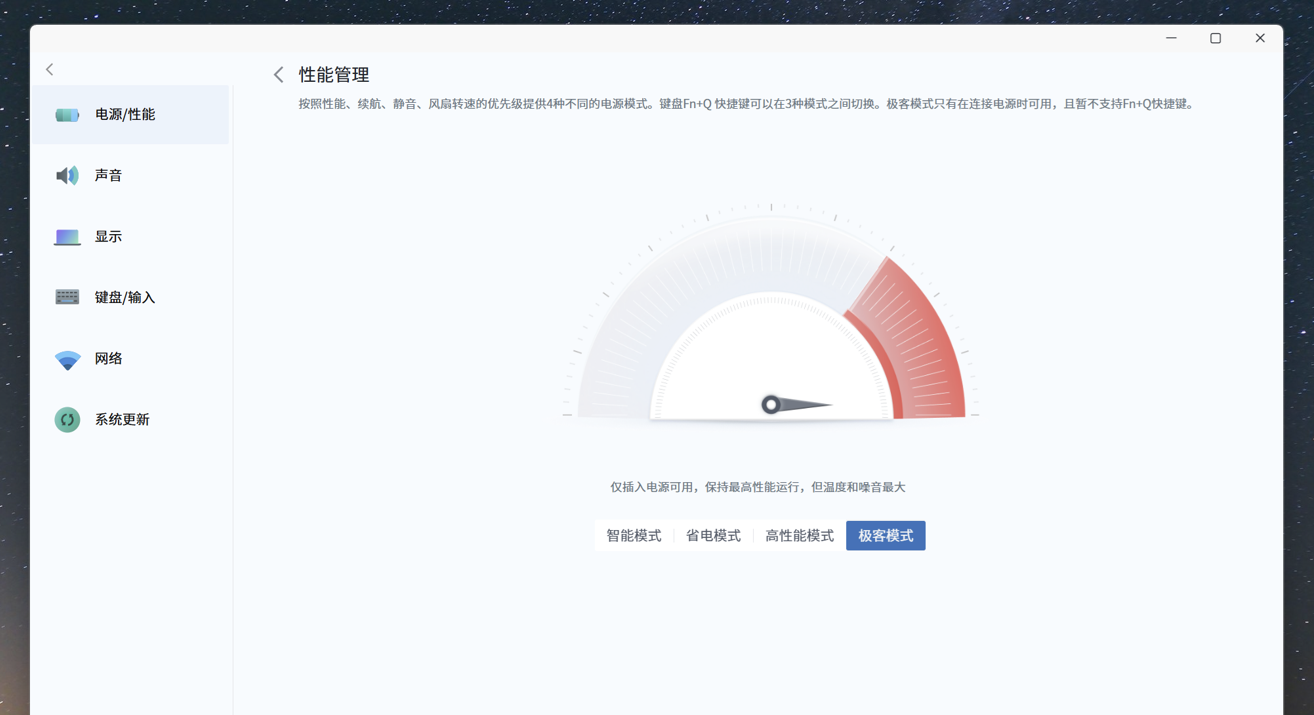
The default Fn + Q shortcut only cycles 3 modes, topping out at High Performance.
Geek Mode has to be manually enabled here while plugged in, and it reverts to High Performance on every reboot — it does not persist.
These modes are force-synced with Windows power settings:
- Smart Mode: Balanced
- Power Saver Mode: Best energy efficiency
- High Performance Mode: Best performance
- Geek Mode: Best performance
Since Lenovo shipped a hefty 300W adapter with the P16v 2026, its max output is no slouch. So how much total-system power can it actually push?
Let's hit it with an extreme high-load test and see how the power delivery and thermals hold up.
Test environment: 25.5°C ambient, 62% relative humidity, air-conditioned room, chassis propped up, Secure Boot disabled, memory integrity disabled, Geek Mode and battery Best Performance enabled.
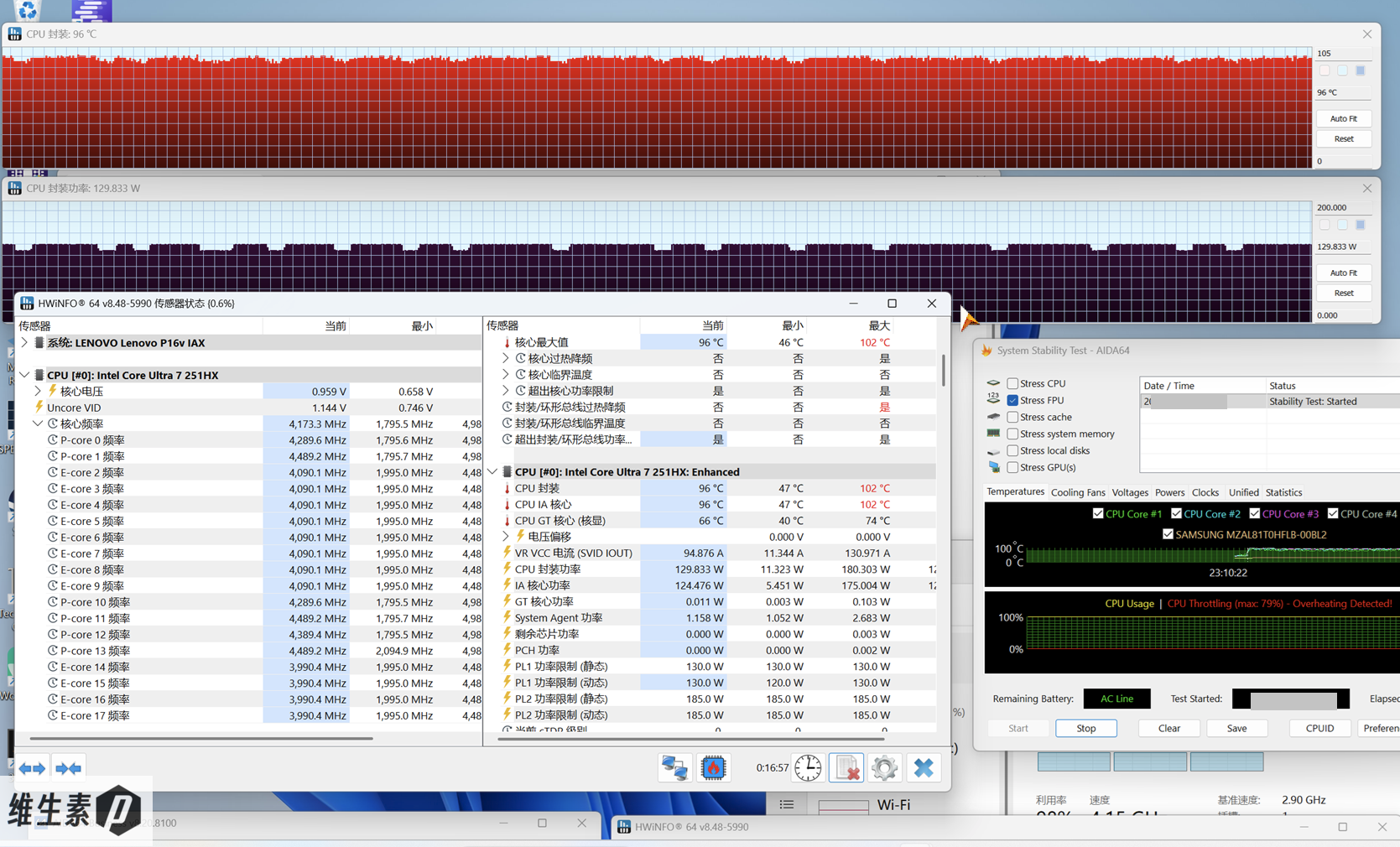
First, AIDA64 in FPU mode for a CPU-only stress test: instantaneous peak 180W, stabilizing around 130W, with P-cores at 4.29–4.49 GHz, E-cores at 3.99–4.09 GHz, an average core frequency of ~4.173 GHz, and CPU package temperature at 94–98°C.
Now the GPU under extreme load.
Furmark at 2560 × 1440 with 4× MSAA, discrete-GPU single stress:
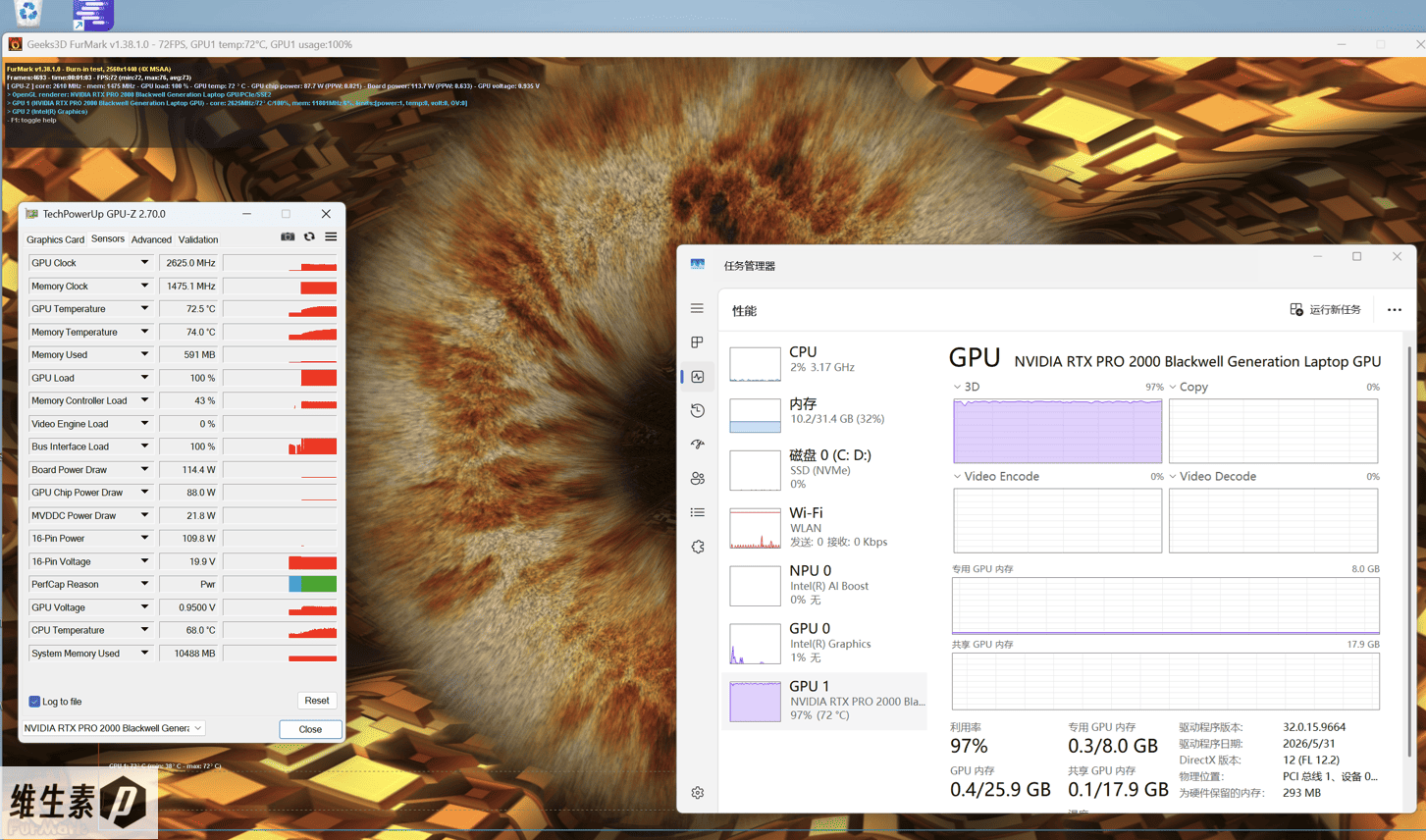
GPU power holds around 115W, frequency at 2565–2617MHz, temperature around 74°C.
Finally, the dual stress test: AIDA64 FPU + Furmark at extreme load for 30 minutes. It briefly peaked at CPU 120W + GPU 100W at the start, then in Geek Mode it stabilized at a stunning 205W total system power draw (95W + 110W)!
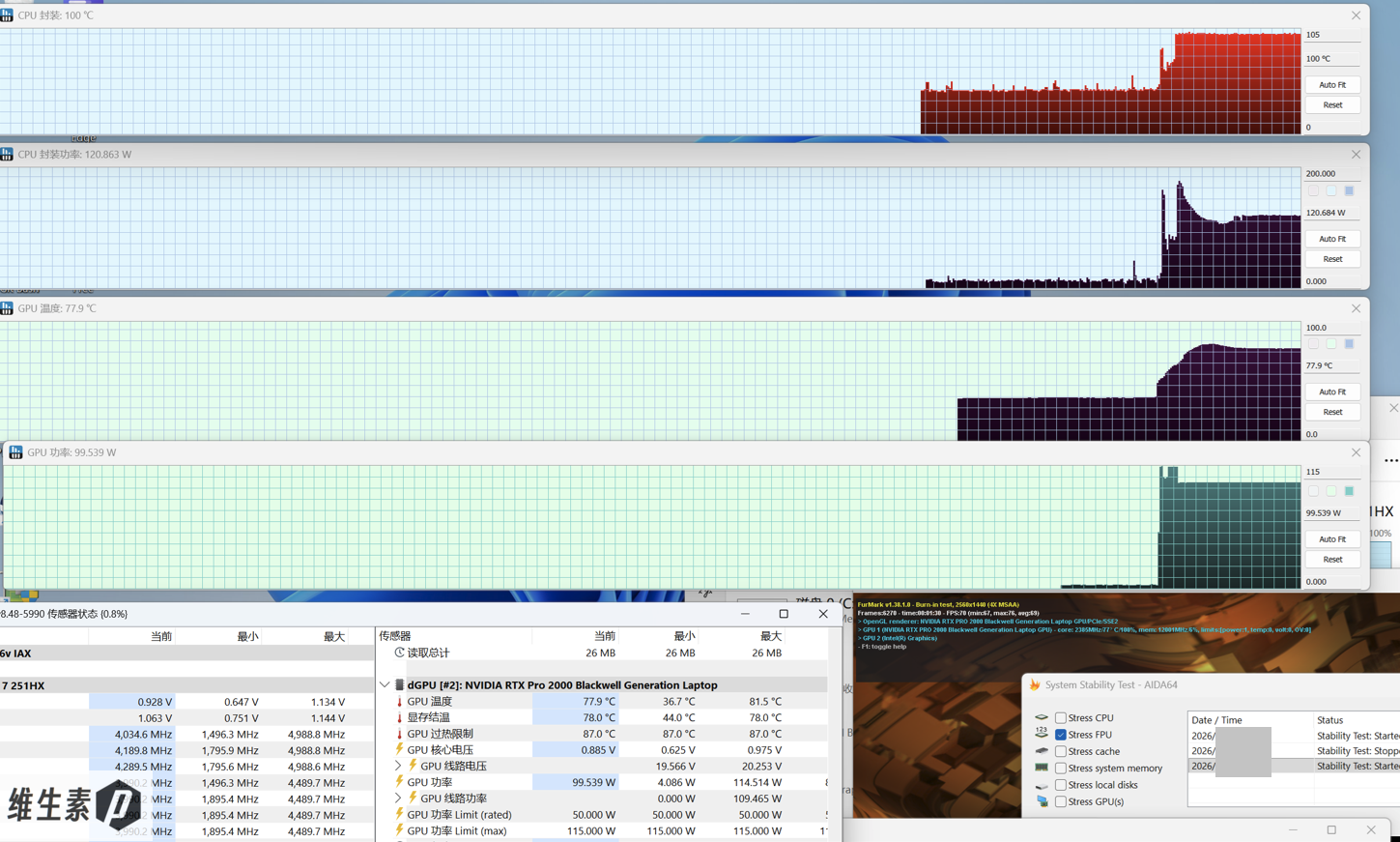
In steady state, dual stress shows CPU at 95W and GPU at 110W. CPU temperature around 95°C, GPU around 80°C.
Among workstations that mostly play it safe, this level of sustained performance is a cross-tier punch — it even exceeds the total-system power of some pricier flagship workstations.
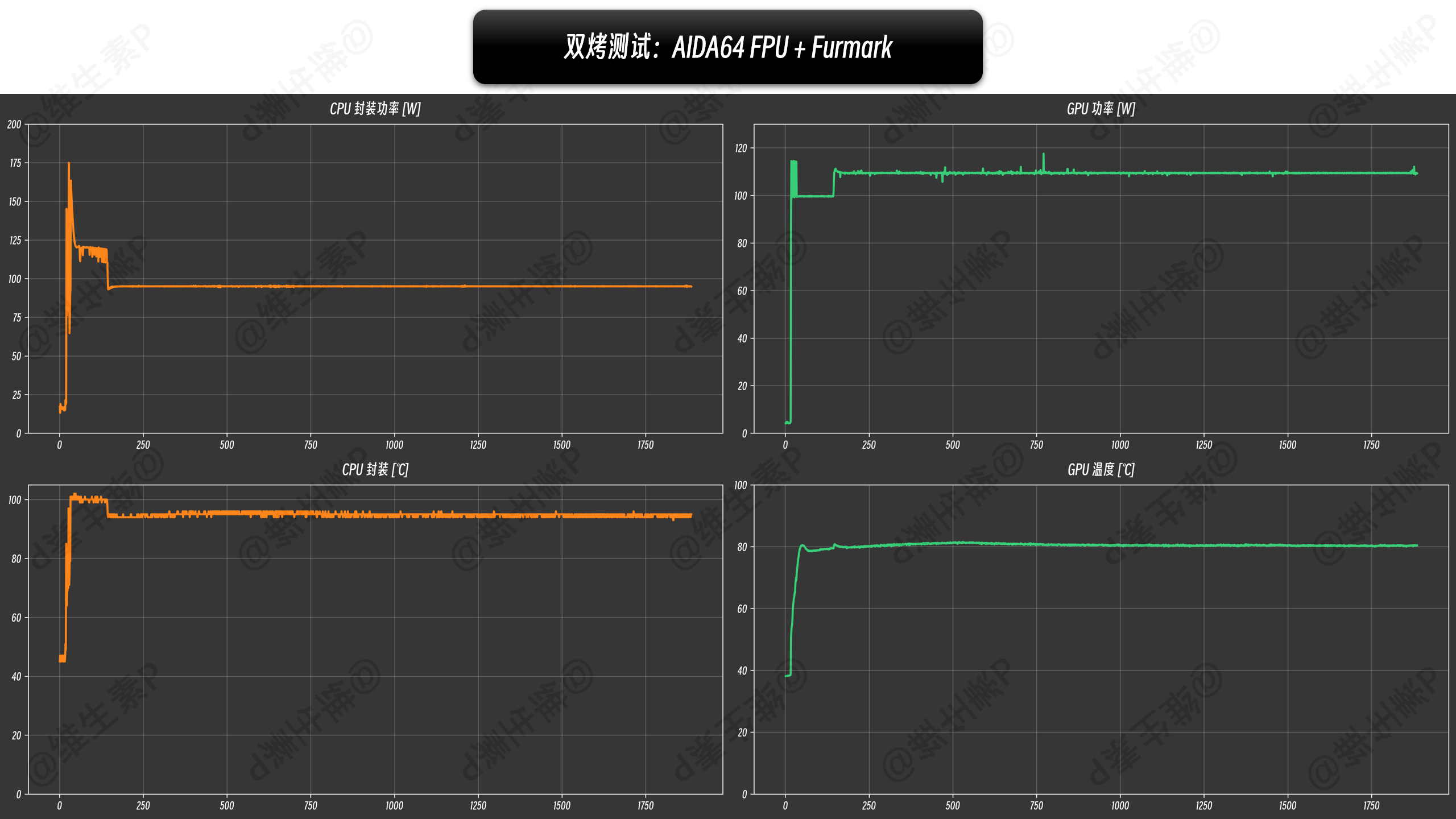
The dual stress test also surfaced something interesting: laid flat without propping, thermal policy drops the CPU to 85W, the GPU picks up the freed budget, and you get a total power release of 85W + 115W = 200W. If the room is warmer or airflow is restricted, it further reduces total power dynamically.
After all that poking around, here are the key numbers in tables:
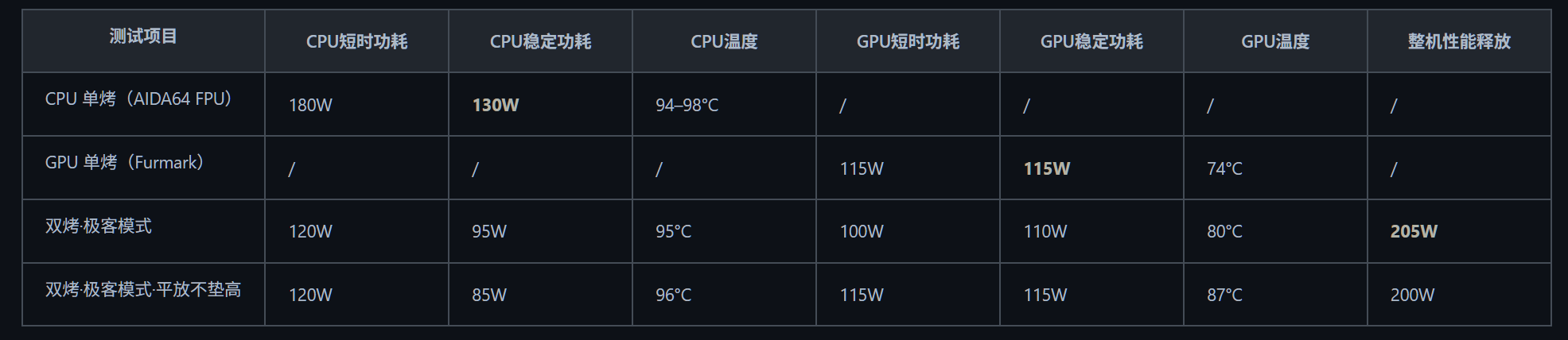
| Test Item | CPU Short-term Power | CPU Stable Power | CPU Temp | GPU Short-term Power | GPU Stable Power | GPU Temp | Total System Release |
|---|---|---|---|---|---|---|---|
| CPU Single Stress (AIDA64 FPU) | 180W | 130W | 94–98°C | / | / | / | / |
| GPU Single Stress (Furmark) | / | / | / | 115W | 115W | 74°C | / |
| Dual Stress · Geek Mode | 120W | 95W | 95°C | 100W | 110W | 80°C | 205W |
| Dual Stress · Geek Mode · Flat (not propped) | 120W | 85W | 96°C | 115W | 115W | 87°C | 200W |
On noise: in Geek Mode with the chassis propped up, at 205W the human-position noise is 50.8–51.6 dB — no harsh tones, mainly a pronounced fan whoosh with strong rear airflow.
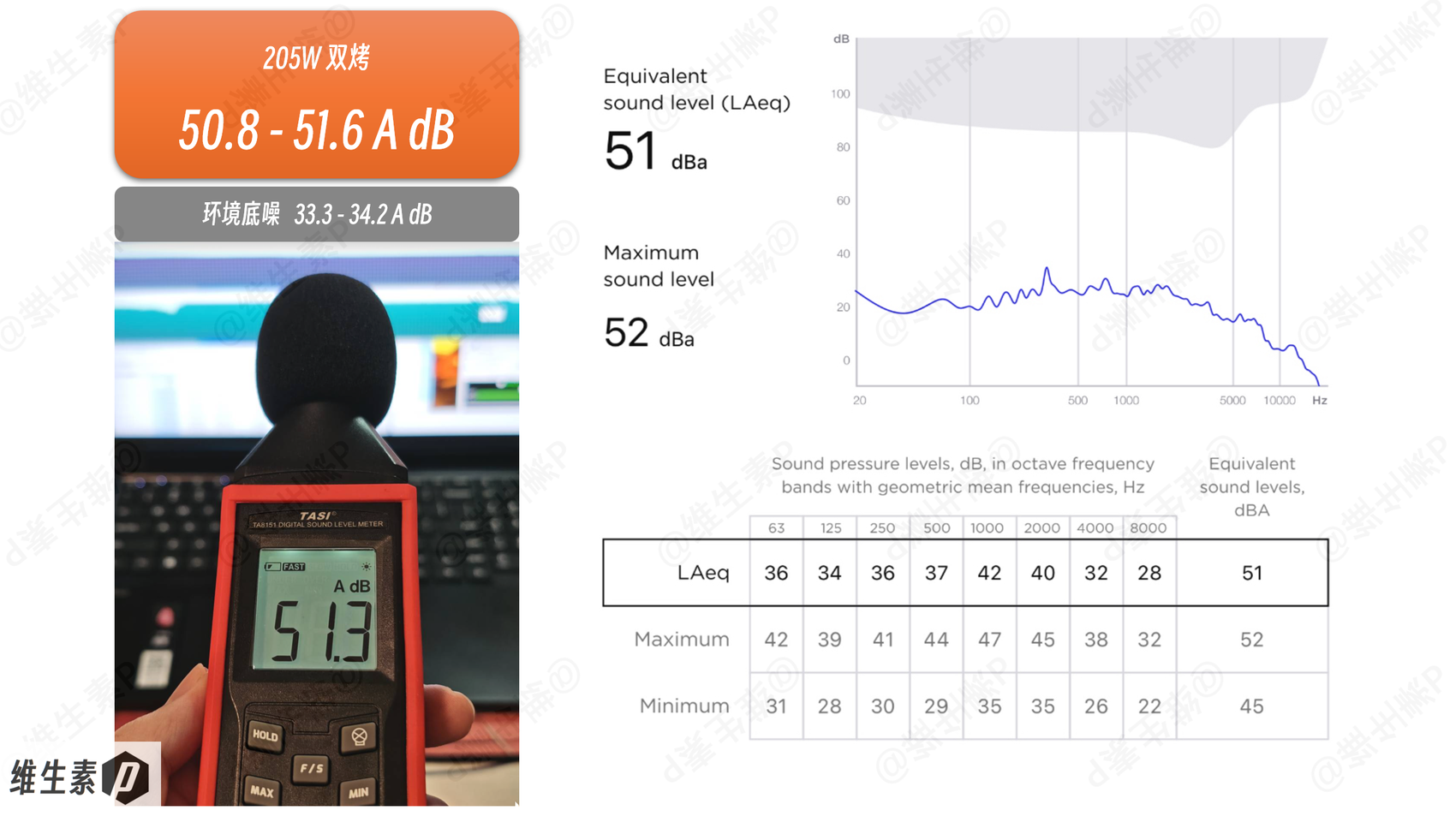
If noise bugs you, just switch modes. Don't write off aggressive machines — aggression just means a higher ceiling; if you prefer calm, the more conservative modes actually leave you more thermal headroom.
Measured noise and power per mode are below. My two cents: if you're not running heavy programs, daily Smart Mode is excellent — barely a whisper of fan noise.
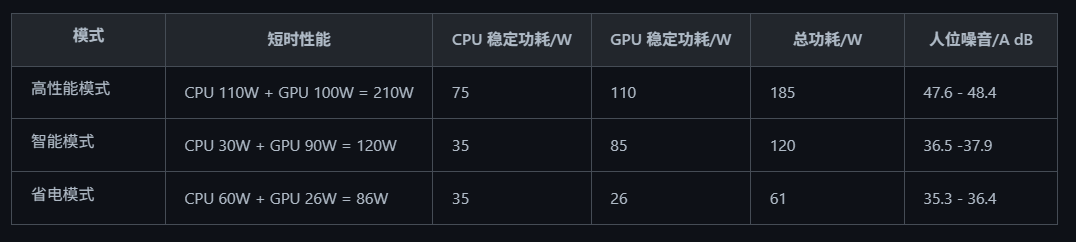
| Mode | Short-term Perf | CPU Stable Power/W | GPU Stable Power/W | Total Power/W | Human-position Noise/dB |
|---|---|---|---|---|---|
| High Performance Mode | CPU 110W + GPU 100W = 210W | 75 | 110 | 185 | 47.6–48.4 |
| Smart Mode | CPU 30W + GPU 90W = 120W | 35 | 85 | 120 | 36.5–37.9 |
| Power Saver Mode | CPU 60W + GPU 26W = 86W | 35 | 26 | 61 | 35.3–36.4 |
Even more impressive is the surface-temperature control on this all-metal chassis under heavy load.
Point-by-point with an infrared thermometer at close range:
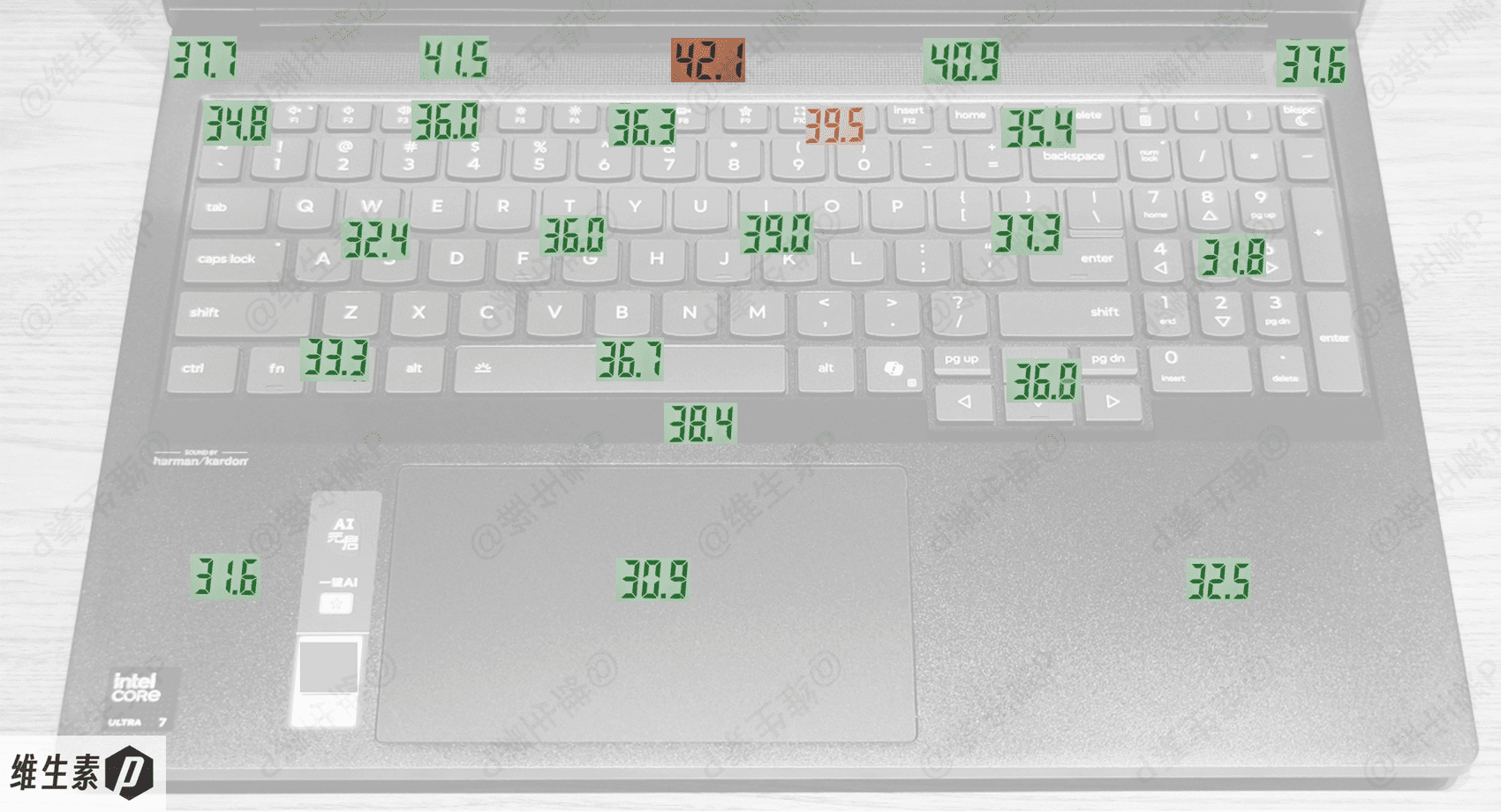
The temperature is well controlled. Metal C-covers conduct heat noticeably by nature, yet at the 205W release the input-area keyboard surface peaks at just 39.5°C, with the warmest spot near the hinge at 42.1°C.
This thermal design clearly has real engineering behind it; the cooling module is no joke.
CPU — Intel Core Ultra 7 251HX
The P16v 2026 runs the Intel Core Ultra 7 251HX, an HX-class chip — meaning a higher power ceiling, stronger power-delivery demands, and better performance. Since the HX series has no third-gen Core Ultra products, this year's HX chips remain on the second-gen Arrow Lake architecture.
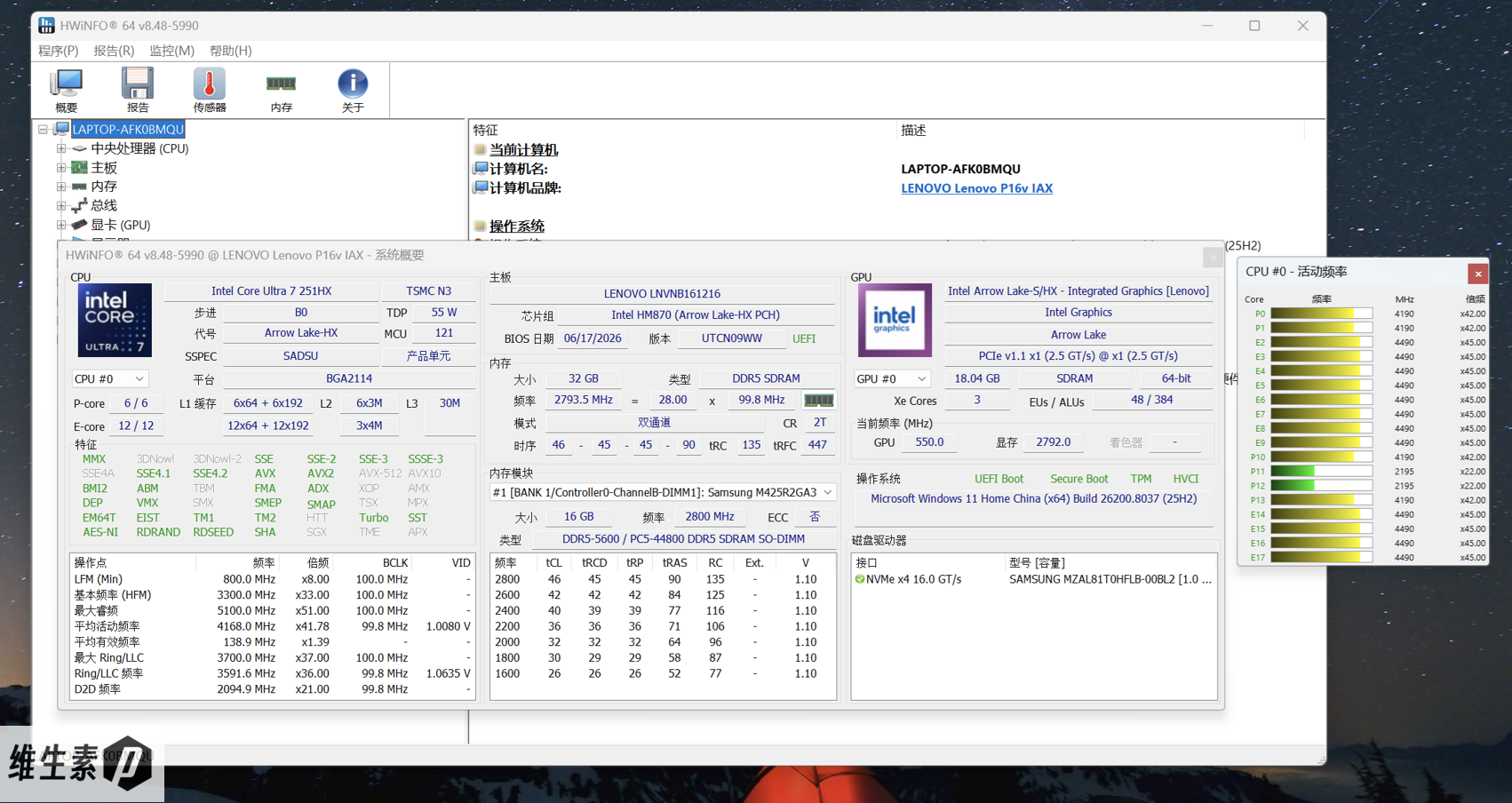
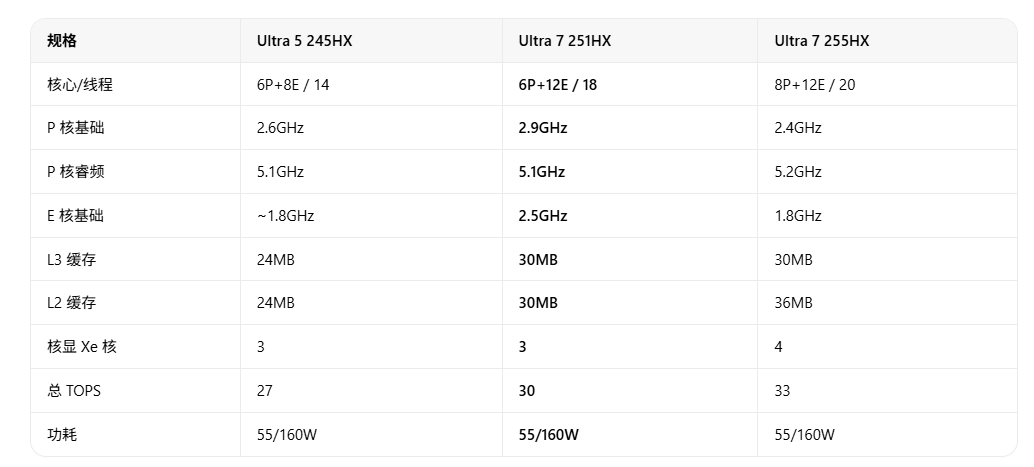
The Ultra 7 251HX packs 6 performance cores (Lion Cove) + 12 efficiency cores (Skymont), no hyper-threading, 18 cores / 18 threads total, on TSMC's 3nm process, with a 5.1 GHz max turbo, 30MB L3 cache, and a 160W max turbo power.
At the 55W base power, P-cores run at 2.9 GHz base and E-cores at 2.5 GHz base.
Despite the U7 name, the Ultra 7 251HX is actually a newly positioned chip that Intel slots between the 245HX and 255HX.
Comparable, similarly-weighted workstations mostly use H-series chips with RTX Pro GPUs — the latest common ones being the Ultra 9 386H and Ultra 7 356H, while 2025 models generally ran Core Ultra 200H.
How do they stack up? Let's look at the scores.
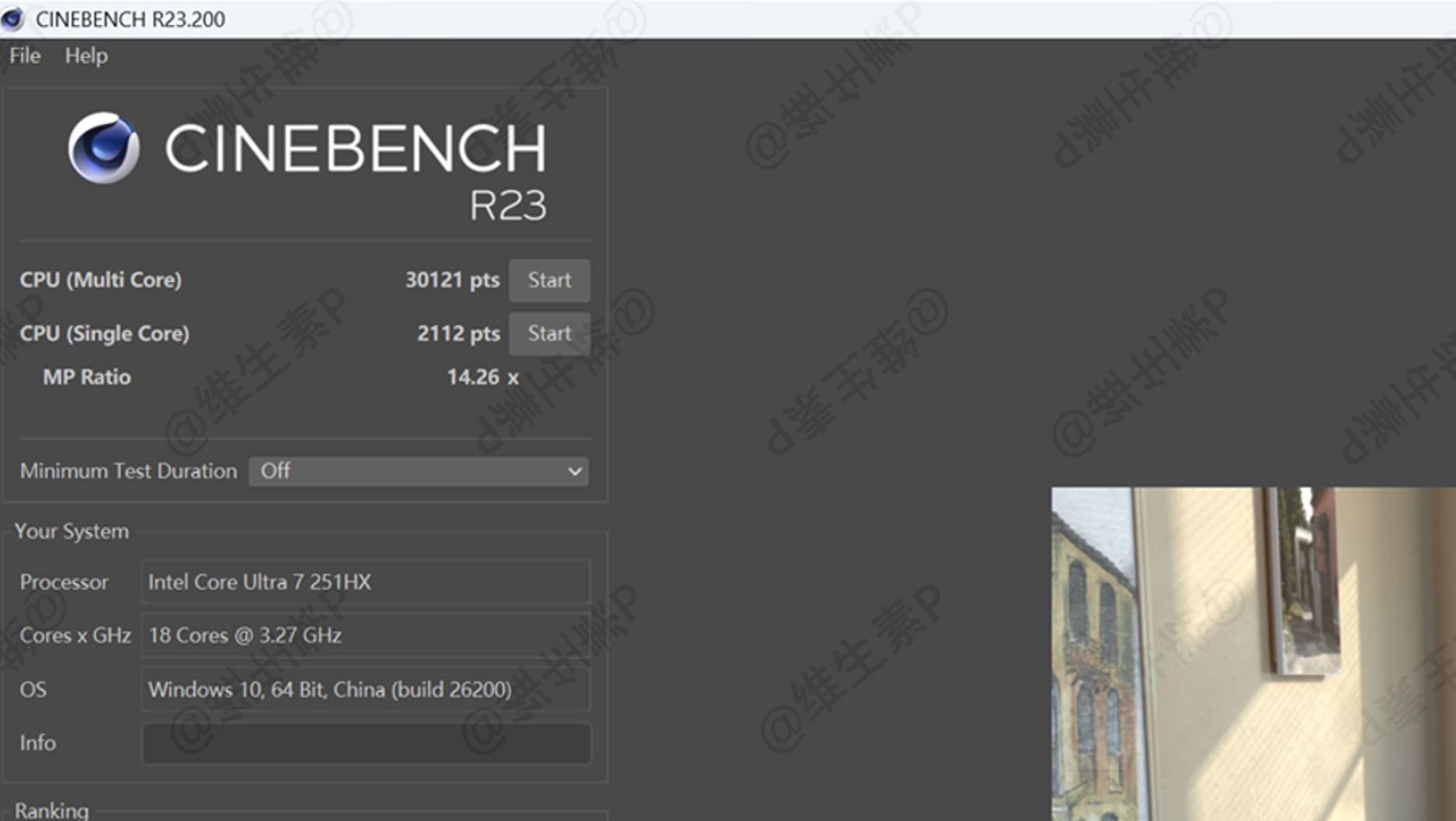
With the stock 300W adapter, chassis propped up, Geek Mode on, a single-round Cinebench R23 scores 2112 single-core and 30121 multi-core — a bright spot among conservative workstations.
The P16v with the Ultra 7 251HX, summarized:
- CPU-Z single-core 815, multi-core 13061
- Cinebench R23 single-round single-core 2112, multi-core 30121
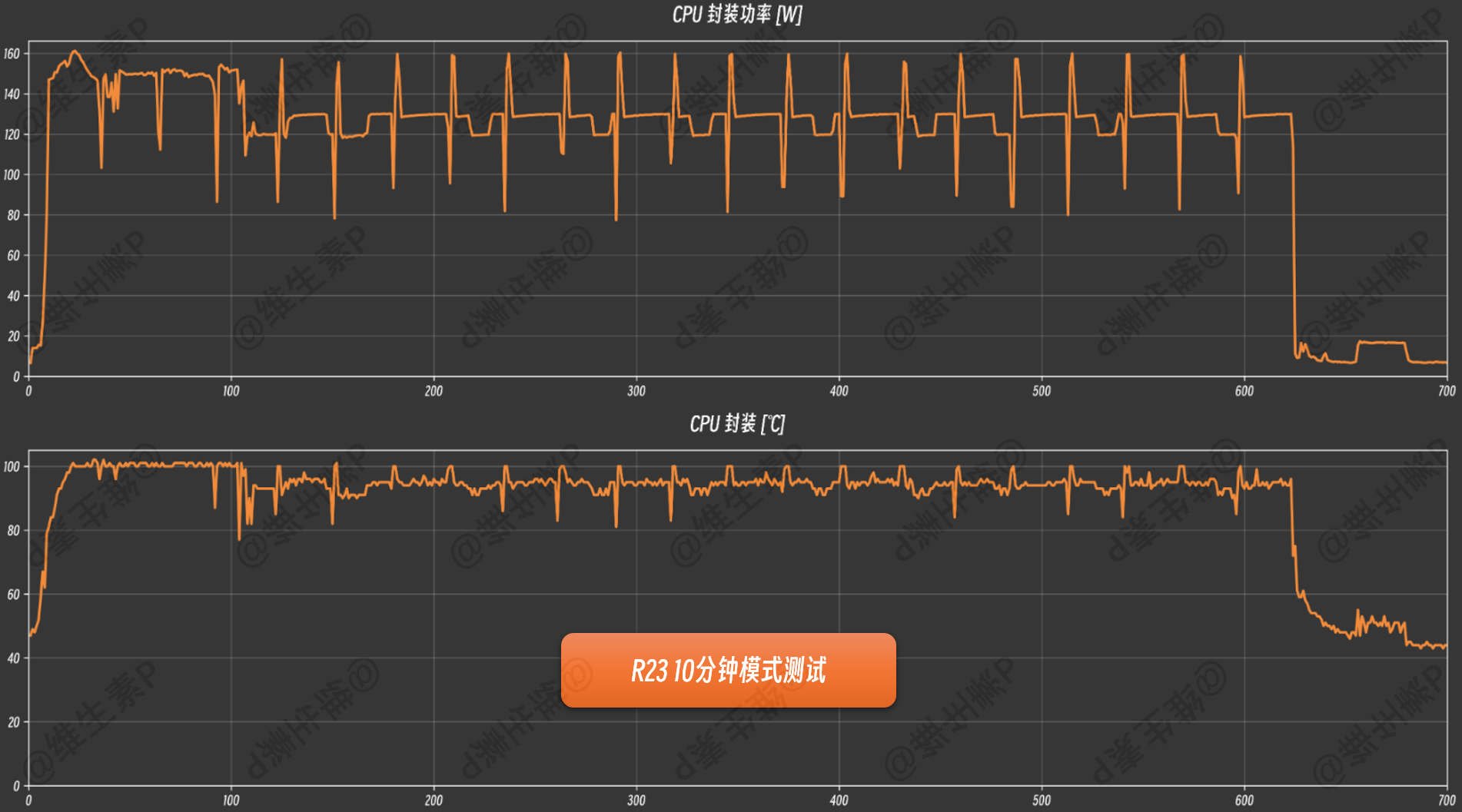
- Cinebench R23 10-minute single-core 2140, multi-core 29355
- Cinebench 2026 single-round single-core 515, multi-core 6814
Unplugged, in High Performance mode, it still hits H-series-level scores:
- Unplugged CPU-Z single-core 787, multi-core 10158
- Unplugged Cinebench R23 single-round single-core 2078, multi-core 23342
- Unplugged Cinebench 2026 single-round single-core 501, multi-core 4881
Unplugged vs plugged, overall it's roughly 97% single-core and 77% multi-core.
Roughly estimating from real-world usage (daily use is mostly single-core, heavy loads mostly multi-core), unplugged performance lands at about 80–90% of plugged-in.
In the R23 10-minute test the CPU power is very aggressive, peaking at 161W and mostly staying above 120W.
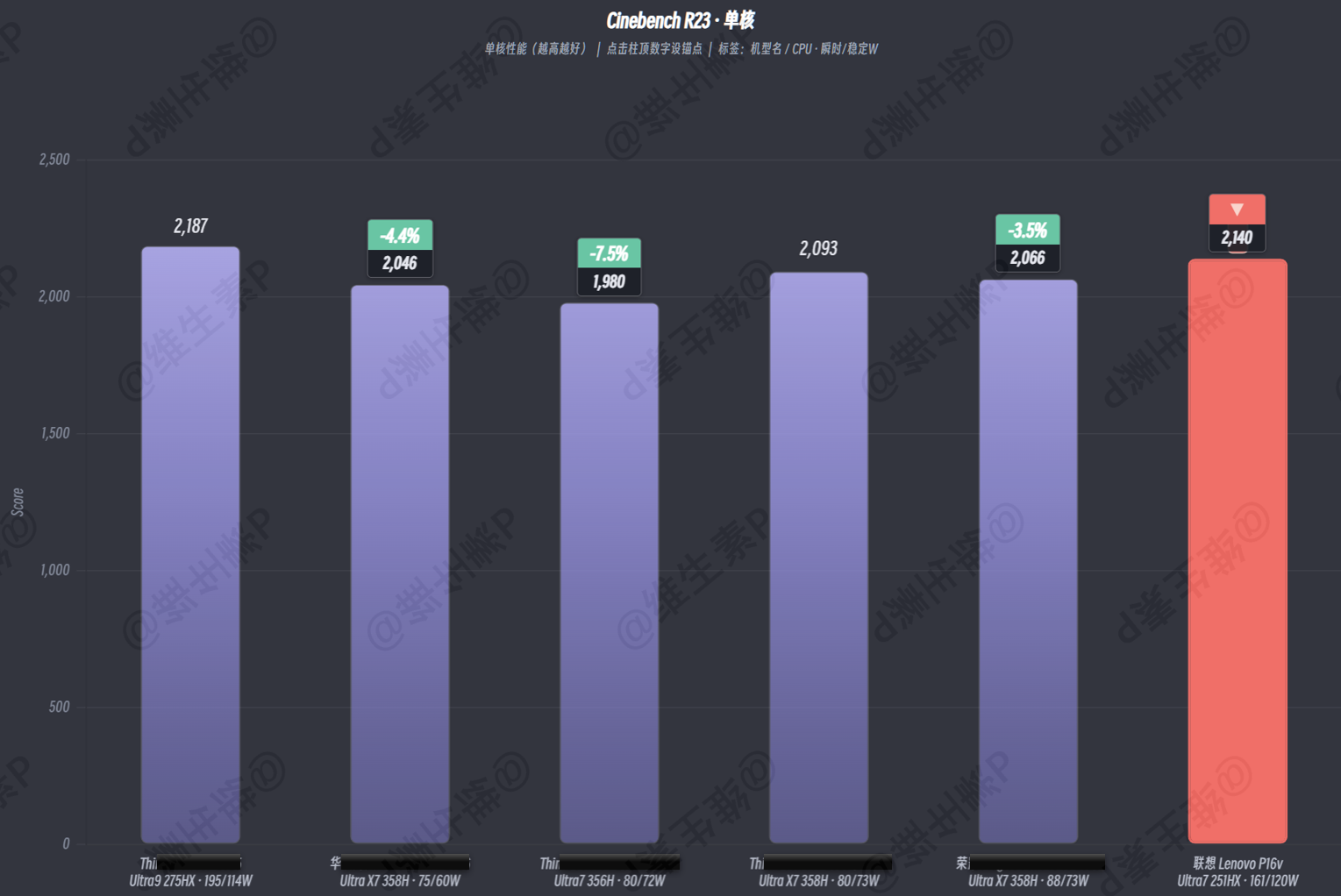
In cross-comparisons with other laptops, the P16v's lead over H-series processors is clear.
Single-core: the Ultra 7 251HX is only about 2.1% behind the higher-power Ultra 9 275HX — a tiny gap.
With stronger power delivery, the Ultra 7 251HX leads several Panther Lake H-series competitors (Ultra X7 358H / Ultra 7 356H) by 3.5%–7.5%, giving it an edge in single-thread-bound work like daily responsiveness, light compilation, and gaming.
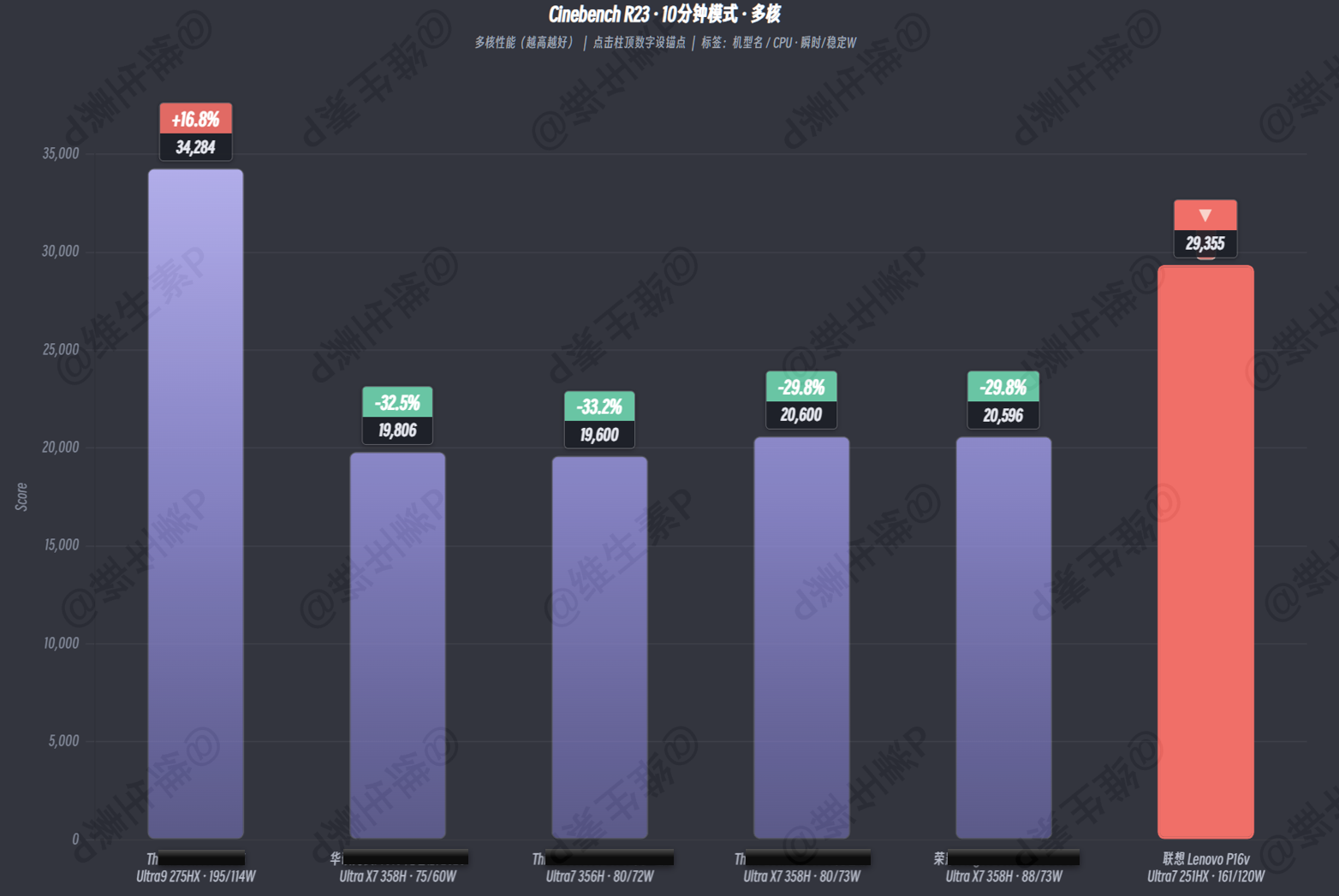
Multi-core: thanks to the generous power headroom the P16v gives the 251HX, it clears other H-series laptops by a wide margin. In other words, inside the P16v, the 251HX pairs stable cooling with high power to deliver a clear multi-core lead over its class.
Of course, compared with the Ultra 9 HX series with even more aggressive power delivery and a higher spec tier, a small gap is perfectly reasonable.
GPU — NVIDIA RTX Pro 2000 Blackwell 8GB GDDR7
The P16v's core differentiator is this RTX Pro 2000 Blackwell professional GPU with 8GB GDDR7 on the all-new Blackwell architecture. To be clear: this is a GPU for professional productivity software — its battlefield isn't AAA games, it's GPU acceleration in engineering software.
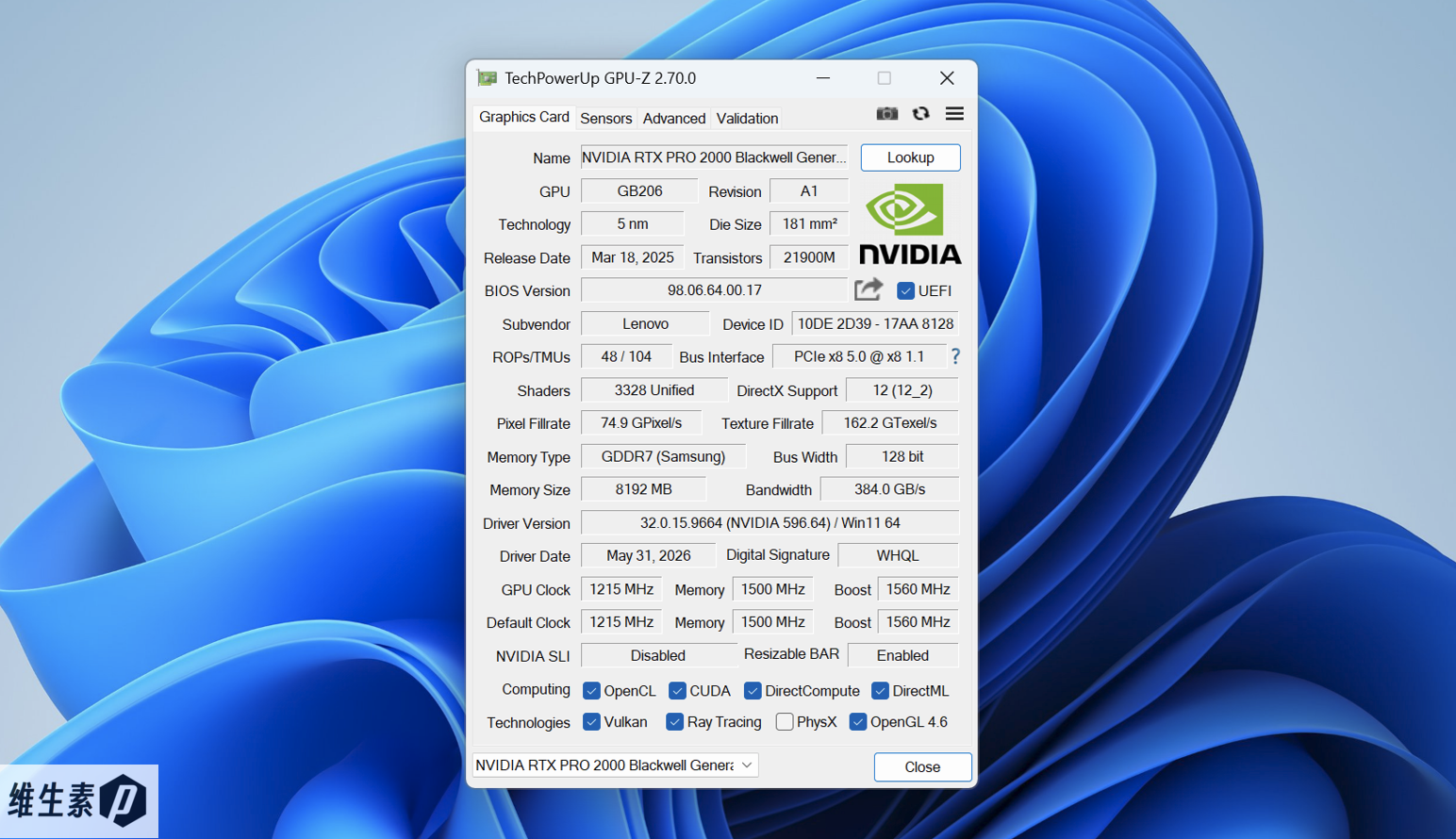
The RTX Pro 2000 is also Blackwell-based, with a more advanced process and higher transistor density than the prior Ada Lovelace generation. As a workstation-class card, it delivers real value for professional-software users, running engineering software and graphics-compute workloads on demand.
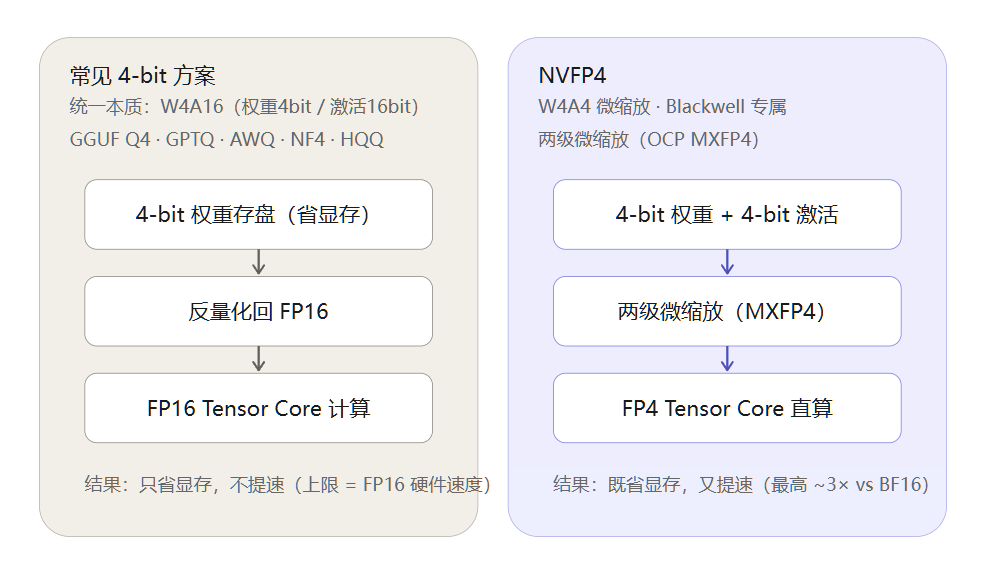
The RTX Pro's fifth-gen Tensor Cores support a hardware quantization technique called FP4. In short, FP4 expresses model weights at 4-bit precision; compared with common 4-bit schemes, NVFP4 uses two-level micro-scaling for less precision loss, much lower VRAM usage, and doubled inference throughput.
This is Blackwell-exclusive — prior Ada-generation RTX 40 consumer and professional cards don't support it.
For example, if you run a model like Llama-3.1-8B-Instruct-NVFP4 in Docker, your RTX Pro GPU gains an edge — less VRAM, more speed.
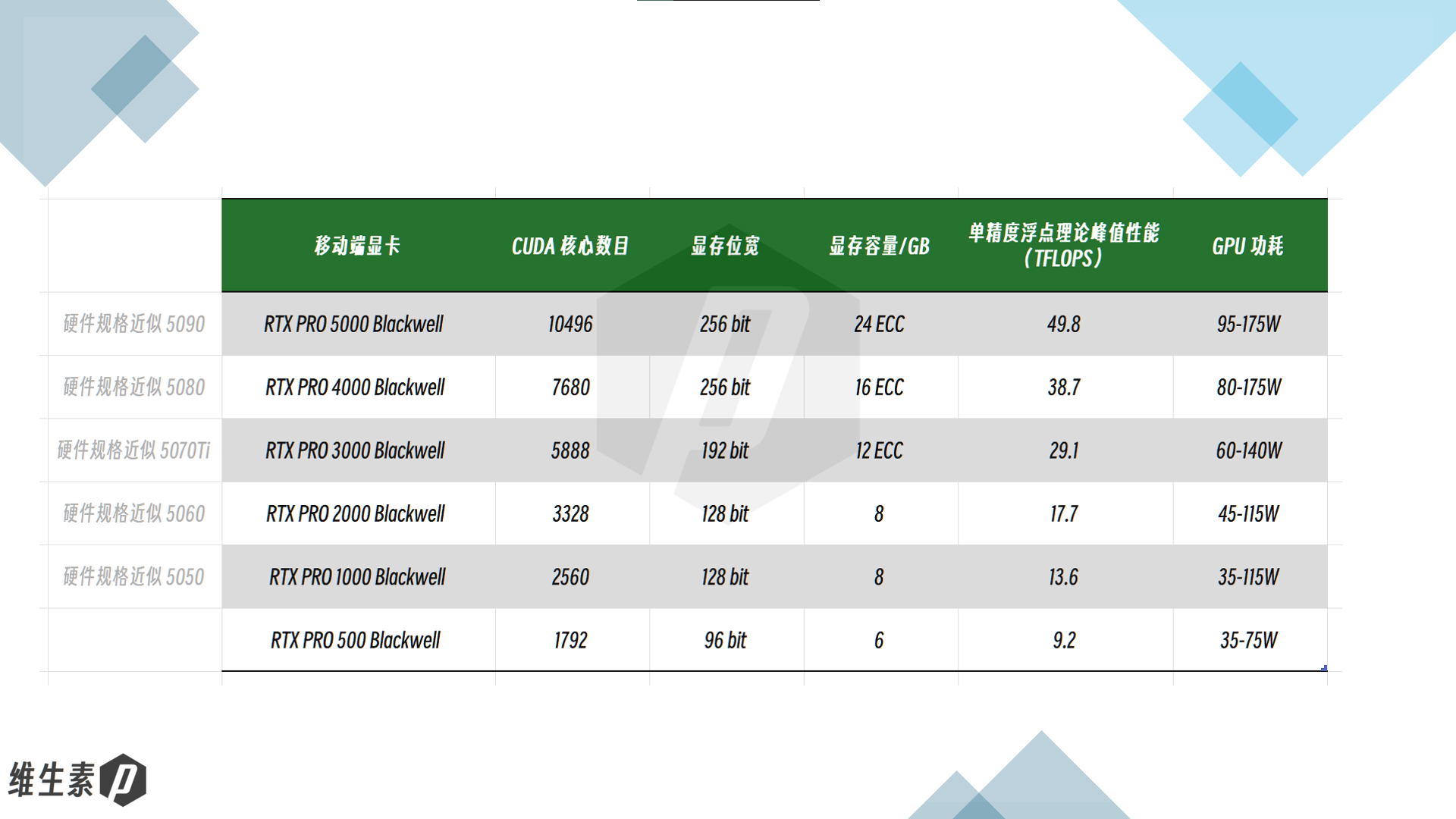
On specs, the RTX Pro 2000 is nearly identical to the RTX 5060 mobile: 3328 CUDA cores, 128-bit bus, 8GB GDDR7, with 4th-gen RT Cores smoothing viewport rendering and 5th-gen Tensor Cores lifting AI compute — roughly 17.7 TFLOPS of peak FP32 performance and 572 TOPS of AI performance.
Let's benchmark it. Though it's a professional card, it still supports DX11 and DX12, so we used 3DMark (a gaming-leaning test) and got these scores.
- Fire Strike graphics 33057
- Time Spy graphics 12263
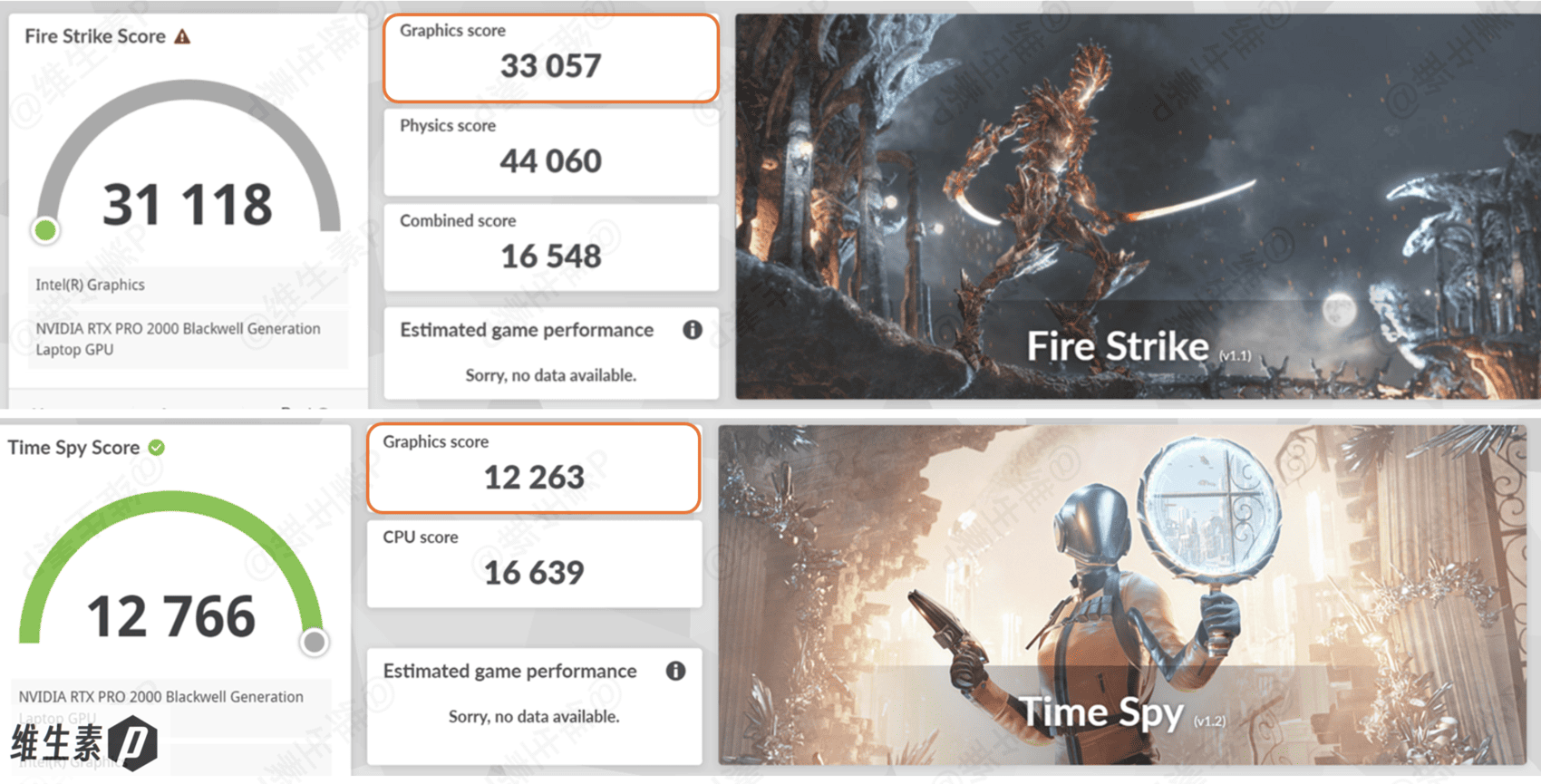
Close to the RTX 5060 mobile — but gaming on a pro card is a bit absurd, since its value isn't in gaming.
The real gap shows in pro-software benchmarks like SPECviewperf (covered earlier in the productivity section) — industry-recognized simulation scores where the RTX Pro beats same-tier gaming cards by a wide margin in some scenarios. A pro card isn't just about compatibility and stability; it's tuned for engineering software's graphics pipeline and GPU scheduling, with ISV certification to match.
If you have relevant software needs, see the "Productivity & AI LLM Tests" section for the full picture.
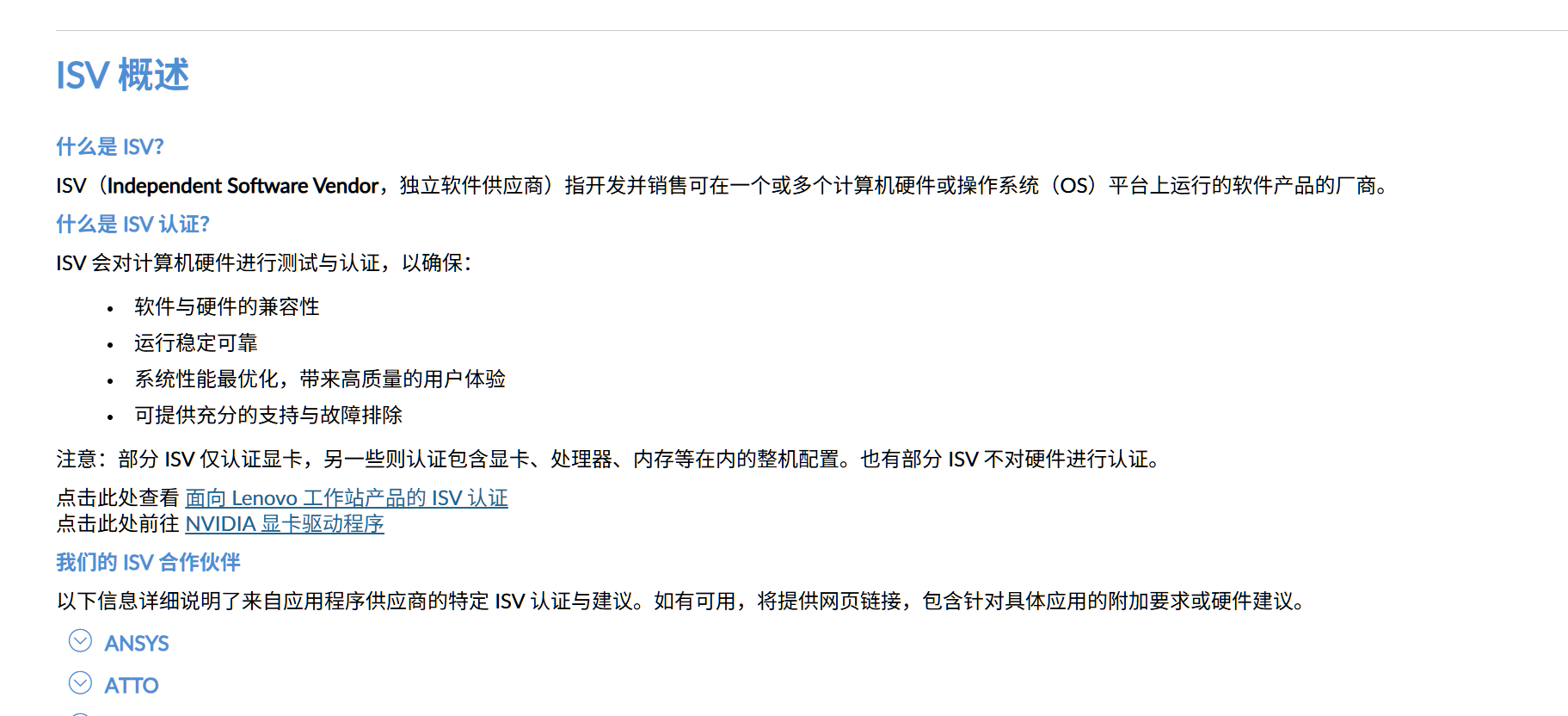
For large-project simulations, watching a progress bar crawl to completion can take tens to over a hundred hours. You watch it crawl from 20 to 80, mentally timing it to land right before your meeting — then, snap, it crashes, and you restart from zero, deadline looming, the whole day down the drain. The suffocation is real.
Compared with consumer discrete GPUs whose acceleration tuning may be spotty and whose drivers may be unstable, leave professional work to a professional-grade RTX Pro workstation.
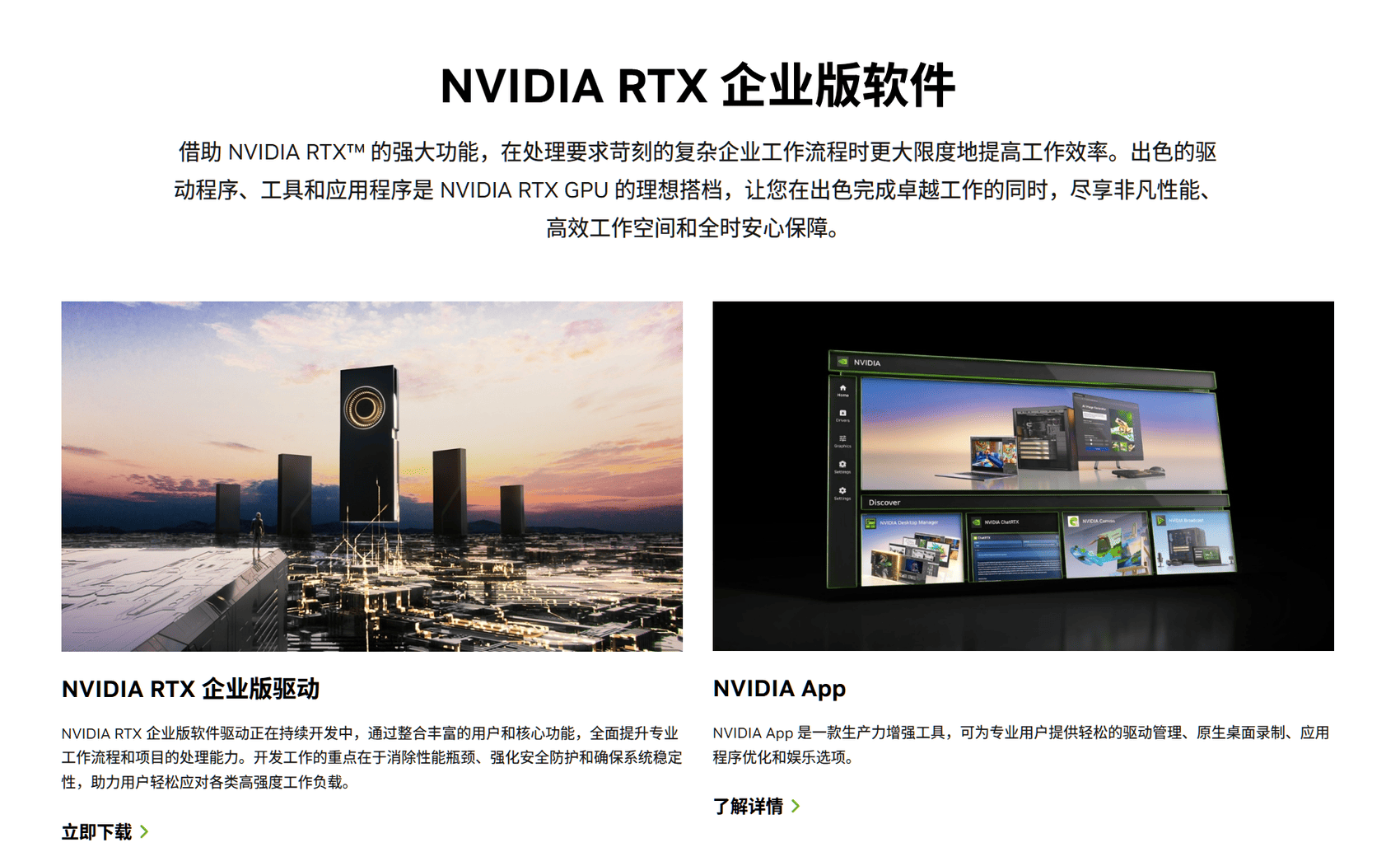
The RTX PRO runs the RTX Enterprise (Production Branch) driver — ISV-certified, long life-cycle support, regular security updates — while the RTX 50 mobile series defaults to the Game Ready driver, which serves gaming rendering and frame optimization and does no dedicated ISV validation for industrial software. Game Ready updates ship fast and likely will not regression-test industrial production software, so an update might quietly change some GPU-computation results or performance.
For gaming, that's just a frame here or there, but for a continuous-delivery digital pipeline, that uncertainty is risk.
If you're an upper-year undergrad, grad student, or instructor with engineering needs — GPU parallel compute, data analysis, GPU-accelerated engineering software — and the budget allows, a high-performance workstation with ISV certification like the Lenovo P16v is probably the more robust choice.
Display
The P16v 2026 ships with a genuinely good panel: 16 inches, 2560×1600, 16:10, up to 240Hz, VESA DisplayHDR 400, 10-bit color, and X-Rite factory calibration.
The panel is a TL160ADMP20, most likely from Tianma.
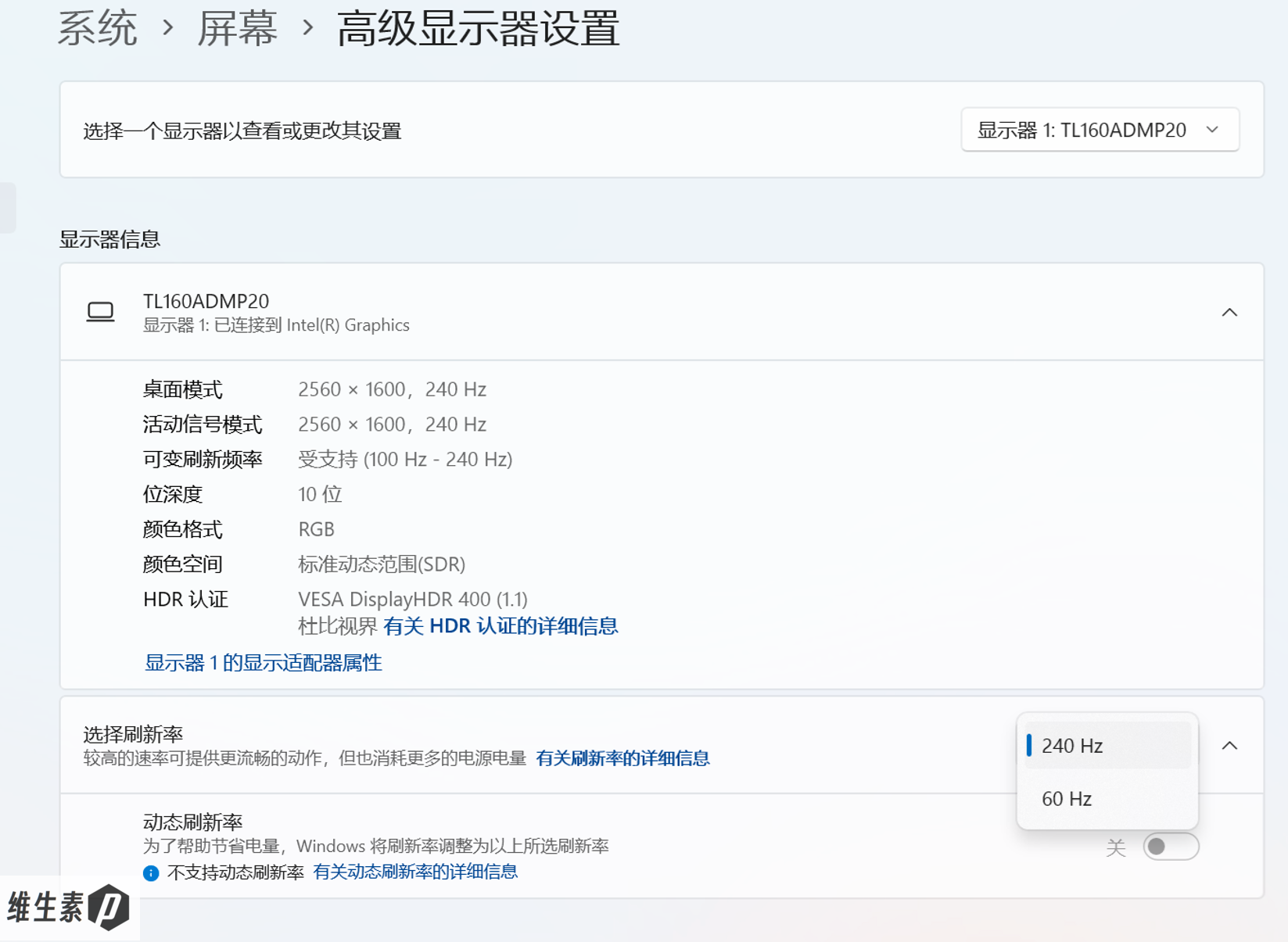
It supports several color modes, adjustable in Baiying or Windows settings; some are workstation-specific, like medical-imaging simulation.
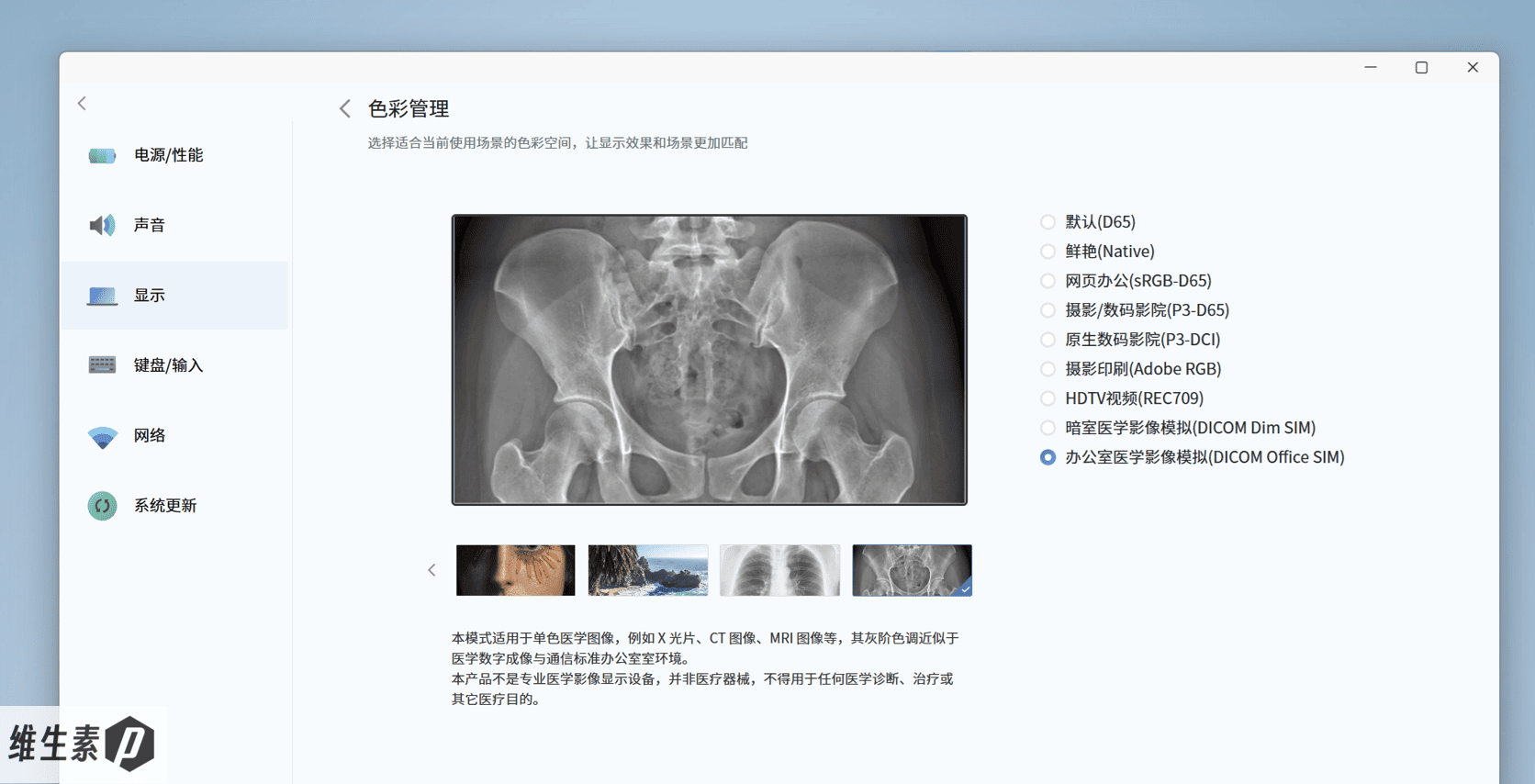
Measured in SDR default mode: 100% sRGB, 97% DCI-P3, 87% AdobeRGB coverage — a fine wide-gamut panel with a 2.2 tone response.
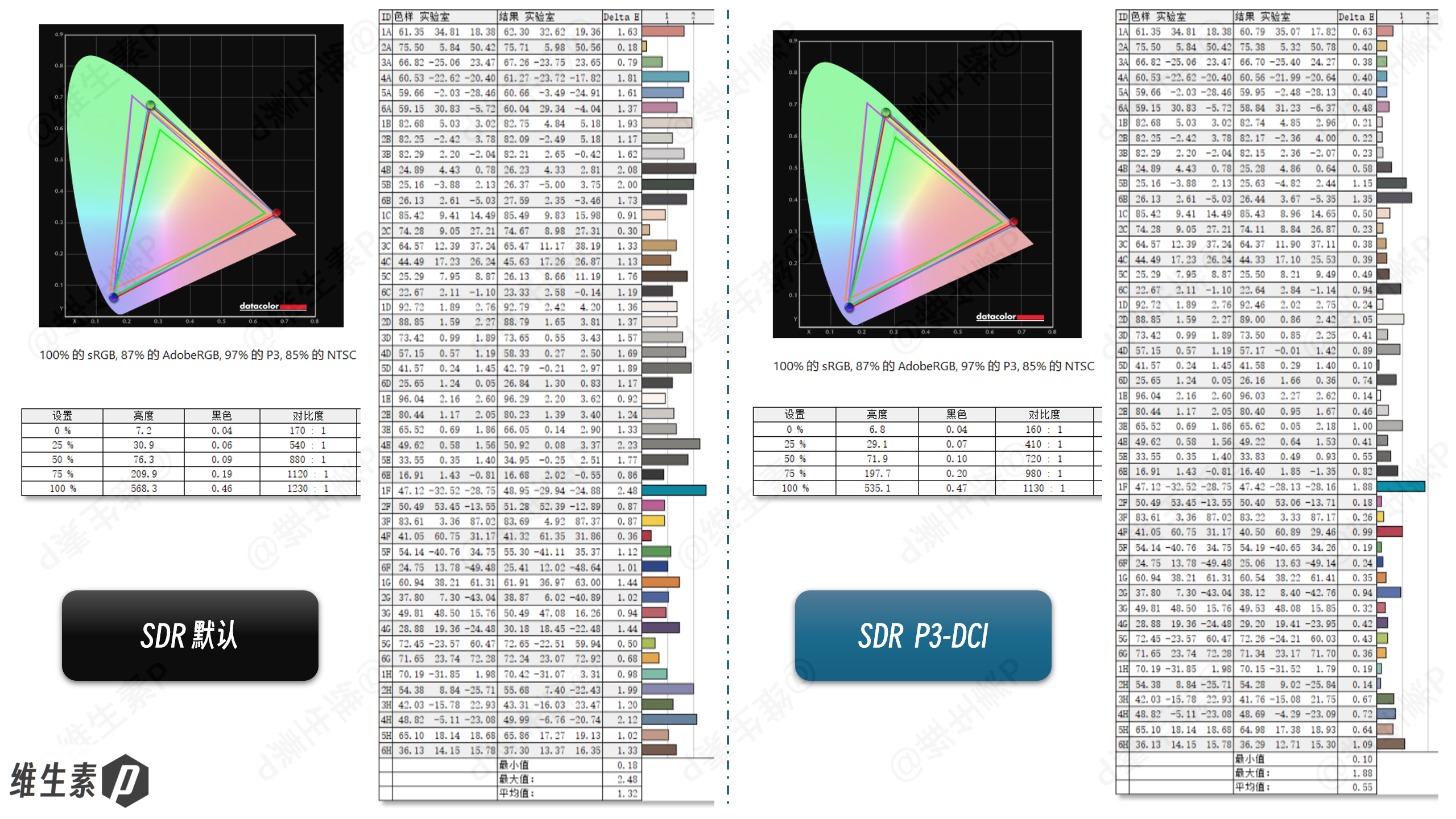
Average ΔE in DCI-P3 mode is 0.55 — excellent color accuracy. In default mode it's 1.32. In DCI-P3 mode the screen reaches photo-editing-grade accuracy, ideal for design and engineering-visualization work that needs precise color.
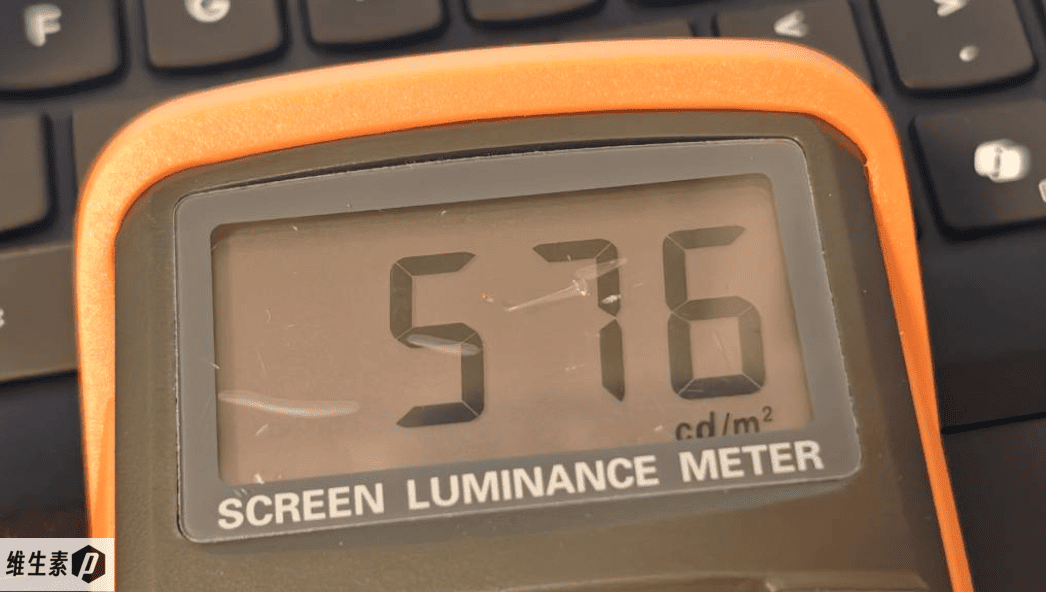
SDR peak brightness measured up to 576 nits, matching the HDR-mode peak.
Even the dimmest corner clears the advertised 500-nit mark.
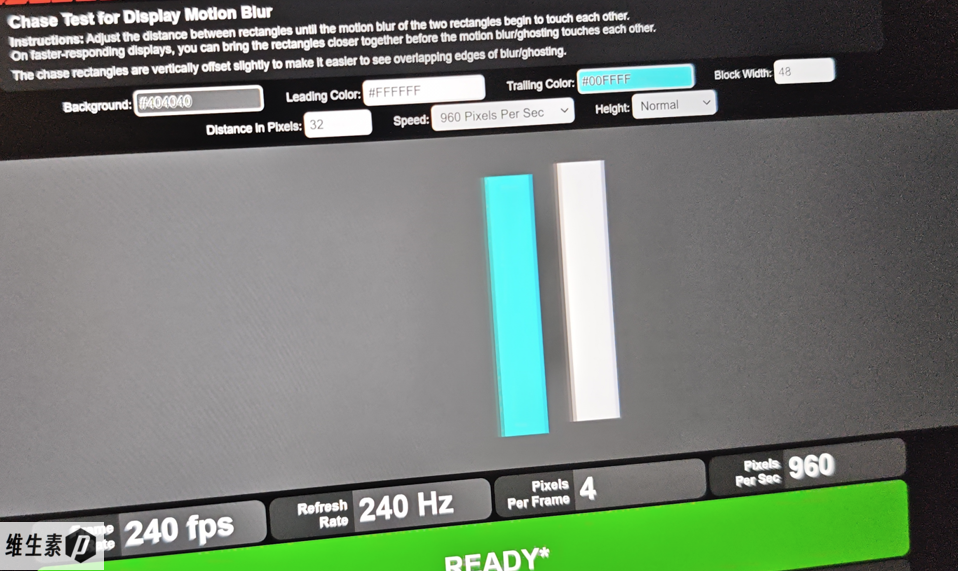
Shot at a 1/1000 s shutter speed to check motion blur — excellent.
Up top sits a 1080p FHD camera with Windows Hello face unlock and a physical privacy shutter — both standard. The P16v also has a slightly higher screen-to-body ratio than the ThinkPad P16v 2025.
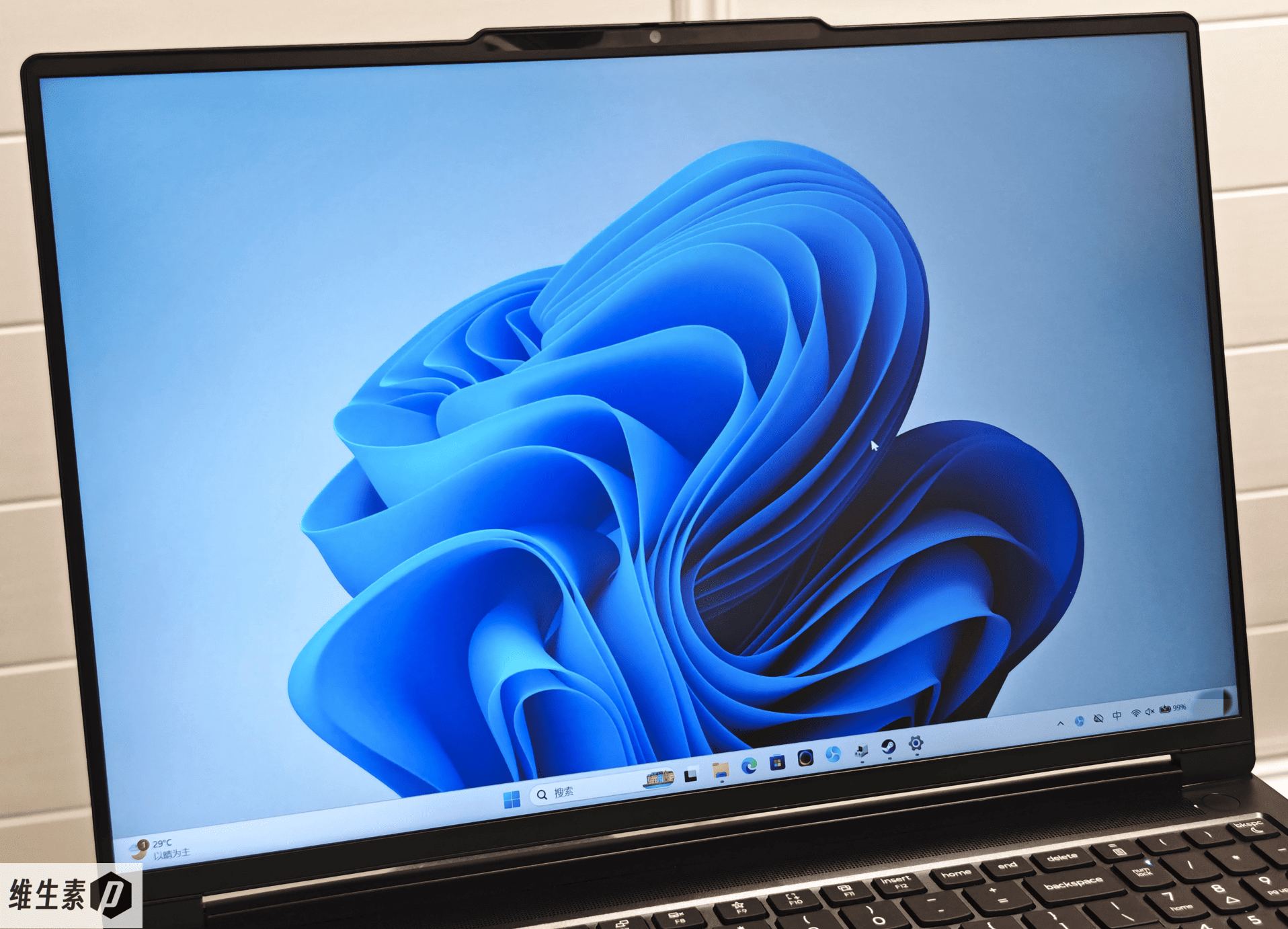
Compared with some workstations that charge ¥20,000 for a 1200p panel, the P16v 2026's screen is a step up — and future generations may offer even more.
Gamut, accuracy, and brightness all land well; it's more than enough for CAD modeling, graphic design, and retouching, and the 240Hz refresh rate clearly smooths out scrolling through drawings and rendering UIs.
Memory & Storage
Memory is 32GB dual-channel — two Samsung DDR5-5600 16GB modules running at 5600 MT/s. As of autumn 2026, that's a pricey pair.
They're two socketed SO-DIMM modules, so you can swap them yourself later.
Measured: read 84259 MB/s, write 77574 MB/s, copy 80332 MB/s.
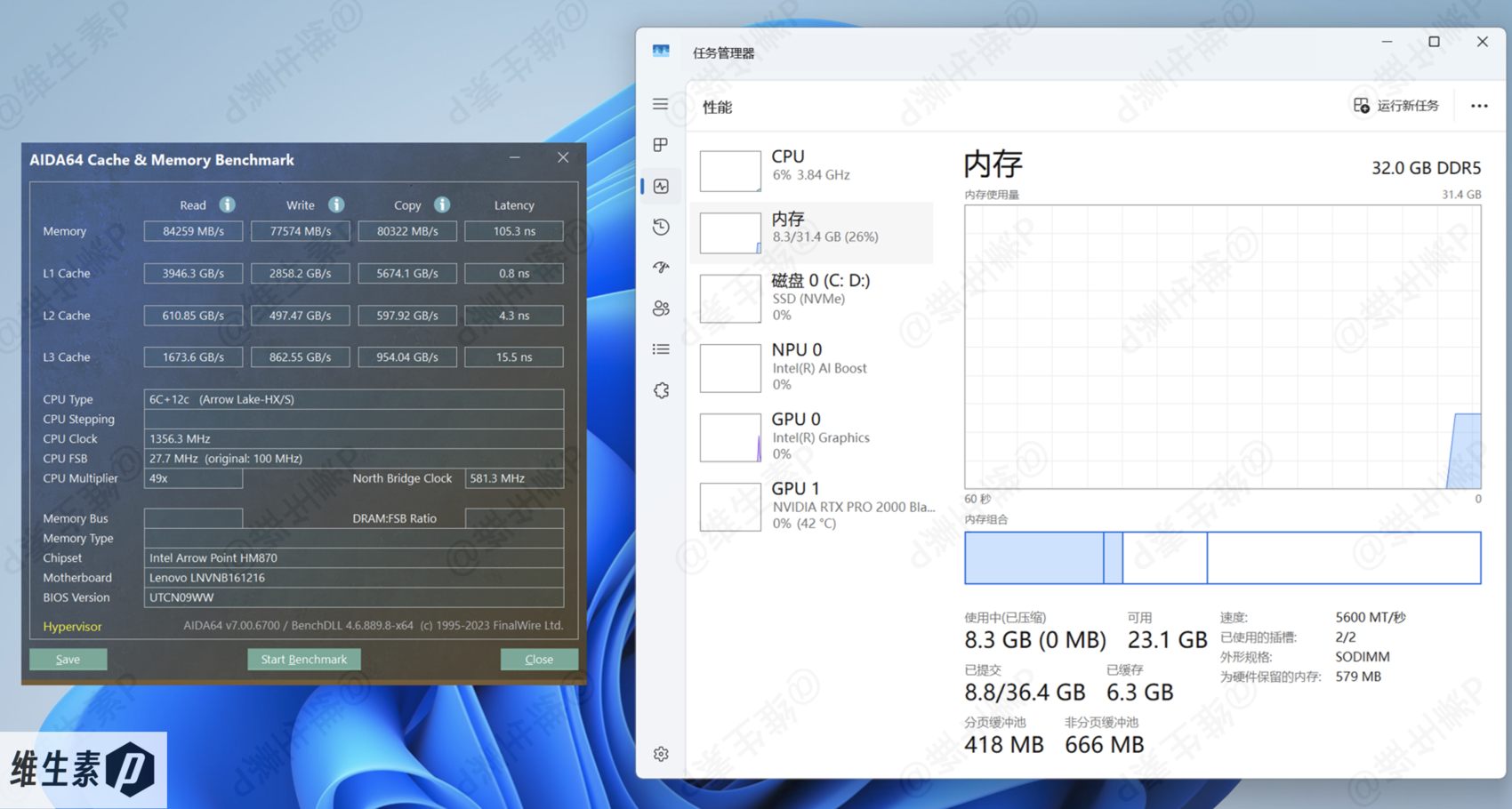
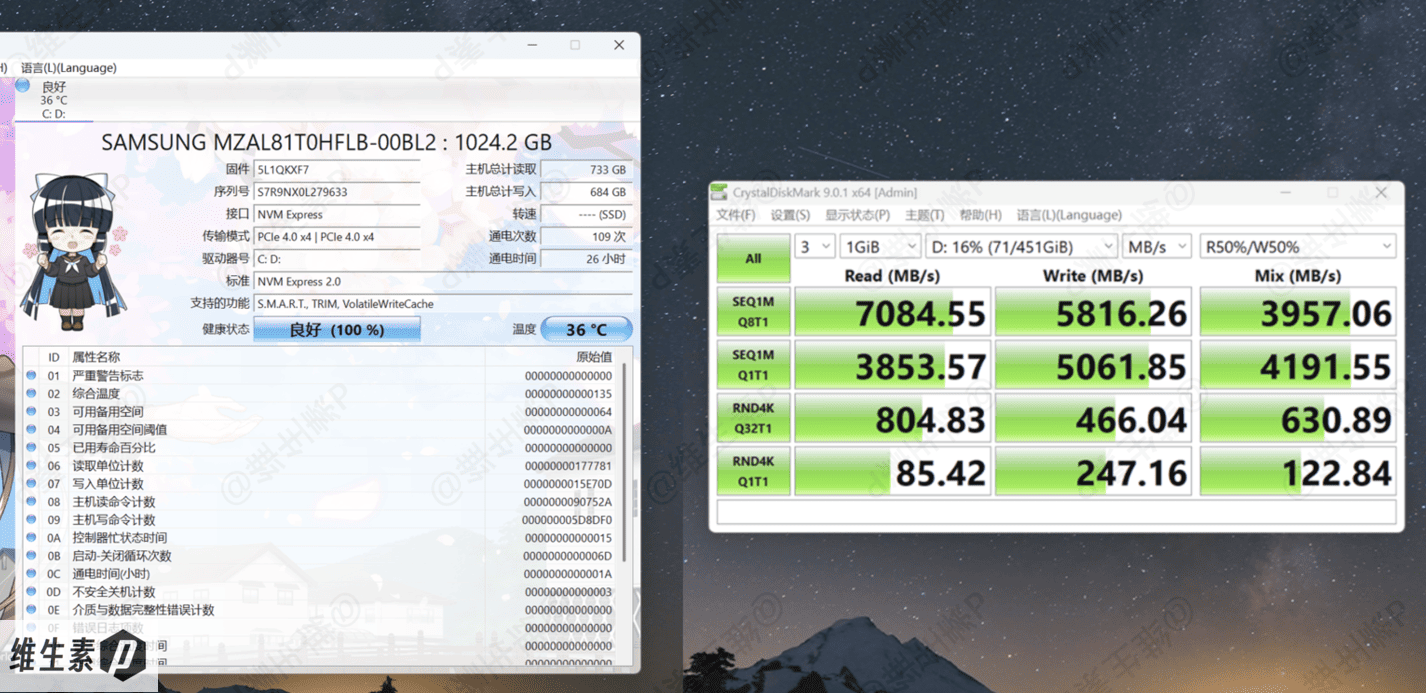
The SSD is a Samsung MZAL81T0HFLB-00BL2, likely an OEM PM9C1b, roughly equivalent to a 990 EVO Plus in positioning.
It's an M.2 2242 drive mounted in a 2280 bay via an extension board — 1TB capacity, 3D V-NAND, NVMe PCIe 4.0 x4.
Out-of-the-box read/write performance is below — solid.
If you need lots of local storage, there's room to add a second drive.
Power & Charging
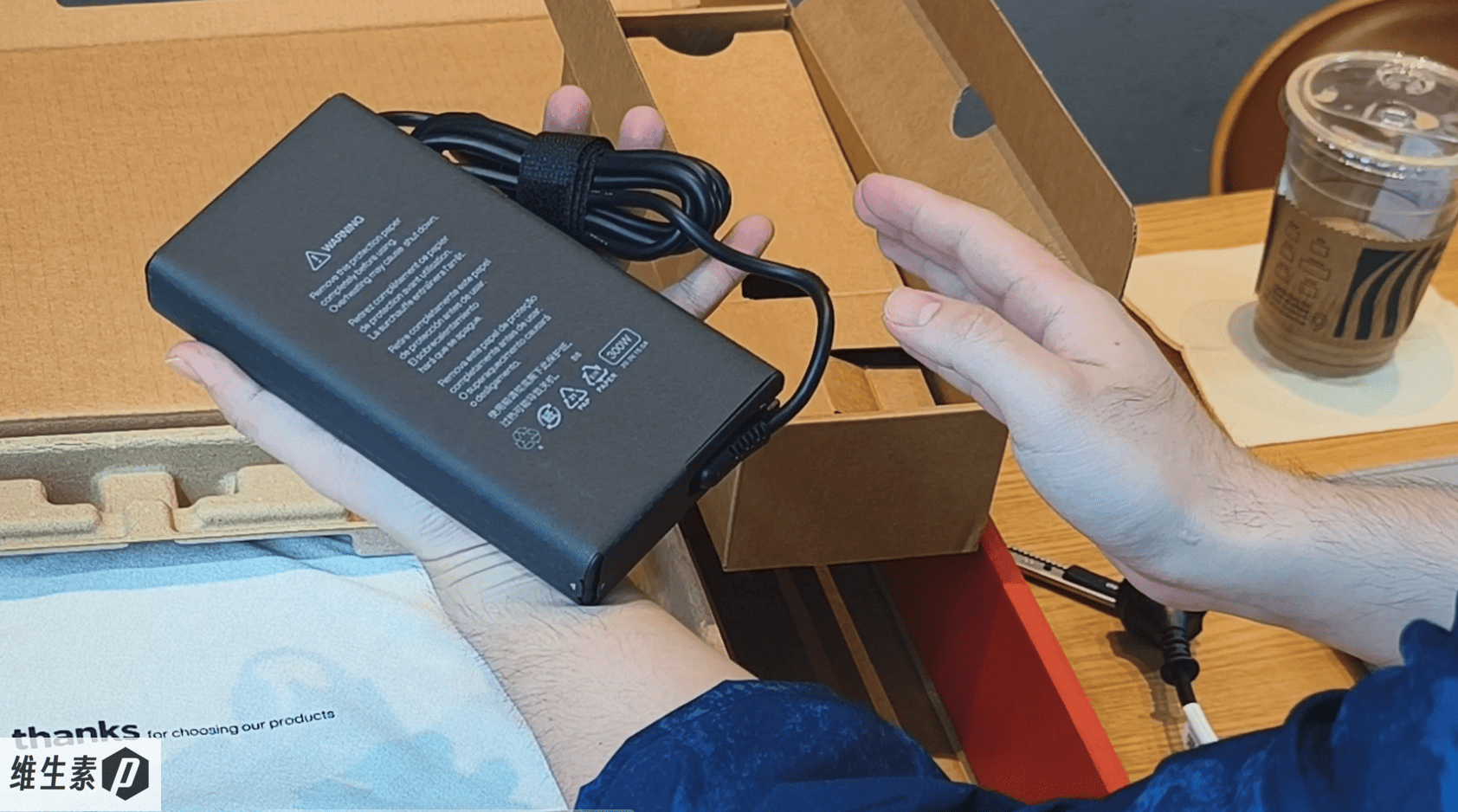
The stock adapter is a 300W (20V 15A) brick; with the cable it's 880g.
Add the 2.099kg body and you're looking at a 3kg travel load.
A third-party PD charger on the go is far more portable, but costs some performance, as measured below:
| Adapter | Single Load — CPU Max Package Power | R23 Single-round Multi-thread | Single Load — GPU Max Power | 3DMark Time Spy Graphics |
|---|---|---|---|---|
| 300W Stock | 160W | 30121 | 115W | 12263 |
| 100W (20V5A) | 60W | 23317 | 31W | 5807 |
| 65W (20V3.25A) | 42W | 18293 | 13W | 661 |
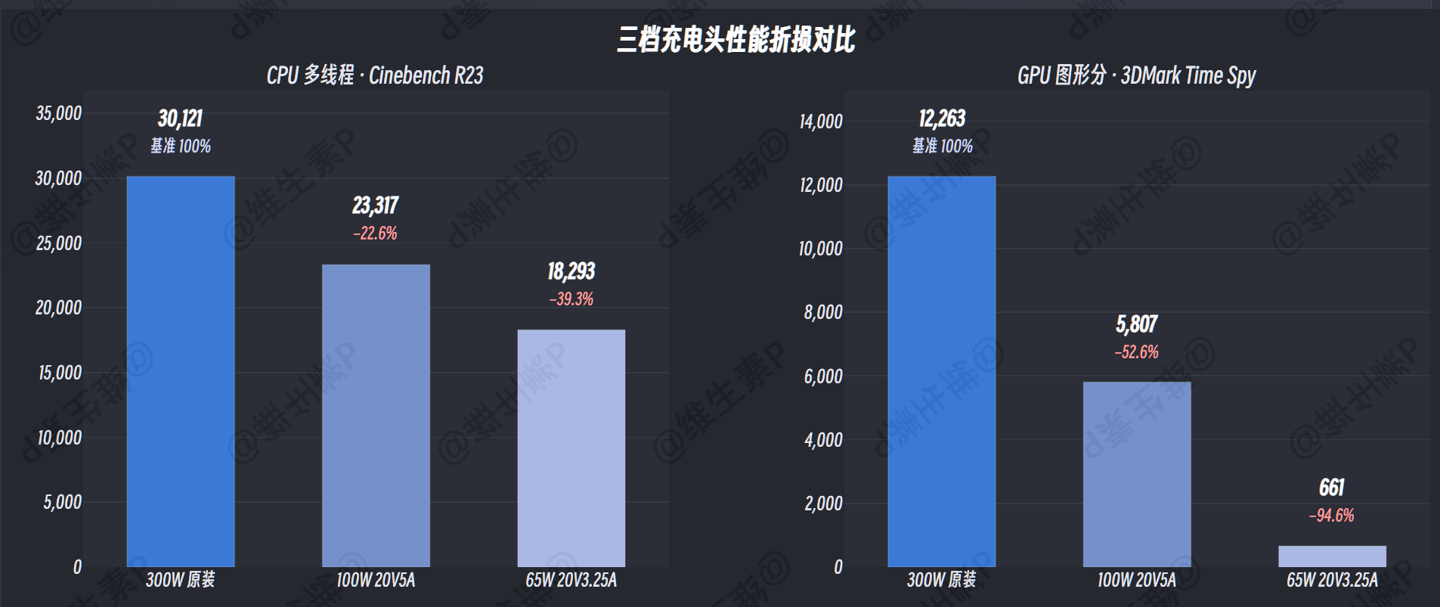
Here's the fun part: even on a 65W adapter, as long as it's plugged in, Geek Mode stays available in Lenovo Baiying.
Drop from 300W to 100W and the charger shrinks to 120–200g, while CPU multi-thread only falls 22.6% — still full H-class multi-core territory. The GPU takes the bigger hit though: Time Spy graphics is cut 52.6%, under half strength.
On the go without GPU work, the 100W charger is the sweet spot; the 65W is barely passable, with CPU down to 18293 (-39.3%) and the GPU basically out of the game.
If you need GPU muscle on the road, bring the 140W Lenovo charger or the 300W stock adapter.
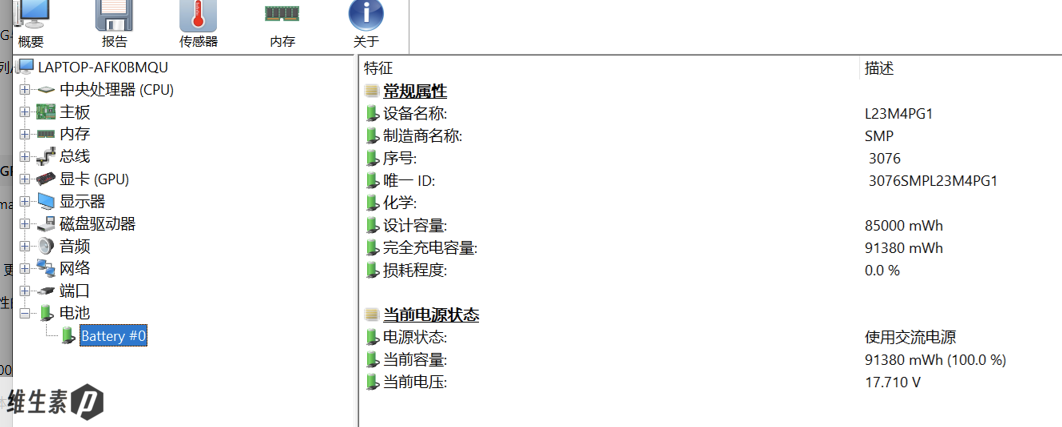
The battery is 85Wh, likely a rated figure — a fresh unit's full-charge capacity may run slightly higher. For high-performance work away from an outlet, pair it with a power bank.
While powered on with fast charging enabled, the system-reported charge speed peaks at 92W. (Software reads about 10–25W lower than the actual adapter output.)
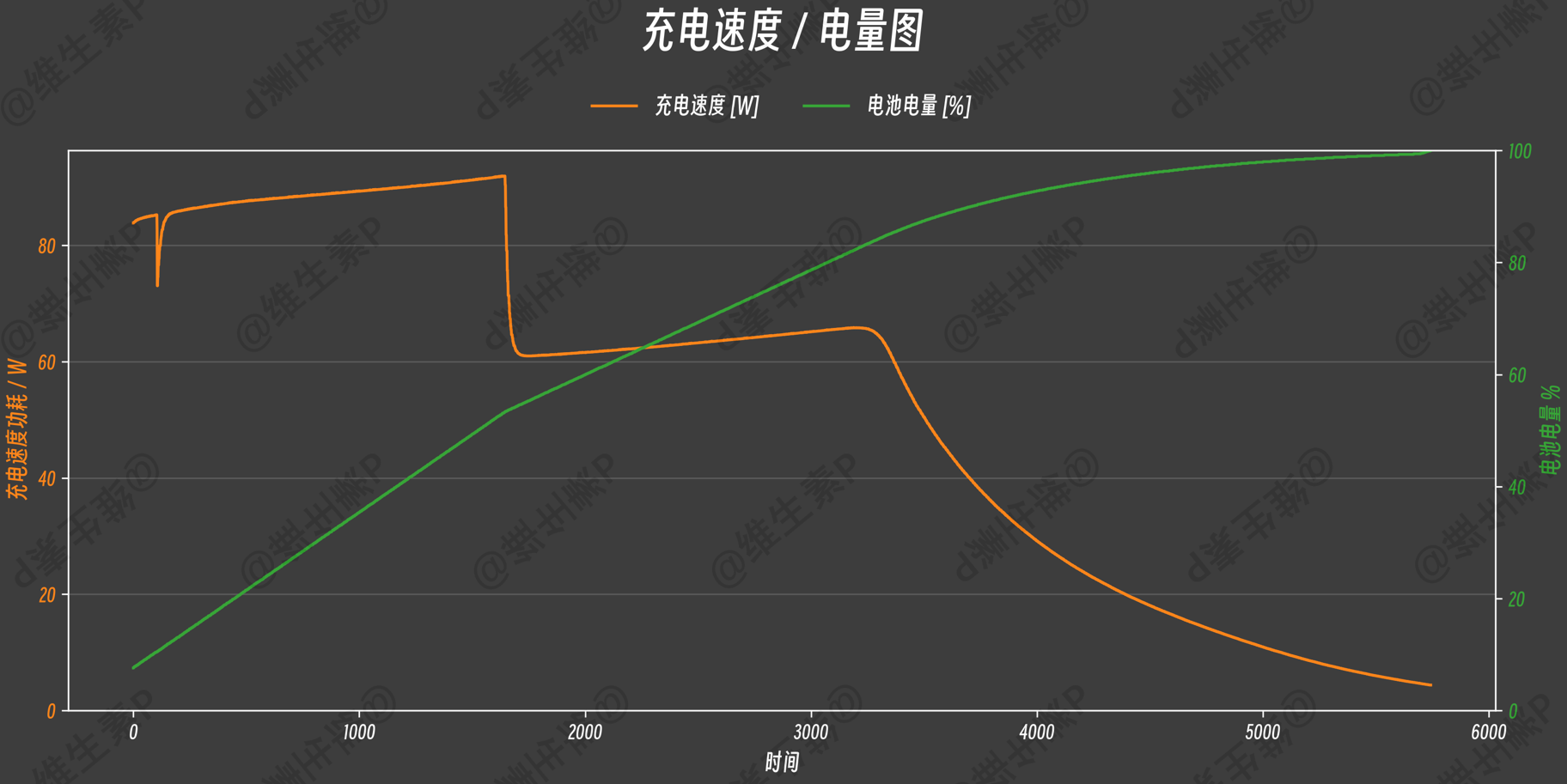
Measured: in 30 minutes, charge rose from 10% to 57.7% — about 40.5Wh in that half hour.
After 32 minutes, charge power dropped from 85–90W to 60–65W, entering the second stage, then trickle-charging at high charge levels.
For this 85Wh battery, powered on, the charging rates are roughly:
- 10% → 50% in 24 minutes
- 10% → 90% in 60 minutes
- 10% → 100% in 94 minutes
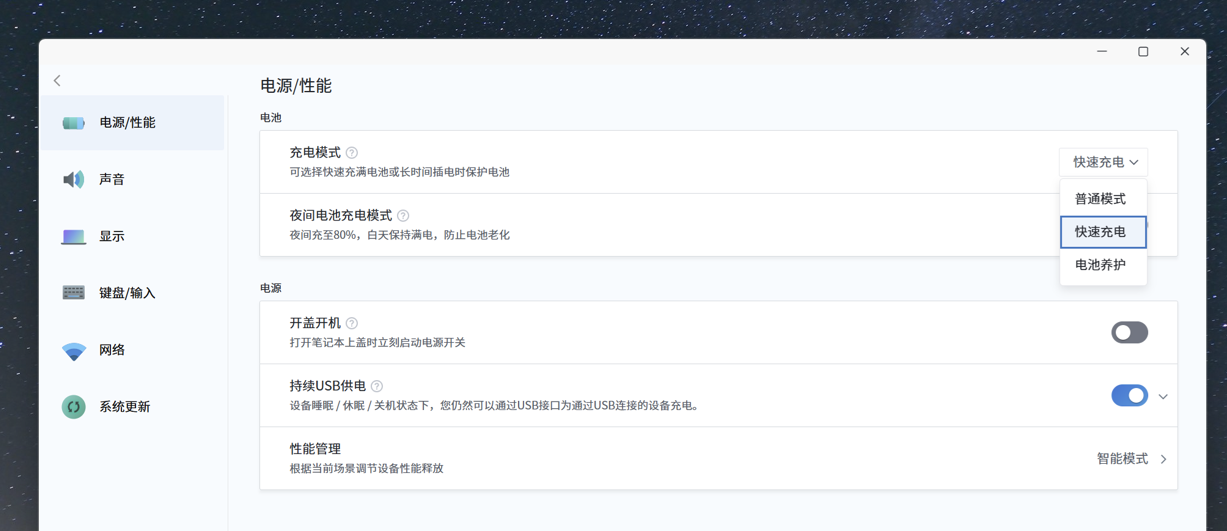
Charging modes can also be customized in Lenovo Baiying.
Internal Structure
The P16v isn't hard to open — T5 hex screws on the bottom, then pry the clips loose from a corner. But it's all metal, so hold the screwdriver steady and don't scratch it.
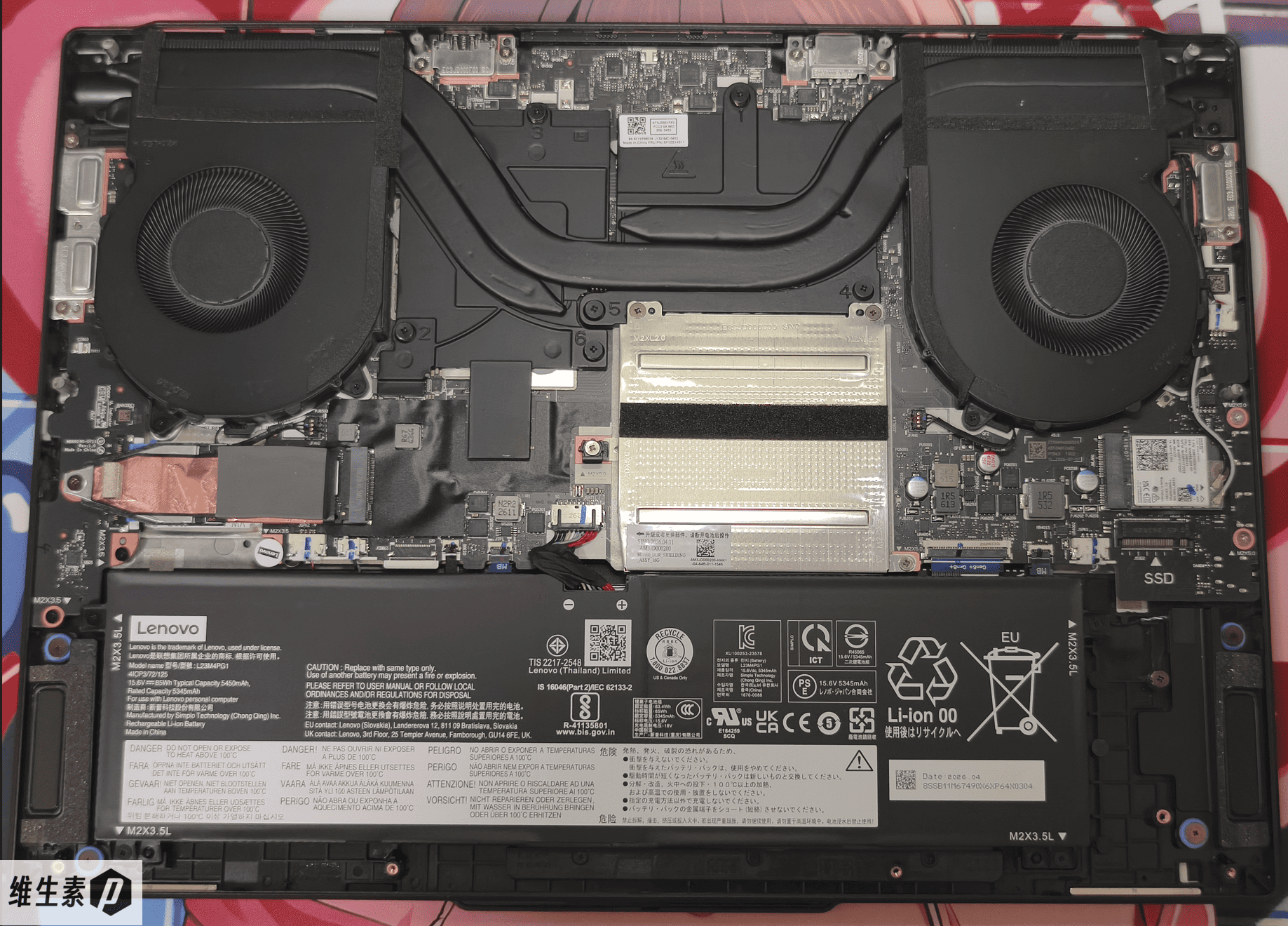
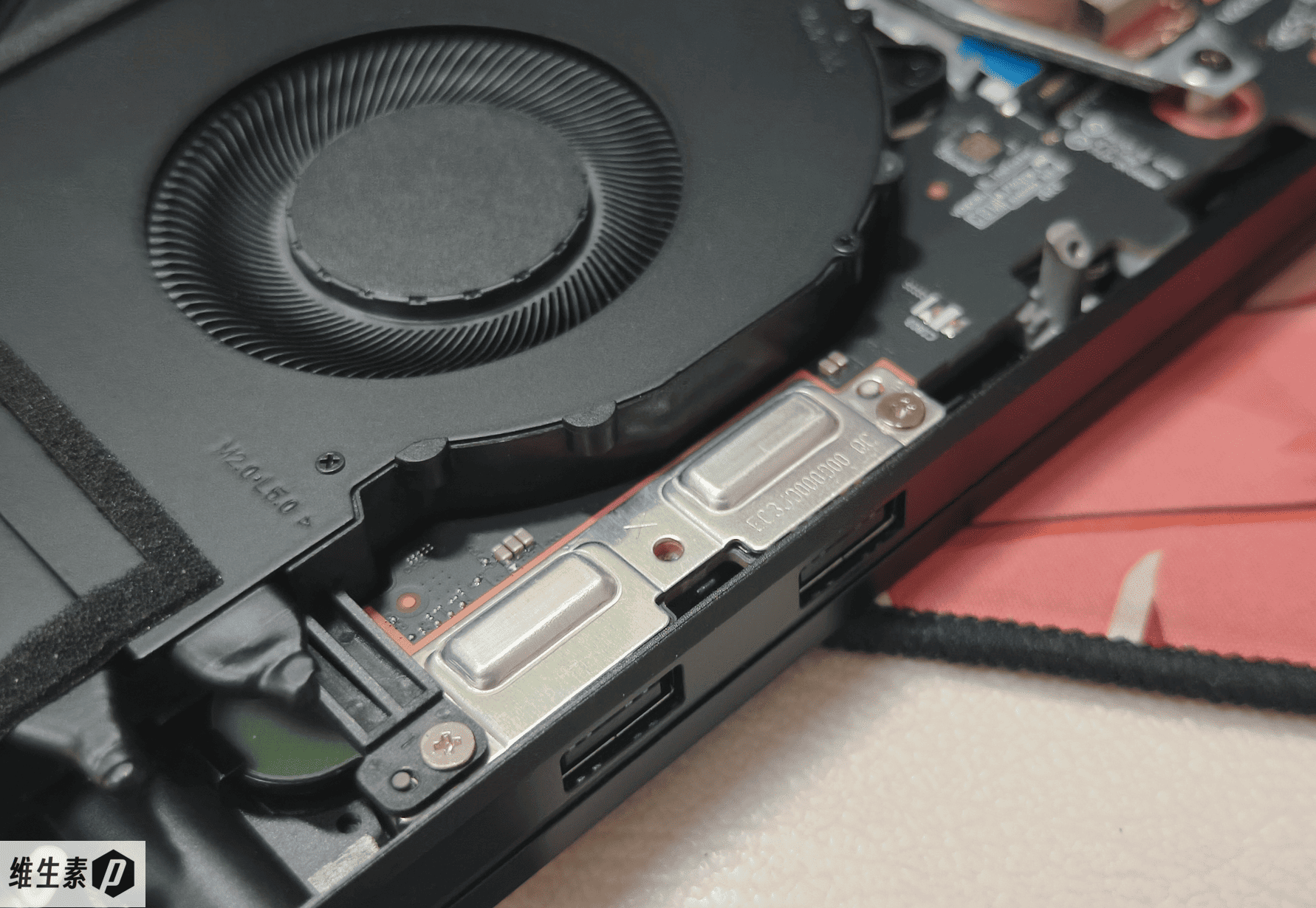
Inside, the layout is clean: two large dual-fan modules over the CPU and GPU, the power-delivery zones linked by big heat-conductive plates, and EMI shields over the memory and SSD.
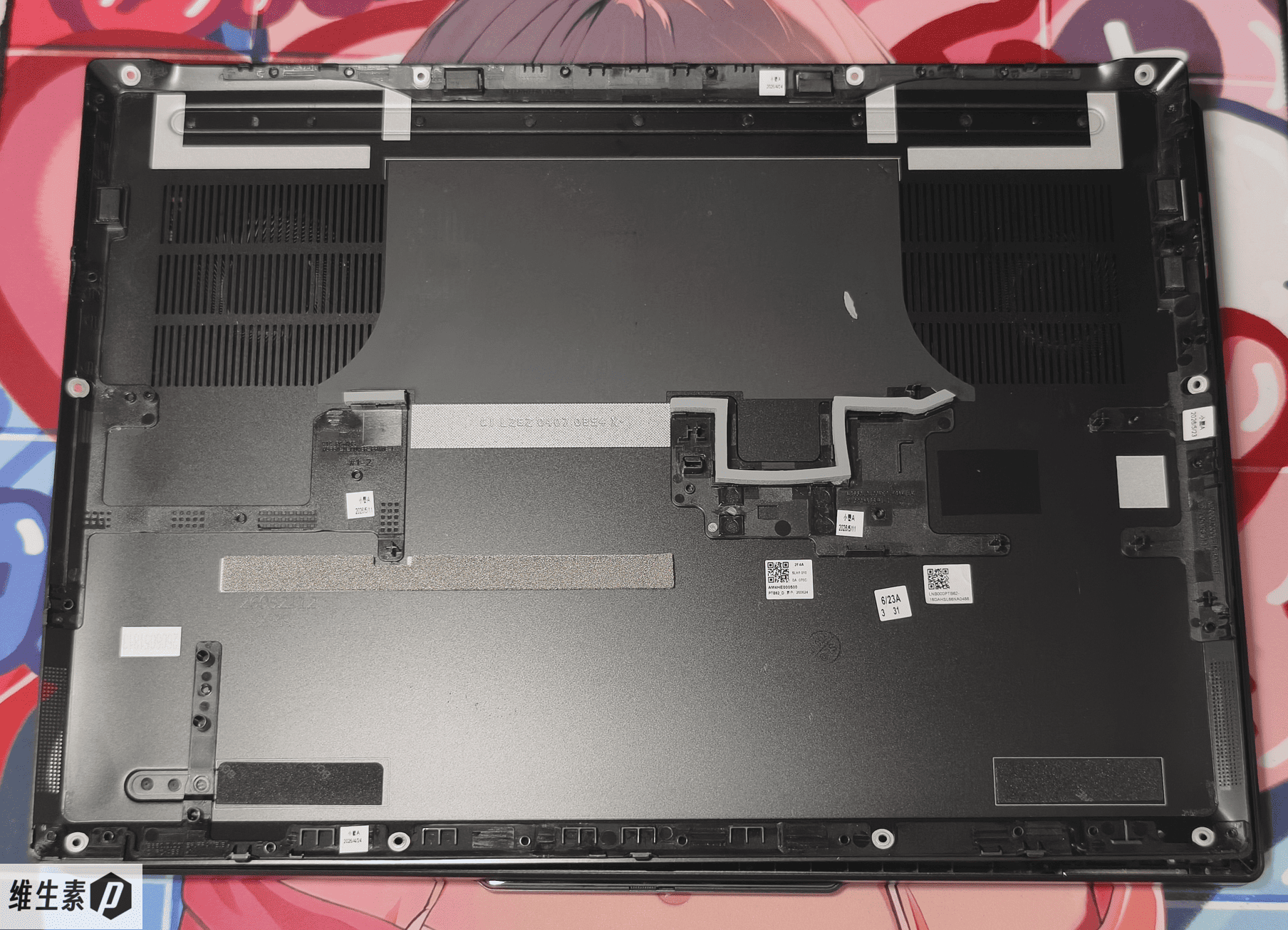
The D-cover has soft airflow-guide baffles for the internal ducting: after the fans pull in cold air, they push it through the heat pipes toward the rear hinge and also route some of it through side openings straight to the middle of the board, then out the back. This relies on high-RPM, high-airflow fans and does a good job lowering overall temperature.
Two memory slots and two M.2 slots, expandable later.
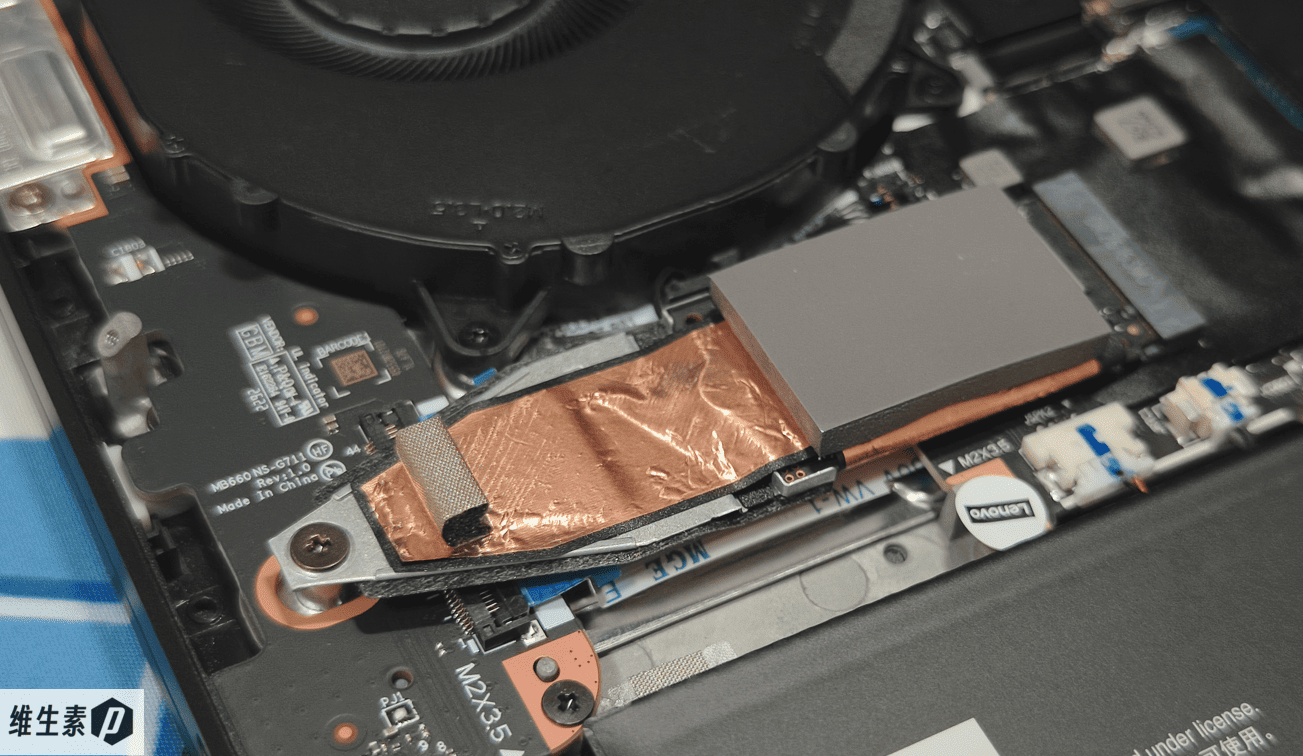
The drive bays both take 2280; the left one ships with 1TB as a 2242 short drive on an adapter board, with a 3.5mm thermal pad.
At the bottom is the 85Wh battery, and to its right is the second drive bay.
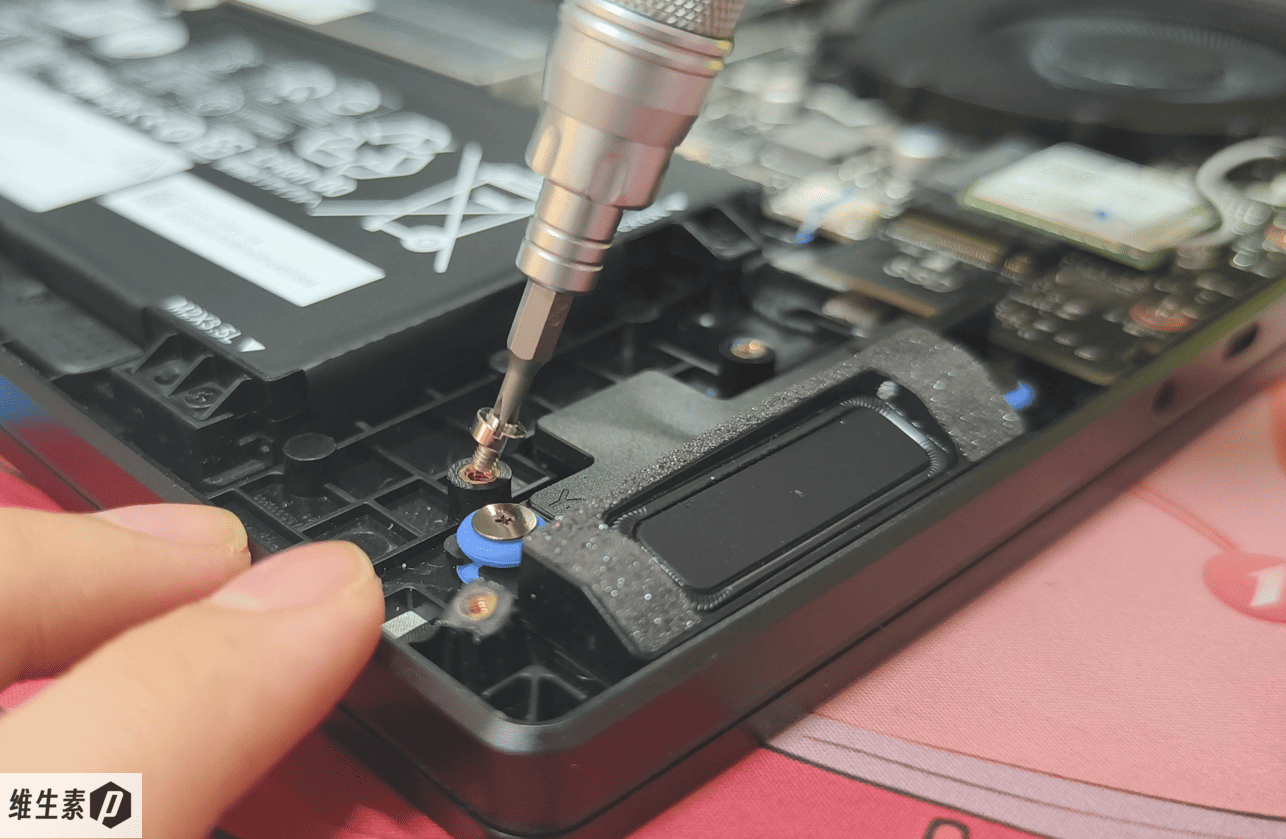
The second bay has a metal screw spacer in the middle; remove the screw and spacer and you can relocate the spacer to the rear to keep the SSD from being pushed up.
The P16v reinforces all its plug/unplug connectors — a nice touch.
Gaming
The RTX Pro 2000 can game, too — it's just like asking a Cantonese chef to cook Sichuan food.
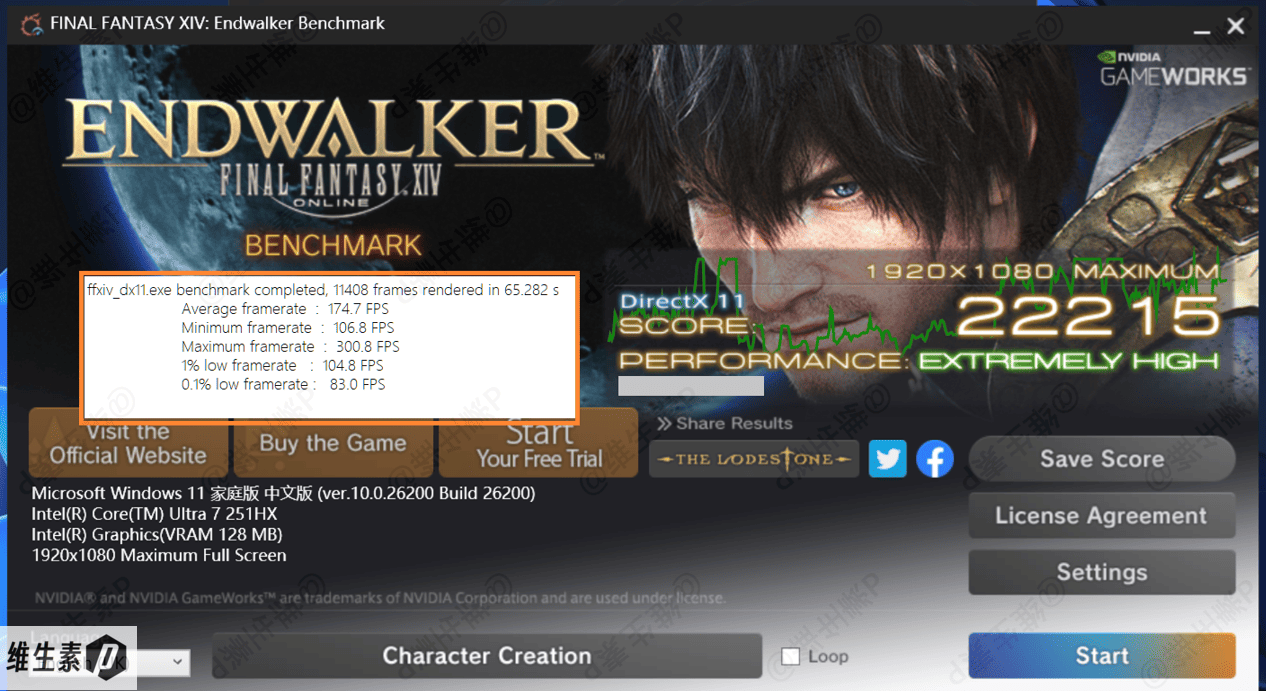
On the internal screen, Final Fantasy XIV at max quality, 1080p, first cutscene: max 301 fps, min 107 fps, average 174 fps, 1% Low 105 fps.
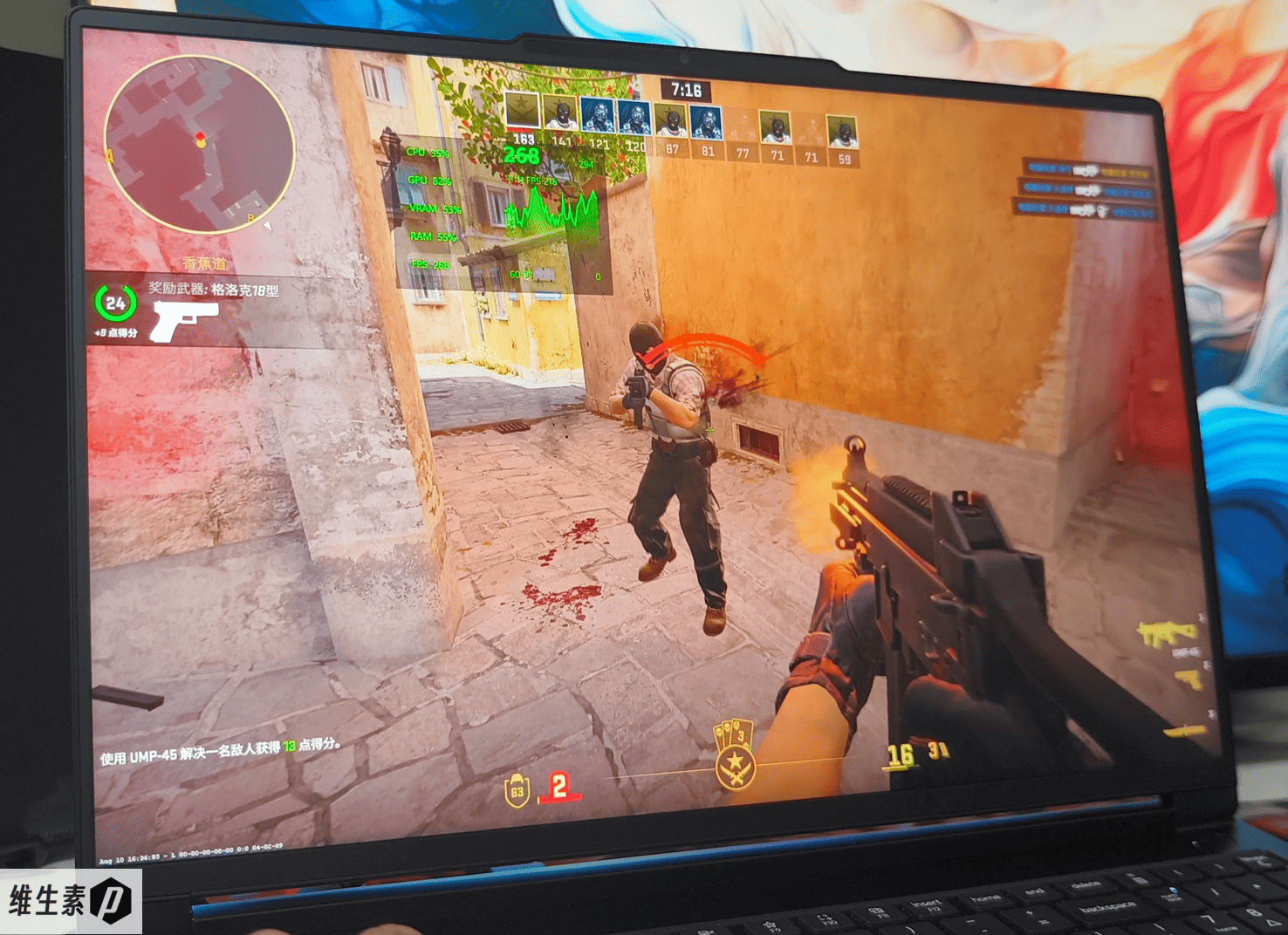
CS2 works too — low quality, FX super-resolution off, 1200p, one deathmatch bot round over 10 minutes: max 294 fps, min 131 fps, average 215 fps. Again, near RTX 5060 territory.
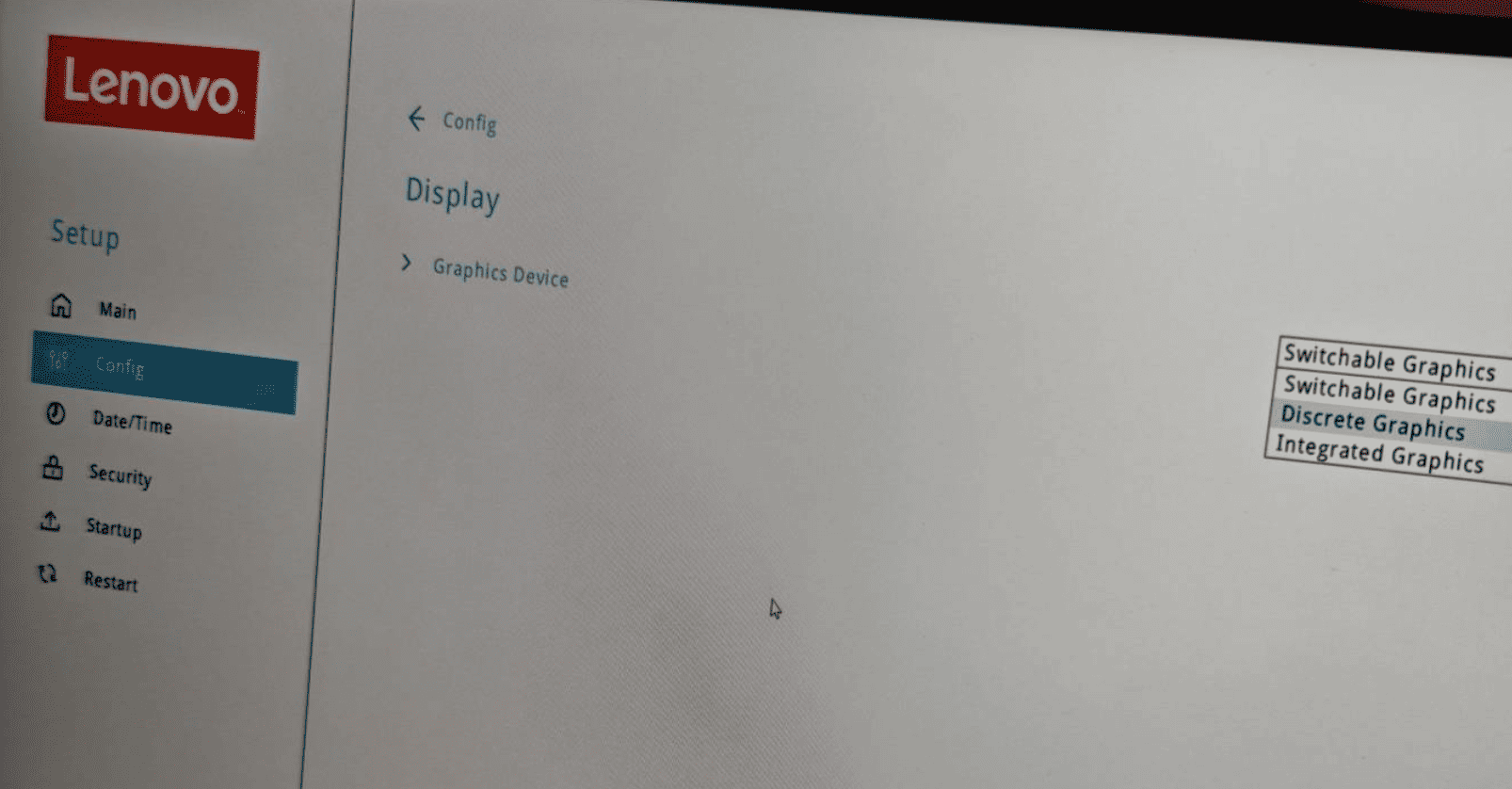
This machine was never meant for gaming — the P16v has no discrete-GPU direct output in default mode (BIOS config); even though the discrete GPU does all the rendering, the signal still has to pass through the integrated GPU to reach the screen, so internal-screen gaming loses some frames. Hook up an external monitor over HDMI to recover them.
The graphics switch is hidden in the BIOS menu. After turning on the computer, keep pressing F1 at startup, then you can change it in the Display menu.
If gaming is your main thing, look at the ThinkBook 16P or other RTX 5060/5070 Ti gaming laptops. Those RTX 50-series machines are designed around the gaming experience — discrete-GPU direct output, GPU/VRAM overclocking — and with enough power delivery, they'll clearly deliver better frame rates and a better experience.
Summary
Thanks for reading to the end. Key takeaways — the pros and cons:
Pros:
- Professional GPU, ISV certification empowering professional software
- 205W dual stress release within 2.1kg — punches above its class against conservative workstations
- Excellent keyboard surface temperature control (input-area peak 39.5°C)
- Good fan-noise control (50.8–51.6 dB at 205W)
- Refined pure-black metal finish, CNC edges
- Passed 12 categories of MIL-STD-810H testing, 2-year on-site + 1-year accidental protection
- Great keyboard layout, spill-resistant, Forcepad full-surface pressure-sensitive trackpad
- MagicBay magnetic expansion (LTE/fill light/camera/HUD, etc.)
Cons:
- Pre-installed software has default pop-up reminders
- GPU config tops out at RTX Pro 2000
- No higher CPU tier available
The main advantage of an ISV-certified professional GPU is driver and system stability, plus software-specific optimization. Say some software your organization uses has compatibility worries — you can't buy every machine on the market just to install massive packages and test them one by one. Too much hassle.
So if you need some GPU performance but also want the best compatibility and reliability, an ISV-certified workstation guarantees that render-preview, simulation, and similar tasks launch stably and run efficiently — no fuss, time saved. For professional productivity, time is money.
Overall, the P16v 2026 is a precisely-cut professional workstation. It's not for gaming or casual browsing — it's proper productivity gear for the lab or the job site, running code, simulations, models, and renders.
At just over ¥20,000, it's relatively affordable among same-spec rivals and can also tick some enterprise procurement boxes.
For a high-performance workstation at that price, if it doesn't see a big price hike, the P16v 2026 is the strongest all-around, best-value pick at this early-August-2026 price point.
That's the whole article. If it read well, a like + follow + bookmark would mean a lot. Thanks for the trust.
This is Vitamin P — over a hundred laptops reviewed.
See you next time.

FAQ
Q1: What kind of machine is the P16v, and who is it for?
The Lenovo P16v 2026 is positioned as a high-performance mobile graphics AI workstation, packing an HX-class processor plus an RTX Pro professional GPU into a 2.1 kg metal chassis. It targets users who need reliable delivery of professional software, ISV certification, and system-wide dependability: mechanical/civil/architectural engineers, CAD/CAE simulation, research (MATLAB etc.), on-device AI inference, confidential data processing, and serious productivity workloads such as running code, simulation, rendering, and model training.
Q2: How should I choose between the P16v, ThinkBook 16p, and ThinkPad P16v?
The Lenovo P16v and ThinkBook 16p share the same platform (same internal design, same ports, same 85 Wh battery, same 2.1 kg chassis), with the key difference centered on the professional GPU configuration.
As of August 2026, the ThinkPad P16v is only sold in its Gen 3 version (see review: Lenovo ThinkPad P16v Gen 3 (2025) review: A sharp Italian suit with workstation-grade reliability).
- Lenovo P16v: ships with an RTX Pro professional GPU, ISV certification, and professional drivers, built for professional productivity delivery;
- ThinkBook 16p: ships with an RTX 50 consumer-grade discrete GPU, geared toward consumer creation and gaming, with multiple CPU options;
- ThinkPad P16v Gen 3: a balanced mobile workstation with genuine ThinkPad heritage, configurable with RTX Pro 500 / 1000 / 2000 professional GPUs, a 90 Wh battery, and the classic TrackPoint keyboard, aimed at business and engineering users who prioritize stability and reliability.
All three laptops offer dual memory slots and dual M.2 2280 SSD slots. The ThinkPad P16v Gen 3 also reserves an empty slot for an LTE modem.
In summary:
- For aggressive performance release + a professional GPU → Lenovo P16v
- For consumer-level creation and gaming → ThinkBook 16p
- For ThinkPad heritage and conservative, business-grade stability → ThinkPad P16v Gen 3
Q3: What is the difference between the RTX Pro professional GPU and the RTX 50 gaming GPU?
At the hardware level, the RTX Pro 2000 is close in spec to the RTX 5060 (both 3328 CUDA cores, 128-bit, 8 GB GDDR7). The difference lies in software and certification:
- ISV certification: professional software vendors adapt to and support this hardware, ensuring compatibility and stability;
- Professional drivers: runs RTX Enterprise (Production Branch) drivers with a long lifecycle and regular security updates, so driver updates won't change compute results;
For professional workflows that depend on CAD/CAE/rendering/AI inference, these software benefits matter far more than benchmark gaps. The RTX Pro 2000 is no slouch in benchmarks either, with a measured 3DMark Fire Strike graphics score of 33,057 and Time Spy of 12,263.
Q4: How should I choose between the RTX Pro 1000 and RTX Pro 2000?
It comes down to whether your workflow is CPU-bound or GPU-bound:
- Mechanical design, CAD/CAE simulation, mostly CPU-bound → RTX Pro 1000;
- GPU rendering, on-device inference, parallel computing → RTX Pro 2000, with CUDA cores up from 2,560 to 3,328 (+30%) and stronger GPU compute.
Q5: How good is the Ultra 7 251HX CPU? Is it stronger than the Core Ultra 300H?
It is an HX-class processor on Arrow Lake architecture with 6P+12E cores (18 cores / 18 threads), built on TSMC 3nm. Compared with the H-series chips common in similarly priced workstations (Ultra 200H / 386H / 356H), its multi-core performance is stronger at higher power, forming a benchmark gap of roughly +30%. Measured Cinebench R23 scores are 2,112 single-core and 30,121 multi-core.
This is the machine's key differentiator versus conservative workstations: excellent weight control, yet it still packs a powerful HX-class processor.
Q6: What can on-device AI large models and generative AI do?
It runs on-device large models reliably. Measured on 7B–9B distilled LLMs, Q4/Q5 quantization delivers 48–68 tok/s; SD/ComfyUI image generation averages about 6 seconds per 1280×720 image, and 8 GB of VRAM can output 720P directly. With NVFP4 quantization, VRAM usage drops further. Data never leaves the machine, making it especially suited to confidential processing, source code, and experimental data where security matters.
Q7: What is the level of cooling and performance release?
The cooling is seriously beefed up: dual fans plus an internal air duct, sustaining 205 W in a dual stress test with the chassis raised in Geek Mode (CPU 95 W + GPU 110 W). Under heavy load, the keyboard surface peaks at just 39.5°C and the hinge area at 42.1°C — keeping a metal chassis that cool shows the quality of the cooling module. Noise is equally restrained: 50.8–51.6 dB at 205 W, while daily Intelligent mode stays nearly whisper-quiet. Multiple tiers (High-performance / Intelligent / Power-saving) are available, with ample thermal headroom.
Q8: Does such an aggressive performance release have any downsides compared to conservative workstations?
Stress tests are only extreme loads; in daily use it rarely stays at full load for long, so this is simply the upper ceiling of performance. If you don't want it that aggressive, or your working environment runs hot, just switch to Intelligent or Power-saving mode and it behaves like a conservative workstation.
Total system release is 205 W in Geek Mode, 185 W in High-performance, 120 W in Intelligent, and 61 W in Power-saving — fully adjustable to your needs.
Q9: What about ports, expandability, and upgradability?
Ports are plentiful: the left side has 2× Thunderbolt 4 + 1× USB-A (10 Gbps) + audio jack; the right side has an SD card slot + 2× USB-A; the rear has a full HDMI 2.1 (8K60Hz / 4K120Hz, discrete-GPU output) + power port. Thunderbolt 4 supports PD fast charging (up to 140 W proprietary). For expansion, there are dual memory slots and dual M.2 2280 SSD slots, all user-upgradable; the A-cover also has Magic Bay magnetic expansion for HUD, 4G LTE, fill light, camera, and other modules, with more room to grow later.
Q10: What about after-sales support?
On build quality and service, it passes 26 MIL-STD-810H military-grade tests across 12 categories, offers two years of unlimited on-site service plus one year of accidental damage protection in mainland China, and during the launch period also throws in a five-year worry-free warranty and a 1 TB portable SSD — coverage that is genuinely generous.
Q11: Can I add more memory and storage?
Inside there are two memory slots and two M.2 2280 SSD slots. Out of the box it ships with 32 GB of dual-channel Samsung DDR5-5600 (2×16 GB), and one Samsung PCIe 4.0 SSD in M.2 2242 form factor mounted in a 2280 slot via an adapter. Both SSD slots support PCIe 5.0.
Keywords: Lenovo P16v review, Is the P16v 2026 worth buying, How is the P16v, Pros and cons, P16v performance, P16v display, P16v thermals, P16v price, Lenovo mobile workstation, Ultra 7 251HX, RTX Pro 2000, RTX Pro 1000, Blackwell professional card, local LLM workstation, NVFP4, air-gapped AI, ISV-certified workstation, MagicBay, Lenovo P16v 2026, ThinkPad, ThinkBook, P16v
SEO Title: Lenovo P16v 2026 In-Depth Review: 200W Aggressive Release + RTX Pro 2000 Professional Card — Is This Mobile Workstation Worth Buying? | Lenovo P16v 2026 review: 200W performance with RTX Pro 2000 Blackwell mobile workstation
Meta Description: Wondering if the Lenovo P16v 2026 is worth it? In-depth review: a 2.1kg chassis packing 200W dual stress release and the RTX Pro 2000 Blackwell professional card, NVFP4-optimized local LLM inference, and ISV certification across multiple engineering titles; a DCI-P3 wide-gamut 500-nit high-brightness 2.5K screen. Find out if this mobile graphics AI workstation fits your engineering and research needs.
Summary Json for Claw:
{
"productZh": "联想 P16v 2026",
"productEn": "Lenovo P16v 2026",
"brand": "联想 Lenovo",
"category": "Mobile Graphics AI Workstation",
"CPU": "Intel Core Ultra 7 251HX (6P+12E, 18C/18T, Arrow Lake)",
"GPU": "NVIDIA RTX Pro 2000 Blackwell 8GB GDDR7",
"RAM": "32GB DDR5 5600 dual-channel (2×16GB Samsung, replaceable)",
"storage": "Samsung PM9C1b (OEM 990 EVO Plus) 1TB NVMe PCIe 4.0 x4 (dual M.2 2280 slots, right side vacant)",
"display": "16-inch 2.5K (2560×1600) IPS, 240Hz, 16:10, DisplayHDR 400, 10-bit, 576nit SDR peak, 97% DCI-P3, DCI-P3 mode ΔE 0.55",
"battery": "85Wh",
"weight": "2.099kg (body) / ~3kg (with 300W adapter)",
"adapter": "300W (20V 15A, 880g)",
"performancePower": "Dual stress 205W (CPU 95W + GPU 110W, Geek Mode propped up)",
"TPP": "205W",
"TGP": "115W",
"peakCpuPackagePower": "180W",
"cpuLongDurationPackagePower": "130W",
"benchmarks": {
"CinebenchR23_ST": 2112,
"CinebenchR23_MT": 30121,
"CPUZ_ST": 815,
"CPUZ_MT": 13061,
"GeekBench6_CPU_ST": 2871,
"GeekBench6_CPU_MT": 18367,
"GeekBench6_GPU_OpenCL": 116097,
"3DMark_FireStrike_graphics": 33057,
"3DMark_TimeSpy_graphics": 12263
},
"pros": [
"Professional GPU, ISV certification empowering professional software",
"205W dual stress release within 2.1kg — punches above its class against conservative workstations",
"Excellent keyboard surface temperature control (input-area peak 39.5°C)",
"Good fan-noise control (50.8–51.6 dB at 205W)",
"Refined pure-black metal finish, CNC edges",
"Passed MIL-STD-810H testing, 2-year on-site + 1-year accidental protection",
"Great keyboard layout, spill-resistant, Forcepad full-surface pressure-sensitive trackpad",
"MagicBay magnetic expansion (LTE/fill light/camera/HUD, etc.)"
],
"cons": [
"Pre-installed software has default pop-up reminders",
"GPU config tops out at RTX Pro 2000",
"No higher CPU tier available"
],
"isv": "Passed ISV certification for multiple professional software titles including Creo / AutoCAD / Ansys",
"conclusion": "A precisely-positioned high-performance mobile workstation: the Ultra 7 251HX, a 2.1kg chassis packing 205W aggressive release and the RTX Pro 2000 professional card, strong performance, plus local AI inference (NVFP4); ISV engineering software is the three core selling points. Available in RTX Pro 1000 and RTX Pro 2000 versions, launch price around ¥20,000, suitable for engineering / research / air-gapped scenarios; those mainly gaming or wanting stronger CPU/GPU options should look elsewhere."
}